
Switching Between Android and iPhone: A Complete Data Transfer Guide
Move your photos, contacts, WhatsApp chats and other important data between Android and iPhone. Learn what transfers, what needs manual setup and what to check before erasing your old phone.
Quick Answer
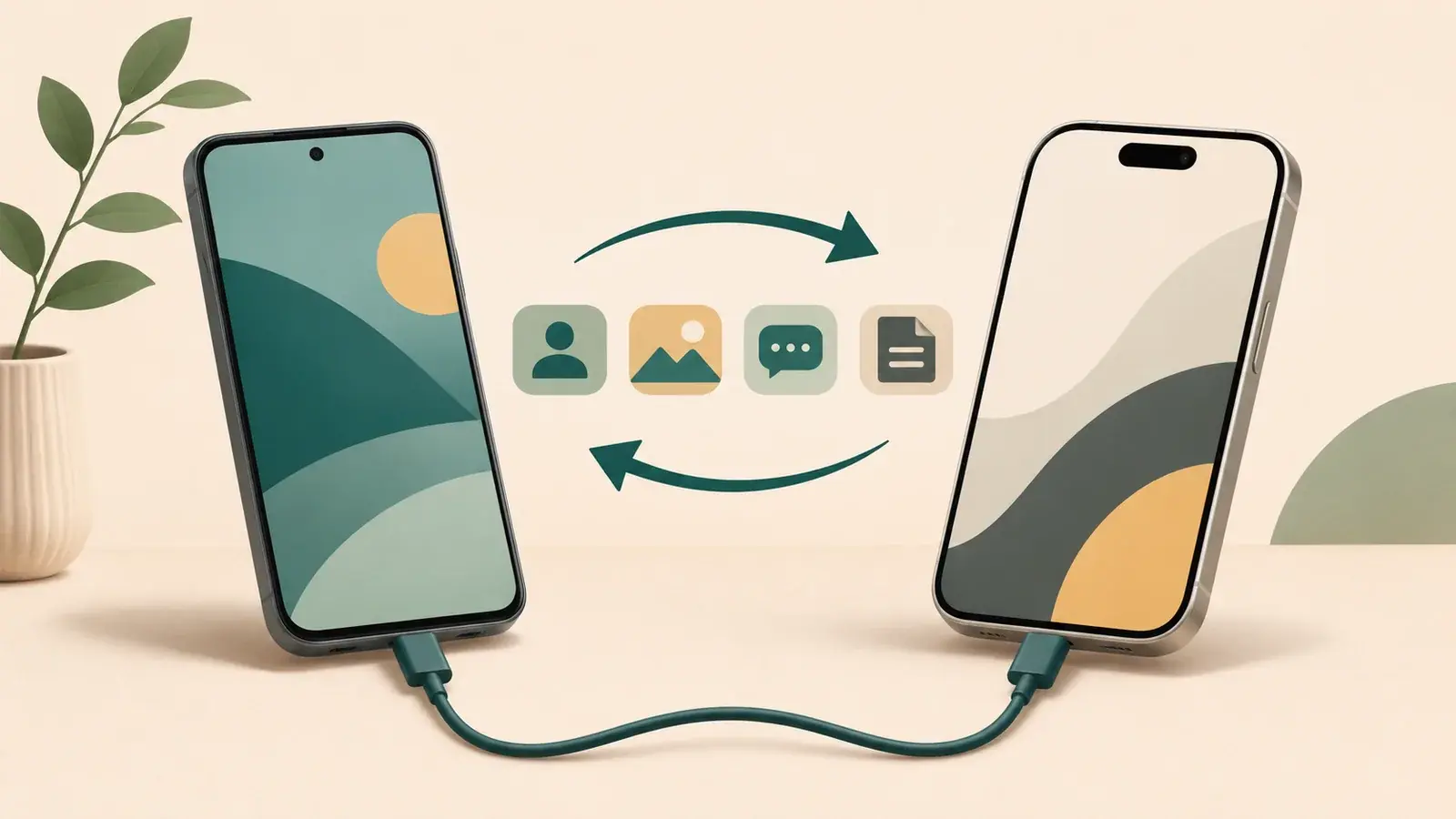
Switching between Android and iPhone is easier if you transfer your data during the new phone's initial setup. Use the official migration tools, keep your old phone available and do not erase it until your important accounts and data work on the new one.
| Switching direction | Recommended method |
|---|---|
| Android to iPhone | Apple's Move to iOS app |
| iPhone to Android | Android's built-in setup transfer, preferably with a data cable |
| iPhone to Samsung Galaxy | Samsung Smart Switch |
Some newer devices offer additional direct or wireless transfer options. Check the setup prompts and manufacturer documentation for your exact models. If WhatsApp matters, confirm that your chosen method supports chat migration before starting.
1. Before you switch
- Update both phones and their important apps. Charge both devices and connect to reliable Wi-Fi.
- Back up the old phone and separately save irreplaceable files.
- Check that the new phone has enough free storage. Cloud-only photos may require a separate transfer.
- Keep your Google or Apple Account passwords, screen PINs and recovery methods ready.
- Keep access to your existing mobile number. Obtain a compatible data cable or adapter.
If the new phone is already configured, check whether it supports migration after setup. A factory reset may be necessary for a full transfer; back up any new data before resetting it.
2. Android to iPhone
- Install Move to iOS on your Android phone.
- Start setting up the iPhone and choose From Android on the apps and data transfer screen.
- Pair the phones using the displayed code. Follow the wireless connection instructions or use a compatible cable if supported.
- Select the content you need, including WhatsApp if offered.
- Leave both phones connected until the progress indicator on the iPhone finishes. Complete setup and download any remaining apps from the App Store.
Apple supports app-free migration during setup on compatible devices running iOS 26.5 or later and Android 17 or later. Follow the official compatibility instructions if this option appears; do not assume it transfers every data type.
3. iPhone to Android
- Turn off iMessage and FaceTime on the old iPhone to help prevent messaging problems after switching.
- Start the new Android phone, choose to copy from an iPhone and sign in to your Google Account when prompted.
- Connect the phones with a compatible USB-C or Lightning data cable and adapter if needed. Unlock the iPhone and approve the connection.
- Select the data and apps to copy. Follow any WhatsApp-specific prompts.
- Finish setup, then check the copied content and install missing apps.
If you prefer wireless transfer, Android Switch is available on supported devices, but older wireless methods copy fewer types of data. For a Galaxy phone, follow Samsung Smart Switch. If texts stop arriving, deregister iMessage.
4. What transfers — and what needs attention
| Data | What to expect |
|---|---|
| Contacts and calendars | Usually copied or synced through accounts. |
| Photos and videos | Local media generally transfers; check cloud-only items. |
| Messages and call history | Depends on the transfer method and device. |
| Apps and purchases | Compatible apps may be matched; purchases and local app data may not carry over. |
| Documents, notes and downloads | Check separately for missing or private files. |
| Passwords, passkeys and health data | Do not assume these migrate; check each service. |
Google Photos users can sign in on either platform. For photos stored only in iCloud, Apple offers a copy-to-Google-Photos service, subject to eligibility and limitations.
5. Transfer WhatsApp chats correctly
Android to iPhone: Select WhatsApp in Move to iOS during setup. Follow its export prompts, then install WhatsApp on the iPhone, verify the same number and complete the import when prompted.
iPhone to Android: Follow the Android setup or Smart Switch WhatsApp instructions. Keep a cable ready, scan the migration QR code when requested and finish copying before activating WhatsApp on the new phone.
Google Drive and iCloud WhatsApp backups are not interchangeable. Do not rely on a normal cloud restore to switch platforms, and do not expect old and newly created chats to merge. If changing numbers, use WhatsApp's Change Number feature on the old phone first.
WhatsApp migration help · Google's iPhone-to-Android WhatsApp instructions
6. Reconfigure security, SIM and payment apps
| Item | What to do |
|---|---|
| SIM/eSIM | Activate your number using supported device or carrier instructions. Test calls and SMS. |
| Banking and UPI | Install official apps again and complete registration or device verification. Use your bank-linked SIM with outgoing SMS enabled. |
| Google Authenticator | Sync with your Google Account or use its built-in code transfer feature. |
| Microsoft Authenticator | Re-register accounts: its backup restoration does not work across Android and iOS. |
| Other 2FA and passkeys | Set up a working alternative or new credential before removing the old one. |
Also check paid subscriptions, password managers, wearable compatibility and work profiles. Ask your workplace IT team about managed accounts.
7. Before erasing the old phone
- Open important photos, documents and WhatsApp conversations on the new phone.
- Test calls, SMS, email, banking and two-factor authentication.
- Back up the new phone using its own platform's backup service.
- If selling an iPhone, unpair its Apple Watch if applicable and follow Apple's sign-out and erase instructions. For Android, remove device accounts before factory resetting through Settings.
- Remove any physical SIM and memory card. Confirm eSIM service works on the new phone before deleting the old profile.
Final recommendation: Prefer official migration tools over third-party utilities that request access to private messages or credentials. Keep the old phone intact until you have checked everything important.
Sources and useful links
Transfer options vary by device, software version and carrier.
- Apple — Move from Android to iPhone and manual content transfer
- Google — Copy iPhone data to Android
- Samsung India — Smart Switch
- Google Authenticator — verification codes and Microsoft Authenticator — recovery
- Google Pay India — bank account verification
- Apple — prepare an iPhone for resale and Google — reset an old Android device
Related reading: 128 GB vs 256 GB Smartphone Storage: How Much Do You Actually Need?