
How to Set Up a Smartphone for Parents and Senior Citizens
Make an Android phone or iPhone easier and safer for older adults with accessible settings, essential apps, emergency contacts, backups and scam protection.
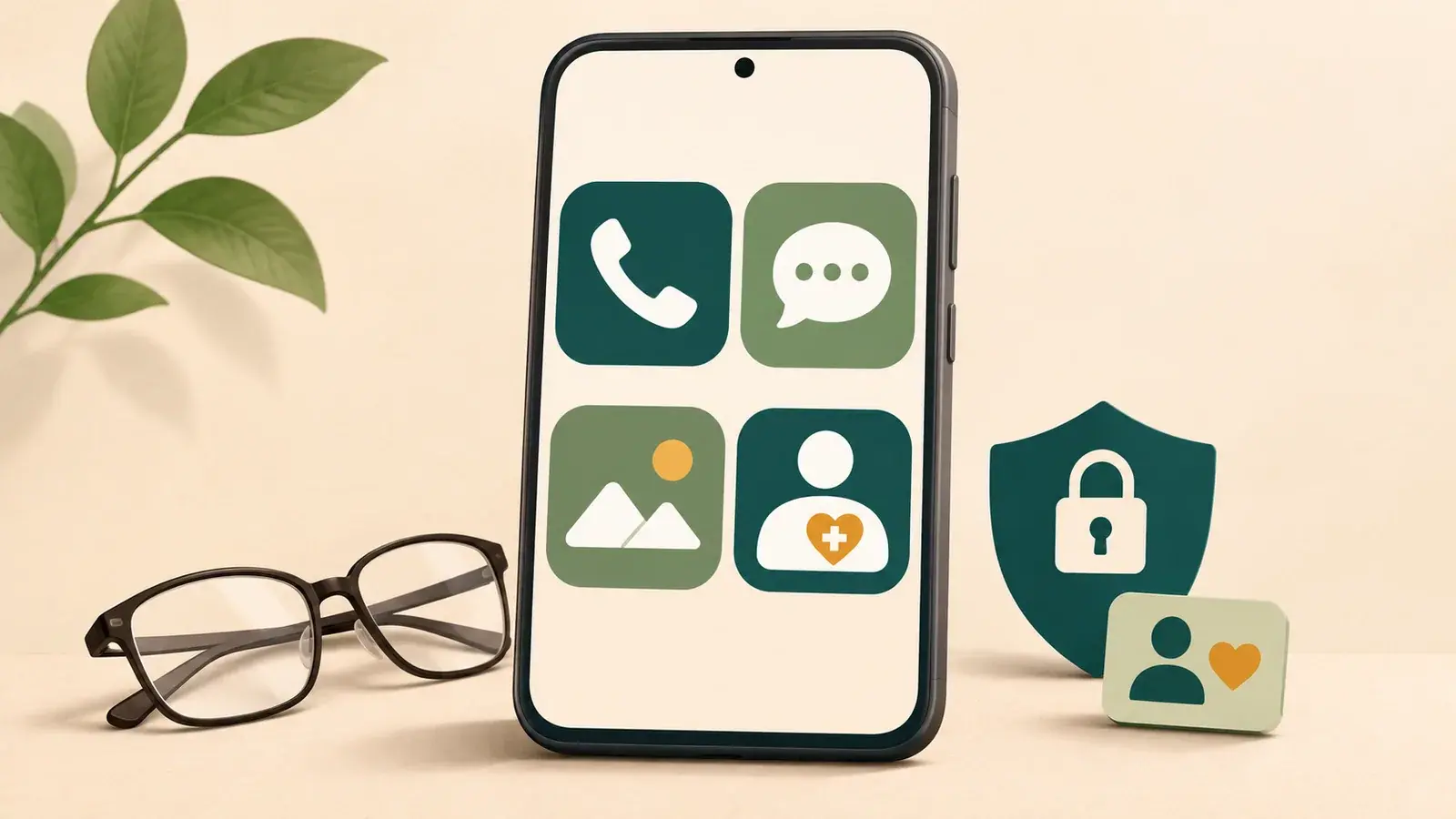
Quick Answer
Make the phone easy to read, easy to navigate and secure. Start with larger text, a simple home screen, favourite contacts, a secure screen lock and emergency information. Then enable backups, updates and spam protection.
| Priority | Recommended setup |
|---|---|
| Readability | Larger text, comfortable brightness and clear contrast |
| Navigation | One main home screen with frequently used apps |
| Communication | Favourite contacts, audible ringtone and video calls |
| Safety | Emergency contacts, medical information and SOS |
| Security | PIN, biometrics, updates and scam awareness |
| Recovery | Automatic backups and lost-device protection |
Set up the phone with its owner, not just for them. Choose settings that match their preferences and abilities rather than assuming everyone needs a simplified interface.
1. Make the screen easier to use
| Feature | Android | iPhone |
|---|---|---|
| Larger text | Accessibility → Display size and text | Accessibility → Display & Text Size → Larger Text |
| Larger interface | Increase display size | Search Settings for Display Zoom |
| Magnification | Accessibility → Magnification | Accessibility → Zoom |
| Screen reader | TalkBack | VoiceOver |
Menu names vary by manufacturer and software version. Use the Settings search bar if necessary.
Increase text gradually until it is comfortable. Check whether messages and banking screens still fit. Adjust contrast, brightness and the ringtone together; try vibration or hearing-aid support if helpful. Choose the owner's preferred language and keyboard.
For someone who finds ordinary menus confusing, supported Samsung Galaxy phones offer Easy mode under Display. On iPhone, Settings → Accessibility → Assistive Access provides a simpler, customizable interface. Use it only if helpful: it changes how some apps and features work. Set up its exit passcode and recovery option securely.
2. Simplify the home screen
Keep frequently used apps together and move rarely used ones off the main screen.
- Phone, Contacts and Messages.
- WhatsApp or the family's preferred video-calling app.
- Camera, Photos, Clock and Maps.
- A trusted banking or UPI app, if the owner wants digital payments.
Add close family members to favourites or use contact shortcuts where supported. Remove unnecessary promotional notifications and apps. Keep bank transaction alerts, important reminders and emergency alerts enabled.
Practise making and answering a call, sending a message, taking a photo and returning to the home screen. Let the owner try each action independently.
3. Configure emergency features
Android: Search Settings for Safety and emergency. Add emergency contacts and relevant medical details. Configure Emergency SOS where supported; its capabilities vary by model and region.
iPhone: Open Health, tap the profile picture and find Medical ID. Add relevant medical information and emergency contacts. Review Emergency SOS in Settings and learn the controls for that model.
With the owner's consent, make essential medical details available on the lock screen. Remember that other people who pick up the phone may also see those details. Do not assume medical information is transmitted automatically to Indian emergency responders.
Save 112 for emergencies in India. Demonstrate the SOS controls without placing a test call to emergency services. Confirm the phone has an active mobile connection.
4. Secure the phone without making it difficult to unlock
- Use the owner's own Google Account or Apple Account, not a shared family login.
- Set a memorable, non-obvious PIN or passcode and add the owner's fingerprint or face recognition where supported.
- Enable automatic system and app updates. Keep Google Play Protect enabled on Android.
- Install apps from official stores and review unnecessary permissions, especially accessibility, SMS, microphone and location access.
- Configure recovery methods and store recovery codes securely away from the phone. The owner should retain access to their account.
Enable Android Find Hub or Apple Find My and verify that the owner can access the recovery account. Share location with a trusted person only by informed agreement, with the ability to stop sharing.
5. Reduce scams and protect digital payments
Turn on caller ID and spam warnings where available. On iPhone, review the options for screening or silencing unknown callers. Avoid silencing every unsaved number if doctors, delivery agents or other legitimate callers need to get through.
Teach these simple rules:
- Never disclose OTPs, banking passwords or UPI PINs to callers, even if they claim to represent a bank or government agency.
- Receiving ordinary UPI payments does not require entering a UPI PIN or scanning a stranger's QR code.
- Do not install apps or share the screen at an unsolicited caller's request.
- Hang up on threatening or urgent calls. Contact the organisation through a known official number.
For suspected financial cyber fraud in India, immediately contact the bank, call 1930 and report the incident at cybercrime.gov.in.
6. Set up backups and check the essentials
Enable Google backup on Android or iCloud Backup on iPhone. Check available cloud storage and the last successful backup. Verify photo and WhatsApp backups separately where needed.
Before finishing, confirm the owner can:
- Unlock the phone and call a favourite contact.
- Read messages and hear incoming calls.
- Find emergency information and understand SOS.
- Recognize suspicious payment requests.
- Charge the phone and know whom to contact for help.
Use a familiar home-screen layout and avoid changing it unnecessarily. A short written reminder for essential actions can be more useful than installing additional apps.
Sources and useful links
- Google — Android text and display settings
- Google — Android accessibility overview
- Samsung — Galaxy display settings and Easy mode
- Apple — iPhone display and text settings
- Apple — Set up Assistive Access
- Google — Android emergency features
- Apple — Medical ID
- Google — Caller ID and spam protection
- Apple — Manage unknown callers
- Google — Play Protect
- Google — Back up your phone
- Apple — iCloud Backup
- Google — Find Hub
- Apple — Find My
- NPCI — Fraud awareness
- Government of India — Cybercrime reporting and helplines
Further reading: Passwords, OTP, MFA and Authentication.
Keep a recovery method separate from the device. See recovering online accounts after losing a phone.