
How to Recover Your Online Accounts After Losing Your Phone or 2FA Device
Lost your phone or authenticator app? Learn how to secure your accounts, recover access using backup methods and prevent future two-factor authentication lockouts.
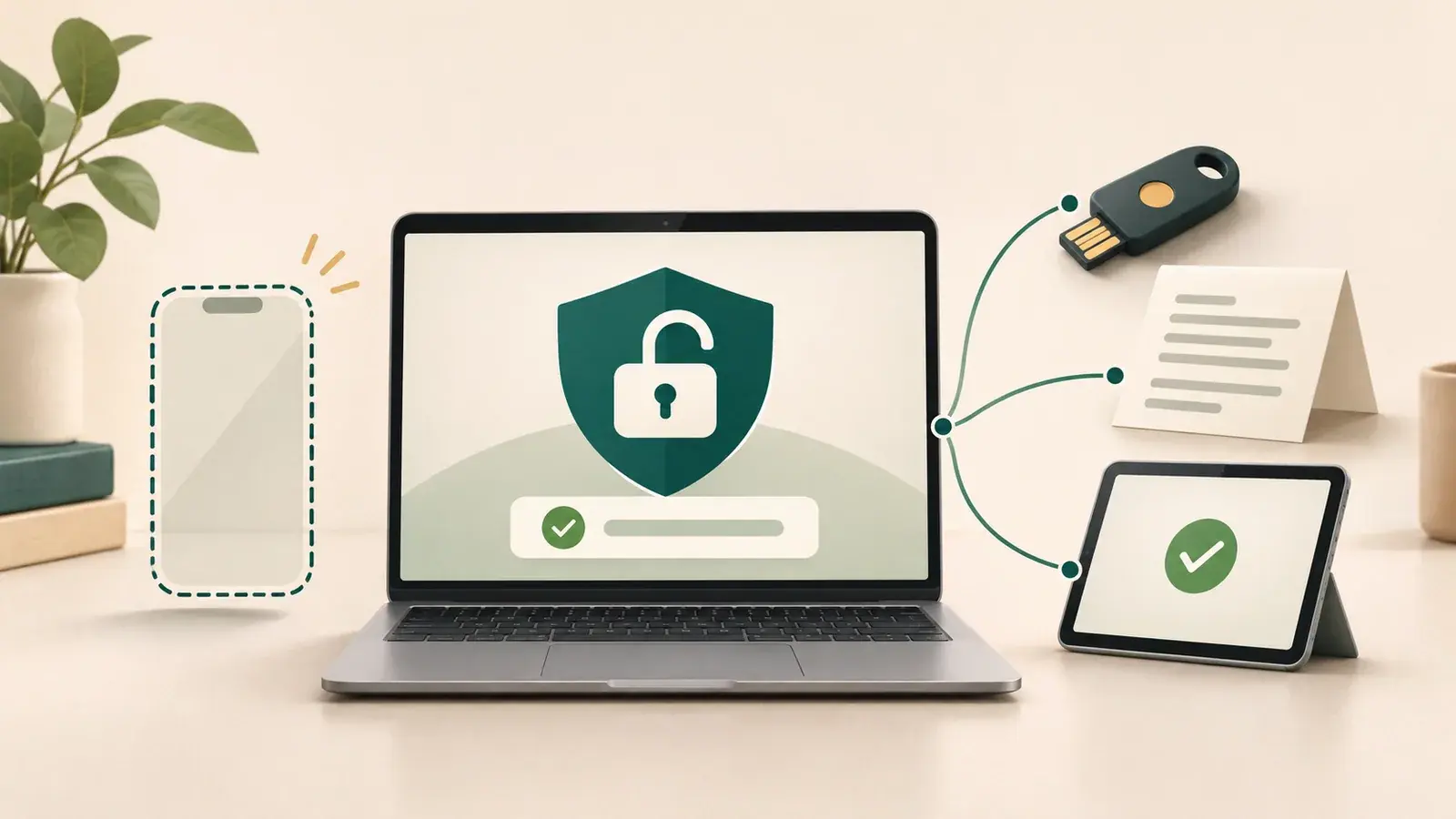
Recovery note: Available options depend on your account, security settings and service provider.
Quick Answer
Losing your phone does not necessarily mean losing your online accounts. Use another trusted device, a saved backup code, a registered security key or an alternative verification method to sign in. If none is available, use the provider's official account recovery process.
If the phone was stolen, protect your SIM, financial accounts and personal data immediately. Do not disable two-factor authentication (2FA) permanently just to avoid future lockouts.
| What you still have | What to try |
|---|---|
| A signed-in laptop or tablet | Open account security settings |
| Backup codes or a registered security key | Select another sign-in method |
| Access to your registered mobile number | Request an SMS code, if offered |
| A backed-up authenticator app | Restore it on a compatible phone |
| No working verification method | Start official account recovery |
1. Secure the missing phone first
If your phone is lost or stolen:
- Lock it remotely: use Android Find Hub or Apple Find My, where available.
- Contact your mobile operator: block the old SIM and request a replacement with the same number. You may need identity verification and may face temporary SMS restrictions.
- Protect your money: contact your bank and payment providers through official channels to restrict access if necessary.
- Report theft: in India, report it to the police and use Sanchar Saathi CEIR to request IMEI blocking. This does not erase personal data or replace SIM blocking.
For suspected financial cyber fraud, call 1930 promptly and report it at cybercrime.gov.in.
If the phone cannot be recovered, consider remote erasure through the official device service. Erasure can destroy unbacked-up data and affect tracking. For stolen iPhones, keep the device in Find My to preserve Activation Lock.
2. Try another verification method
Start with a computer or tablet you already use and trust. Keep any working sessions open while recovering access.
On the sign-in screen, look for an option such as Try another way, Other ways to sign in or Use a backup code.
Try whichever methods you previously registered:
- A one-time backup or recovery code.
- A security key or passkey available on another device.
- An approval prompt on another trusted device.
- A registered phone number or recovery email, if offered.
A replacement SIM can restore access to SMS verification, but it cannot recreate codes stored in an authenticator app.
3. Recover your important accounts
Prioritize your primary email and password manager, since you may need them to recover other services. Use the official recovery links below.
| Account | Recovery route |
|---|---|
| Google / Gmail | 2-Step Verification help — alternate factors or account recovery from a familiar device. |
| Microsoft / Outlook | Recovery guidance — alternate verification or a previously saved recovery code. |
| Apple Account | Trusted devices and numbers — use another trusted device, number or eligible recovery option. |
| Official account security help — regain access to your number and follow the official registration and verification prompts. | |
| Work or school accounts | Contact your organization's IT administrator for an authorized reset or replacement authentication method. |
Important limitations: Google recommends using your usual browser, device and location. Apple's recovery process can take several days or longer; follow its waiting-period instructions. Microsoft cannot override two-step verification simply because you submit an account recovery form. If no accepted verification or recovery method remains, an account may be unrecoverable.
Recovering WhatsApp access does not guarantee chat history recovery; a compatible existing backup and any required backup credentials may be necessary.
4. Restore your authenticator app
| Authenticator | What to do |
|---|---|
| Google Authenticator | Sign in to the Google Account previously used to synchronize codes, if synchronization was enabled. |
| Microsoft Authenticator | Restore an existing backup on the same device platform (Android to Android or iOS to iOS). Some accounts need additional verification or registration. |
| Other authenticator apps | Check the app's official backup and restore instructions. |
Without a usable backup or the original device, recover each affected account through its own recovery process and register the new authenticator. Replacing the phone alone will not restore unsynchronized codes.
5. Secure every recovered account
Once you regain access:
- Change exposed or reused passwords and review recent security activity. If authenticator secrets may have been exposed, reset 2FA for the affected accounts, not just the phone session.
- Revoke the missing phone's account sessions and authentication credentials, without removing theft protection from Find My.
- Register your new phone and remove obsolete recovery methods after confirming replacements work.
- Generate fresh backup codes if previous ones may have been exposed.
- Check for unfamiliar recovery addresses, email forwarding rules and linked devices.
Never share passwords, OTPs, backup codes or recovery keys with someone claiming to offer account recovery. Avoid paid services promising guaranteed access or asking for remote control of your computer.
6. Prevent another lockout
- Keep at least two independent sign-in or recovery methods, where supported.
- Store recovery codes securely offline, away from the phone.
- Keep recovery email addresses and phone numbers up to date.
- Enable supported authenticator backups and protect the backup account.
- Test a secondary sign-in method before wiping or selling an old device.
The safest setup combines strong authentication with an independent recovery route. Learn more in our Passwords, OTP, MFA and Authentication chapter.
Official references
- Google — Account recovery tips and backup codes.
- Microsoft — Two-step verification and Authenticator backup.
- Apple — Stolen iPhone guidance and account recovery contacts.
- WhatsApp — Account security tips.
- Department of Telecommunications — Sanchar Saathi CEIR.
If you still have your old phone, use the Android transfer checklist to move your accounts before resetting it.