
How to Transfer Data From Your Old Android Phone to a New One
Move your photos, contacts, apps, WhatsApp chats and other important data to a new Android phone, without overlooking banking apps or authenticator codes.
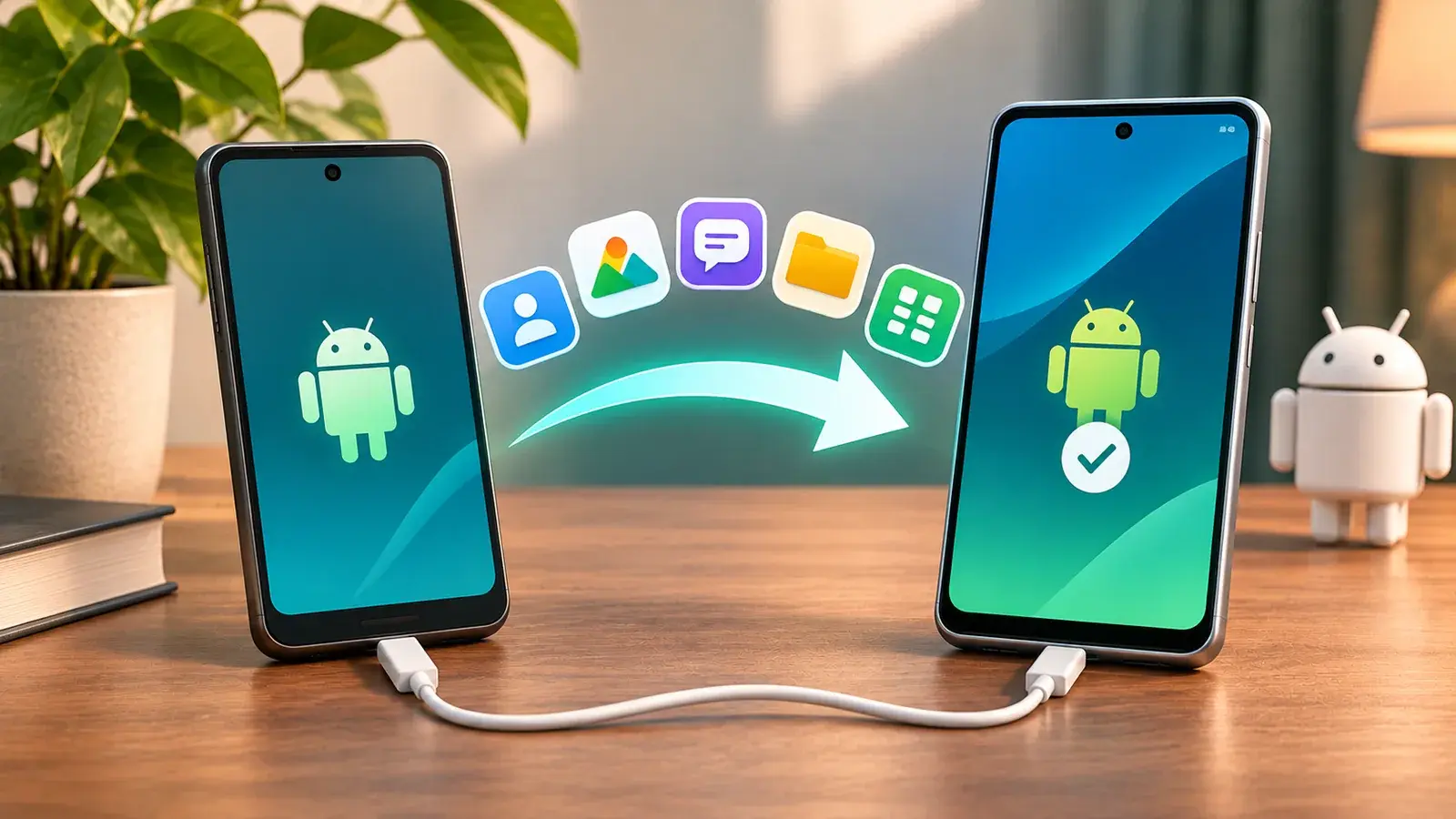
Setup note: Menu names and supported data vary by phone and Android version.
Quick Answer
Use Android's built-in Copy apps & data option during the new phone's initial setup. A compatible USB data cable is a good first choice, but wireless transfer is also supported on compatible devices.
Most everyday data can be copied this way. WhatsApp chats, banking apps, authentication codes and private files may require separate steps. Do not erase or exchange your old phone until you verify the new one.
| Method | Best for |
|---|---|
| USB cable | Large transfers |
| Wireless transfer | No compatible cable |
| Google backup | Old phone unavailable |
| Samsung Smart Switch | Moving to a Galaxy phone |
1. Prepare your old phone
- Charge both phones, connect to Wi-Fi and check available storage on the new device.
- Make sure you know your Google Account password and old screen-lock PIN.
- Search Settings for Backup, select your Google Account and run a fresh backup. Check its completion status.
- In Google Photos, verify photo and video backup, including selected device folders such as screenshots.
- Copy irreplaceable files separately to a trusted computer or external drive.
2. Copy data during setup
- Turn on the new phone and follow the initial setup screens.
- Connect to Wi-Fi and choose the option to copy apps and data from your old Android phone.
- Connect both phones using a compatible data cable, or follow the wireless pairing instructions.
- Unlock the old phone, approve the connection and sign in to the Google Account used on it.
- Select the data categories you want to move and start the transfer.
- Keep both devices powered and connected until copying finishes. Allow extra time for app downloads and account synchronization.
For a new Samsung Galaxy, Samsung Smart Switch is another option for wired or wireless migration.
3. Check what has actually transferred
| Data | What to check |
|---|---|
| Contacts, calendars, messages and call history | Usually copied or synced; check older entries |
| Photos, videos and music | Check hidden folders and cloud-only media |
| Apps and settings | Some app data and logins may not carry over |
| Downloads, PDFs and recordings | Copy missing files manually |
| Use its own migration process | |
| Banking, UPI and authenticator apps | May require separate setup |
| Private folders, game saves and offline downloads | Check each app's backup or export options |
Photos visible in Google Photos may be stored online rather than locally. Verify offline access if you need it. Apps installed outside Google Play and data from apps that do not support Android backup may also need separate handling.
4. Transfer WhatsApp chats
On the old phone, open WhatsApp and go to Settings → Chats → Chat backup. Create a fresh backup and note the Google Account used. If the backup is encrypted, ensure you can unlock it.
On the new phone:
- Install WhatsApp and verify the same phone number.
- Choose the offered direct transfer from the old phone or cloud restore using the same Google Account.
- Check important conversations and media after restoration.
If changing numbers too, use WhatsApp's Change Number feature on the old phone first. Avoid starting important new conversations before restoring: the normal restore process cannot merge old and new chat histories.
5. Move banking apps, passwords and 2FA codes
Banking and UPI: Keep your bank-registered SIM active with outgoing SMS available. Install official apps, sign in and complete any required device verification. Select the correct SIM on dual-SIM phones. For eSIM, follow your operator's migration instructions.
Authenticator apps: Google Authenticator can synchronize codes when signed into the appropriate Google Account, or transfer them through its manual export/import option. Microsoft Authenticator and other apps have their own recovery procedures. Some accounts require re-registration. Test important logins before removing the old device.
Passwords and passkeys: Sign in to your password manager and check your credentials. Device-bound passkeys may need to be registered again. Set up fingerprint or face unlock on the new phone.
6. Already finished setup, or lost the old phone?
Look for a data-transfer option in Settings, or use the manufacturer's migration app. Some phones support copying after setup; others may require a factory reset for a full restore. Back up any new data before considering a reset.
If the old phone is unavailable, restore an existing Google backup during setup. Unsynced data may be unrecoverable. Google backups from newer Android versions cannot be restored onto older Android versions.
7. Before selling or exchanging the old phone
- Check contacts, messages, photos, documents and recordings.
- Verify WhatsApp chats and media.
- Test calls, SMS, banking apps and important account sign-ins.
- Check private folders, notes, game progress and authenticator codes.
- Confirm you have a usable backup independent of the old phone.
Only then remove your Google and manufacturer accounts from the old phone, remove the physical SIM and memory card, and factory-reset it through Settings. Follow your manufacturer's eSIM removal instructions if handing over the device. Do not manually delete synced photos to clear the old phone: that can also delete cloud copies.
Official help and useful links
- Google — Android-to-Android transfer and Android backup
- Google — WhatsApp migration
- Google Photos — Backup settings
- Google Authenticator — Transfer verification codes and Microsoft Authenticator — Restore credentials
- Google Pay India — Bank account setup
- Google — Reset your old Android device
For a change of platform, see the Android and iPhone migration guide. Once the transfer is verified, follow the phone resale checklist.