
How to Secure Your Home Wi-Fi Network: Essential Router Settings
Secure your home Wi-Fi with the right WPA3 or WPA2 settings, strong passwords, guest networks, router updates and practical tips for Indian broadband users.
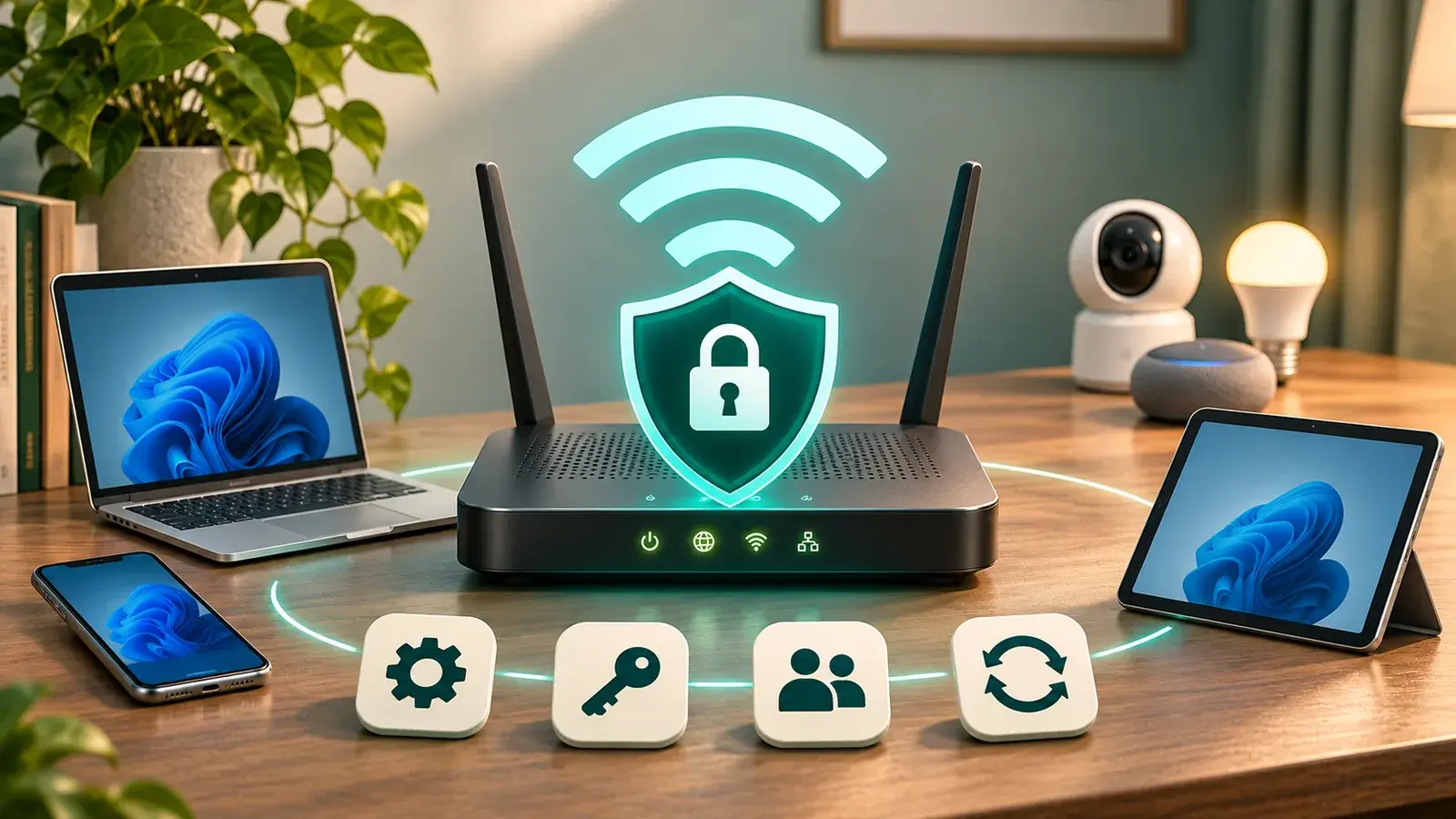
Quick Answer
To secure your home Wi-Fi, use WPA3 Personal, set different strong passwords for Wi-Fi and router administration, update the router, and keep visitors on an isolated guest network. Turn off unnecessary features that expose your network.
| Router setting | Recommended choice |
|---|---|
| Wi-Fi security | WPA3 Personal; WPA2-AES if needed |
| Wi-Fi password | Unique, 16+ characters where supported |
| Administrator password | Strong and different from Wi-Fi password |
| Firmware updates | Automatic, if available |
| WPS | Off |
| Remote administration | Off for internet-facing access |
| UPnP | Off unless genuinely needed |
| Router firewall | On |
| Guest network | Password-protected; no main network access |
1. Open your router settings
Connect to your own home network, preferably using an Ethernet cable if available. Open the router manufacturer's official app or enter its documented management address in your browser. The router label or manual may provide the address; 192.168.1.1 and 192.168.0.1 are common examples, not universal addresses.
Sign in using your existing administrator credentials. On a Windows PC, ipconfig in Command Prompt can show the default gateway for your active connection, which is often the router's address.
Before making changes: Save a configuration backup if supported and keep it private. Changing wireless settings may disconnect your devices. On ISP-supplied equipment, do not alter fibre, WAN, VLAN or telephone settings. Contact the provider if controls are unavailable.
2. Change both passwords
Your router has two different security credentials:
- Wi-Fi password: Lets phones, laptops and other devices join the wireless network.
- Administrator password: Allows someone to change the router's configuration.
Choose a different, long, unpredictable password for each, ideally at least 16 characters where supported. Use a password manager or a passphrase made of randomly selected unrelated words. Avoid names, birthdays, phone numbers and reused passwords. Change the default administrator username if the router permits it.
Give your network (SSID) a recognisable, non-personal name. Avoid including your address or family name. Change passwords promptly if exposed or shared with someone who should no longer have access.
3. Choose the right Wi-Fi security mode
| Security mode | When to use it |
|---|---|
| WPA3 Personal (SAE) | Preferred when all devices support it |
| WPA2/WPA3 mixed mode | When older devices cannot join WPA3-only networks |
| WPA2 Personal (AES/CCMP) | Fallback for older equipment |
| WEP, WPA, TKIP or open | Avoid |
Apply suitable security to each active Wi-Fi band and mesh access point. If an older smart device needs WPA2, consider putting it on a separate protected network instead of weakening the main network. Replace equipment that cannot support at least WPA2-AES.
4. Create a separate guest network
Look for Guest Network in your router's settings.
- Enable guest Wi-Fi and choose a separate network name and password.
- Select WPA3 or WPA2-AES, as supported.
- Disable guest access to the main or local network (LAN).
- Enable guest/client isolation if visitors do not need to communicate with one another.
- Connect a phone to the guest network and confirm that internet access works but private network resources are inaccessible.
Keep personal computers and phones on your main network. Use a separate isolated IoT network for cameras, smart plugs and other connected appliances if your router supports it. Some printers, casting devices and smart-home controllers need local communication, so test them after changing settings.
5. Turn off unnecessary features and update the router
- WPS (Wi-Fi Protected Setup): Disable this shortcut for joining Wi-Fi; use the password instead.
- Remote management: Prevent administrative access directly from the internet. For an ISP-managed router, leave required provider provisioning alone and ask support about exposed management settings.
- UPnP (Universal Plug and Play): Disable automatic port opening unless an application genuinely needs it. Check gaming and other affected services afterwards.
- Port forwarding and DMZ: Remove unused rules and avoid exposing computers or cameras directly to the internet.
- Firewall: Keep the router's firewall enabled.
- Firmware: Enable automatic updates or periodically check the manufacturer's or ISP's official update channel. Replace routers that no longer receive security fixes. Do not interrupt a firmware installation.
Hiding the Wi-Fi name or allowing only selected MAC addresses does not replace encryption and strong passwords. Leave the network name visible; MAC addresses can be imitated.
6. Review connected devices
Open the router's device list occasionally. Check unfamiliar entries against the phones, televisions and smart devices you own; private or randomized MAC addresses may make familiar devices appear differently.
If you confirm an unauthorized connection, block it if possible, change the Wi-Fi password and reconnect trusted devices. If you suspect the router itself has been compromised, contact the ISP or manufacturer for safe reset, update and reconfiguration instructions. A factory reset may erase broadband configuration.
7. For JioFiber, JioAirFiber and Airtel users
| Broadband connection | Where to manage Wi-Fi |
|---|---|
| JioFiber | MyJio app → Fiber Account → My Device → Wi-Fi Settings |
| JioAirFiber | JioHome app → Network → WiFi Settings |
| Airtel broadband | Airtel app or supported router management page |
| Other providers | Official ISP app, router manual or support |
Menu names and advanced controls vary by model. See the official provider instructions below if you cannot find a setting.
Final checklist
- Main and guest networks use modern encryption and separate passwords.
- Administrator credentials have been secured and the session logged out.
- Firmware and connected devices are up to date.
- Guest devices cannot reach private network resources.
- Unneeded remote access, WPS and port-opening features are disabled.
A secure router reduces network risks, but it cannot stop every scam or malicious download. Keep your phones and computers updated as well.
Sources and useful links
- CERT-In — Security advisory including strong Wi-Fi passwords and WPA3
- FTC — Home Wi-Fi security
- Apple Support — Recommended router settings
- Australian Cyber Security Centre — Secure your online activity
- TP-Link India — Guest network access controls
- Jio — Change your Wi-Fi name and password
- Airtel — Broadband router settings
Related reading: Safe Browsing, Privacy and Cyber Hygiene.