
Computer System
Study Computer System in Class 11 Computer Science, with detailed explanations, worked examples, NCERT solutions and practice questions.
By Akhilesh Saini
A complete Class XI study chapter with original explanations, worked examples, NCERT exercise solutions and guided practical activities.
Read this chapter to understand how a computer works as a complete system: how data enters it, how the processor and memory work together, how it stores information, how software guides hardware and how the operating system manages the entire machine.
Textbook alignment: NCERT Class XI Computer Science, Chapter 1, Computer System, Reprint 2026–27 (printed textbook pages 1–26). Syllabus alignment: CBSE Class XI Computer Science (083), Unit 1, 2026–27. The textbook also discusses the history of computing, microcontrollers and data organisation in greater detail than the short official syllabus outline. Those topics are retained as NCERT chapter enrichment, not misrepresented as separate CBSE syllabus units.
Originality and exercise policy: Teaching explanations, examples, diagrams and solution reasoning below are independently written. Numbered question references match the supplied NCERT PDF; prompts are briefly paraphrased, not reproduced as a substitute for the NCERT chapter. Refer to your own textbook for exact question wording.
At a glance
| NCERT sections | Core topic | Stable curriculum lesson |
|---|---|---|
| 1.1; 1.2; 1.6 | Computer system, evolution, data and information | C11-CSO-01 |
| 1.1.1–1.1.3; 1.4; 1.5 | CPU, input/output, buses, microprocessors and microcontrollers | C11-CSO-02 |
| 1.3.2 | RAM, ROM, cache and secondary storage | C11-CSO-03 |
| 1.3.1 | Bits, bytes and storage units | C11-CSO-04 |
| 1.7.1–1.7.2; 1.7.4–1.7.5 | Software categories, utilities, drivers and licensing | C11-CSO-05 |
| 1.7.3 | Programming languages and translators | C11-CSO-06 |
| 1.8 | OS functions and user interfaces | C11-CSO-07 |
Chapter outcomes. You will be able to trace data through a computer, distinguish CPU components, justify the need for different memories, convert common storage units, explain bus directions and processor specifications, classify data and software correctly, compare translators, describe OS responsibilities, and solve all 14 numbered NCERT exercises. A separate resource section contains the complete solution set, eight Explore Yourself tasks and eight activities.
Lesson C11-CSO-01 — Introduction to Computer Systems: Hardware, Software and Components
NCERT links: §§1.1, 1.2 and 1.6. Evolution of computing and the organisation of digital data are NCERT enrichment within this lesson.
1. What makes a computer a system?
A computer is a programmable electronic device that accepts inputs, processes them according to instructions, produces outputs and can retain data for later use. A computer system is not just the screen or the CPU cabinet: it is the coordinated combination of physical devices, programs and the data on which those programs operate. Users and procedures form part of the wider information-processing environment.
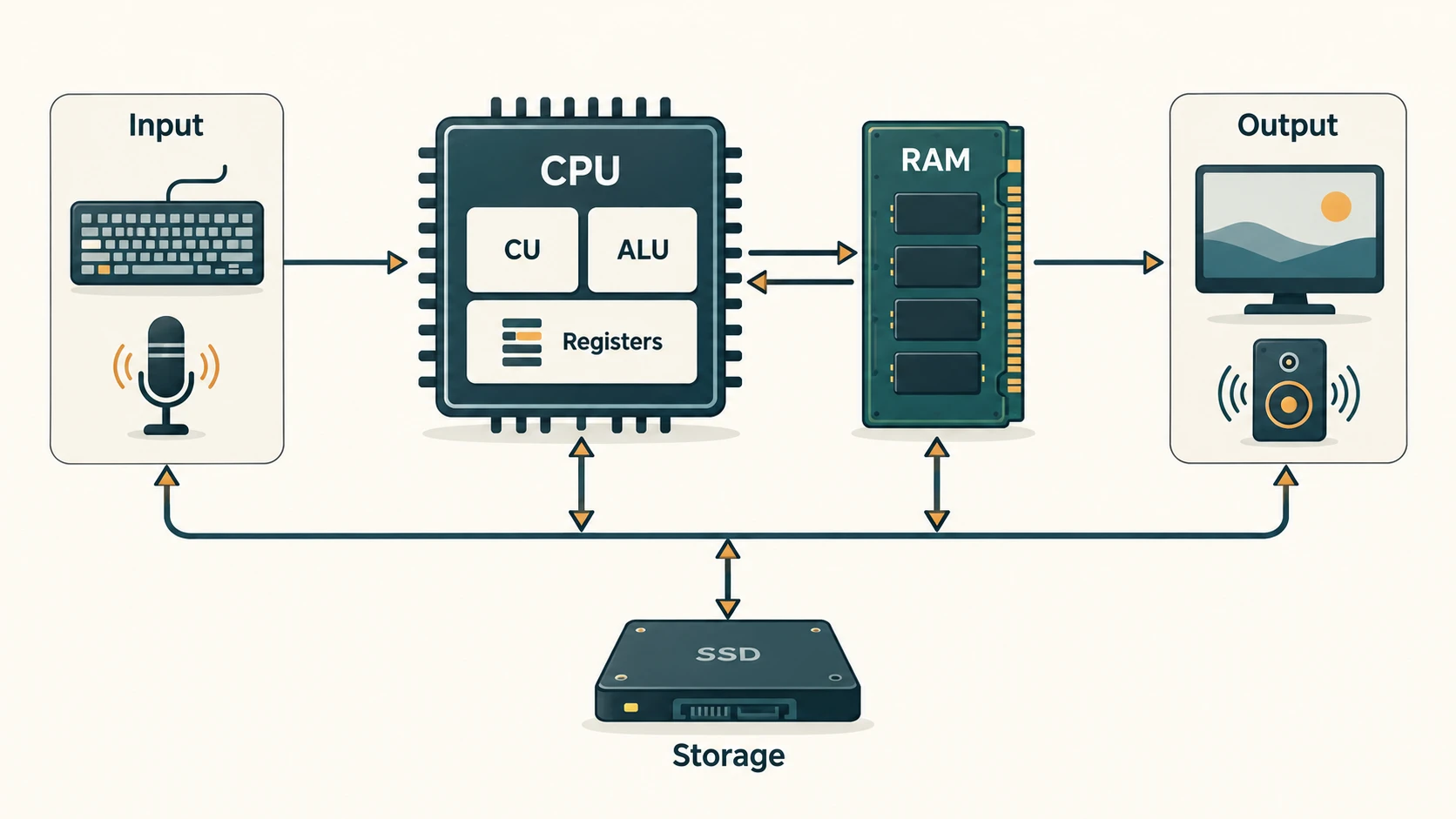
Picture a school preparing an examination result. A teacher enters marks using a keyboard (input). A program calculates totals and percentages (processing). The result appears on a screen or printed sheet (output). The record may be saved on an SSD (storage). Every step depends on hardware and software working together.
The useful model is Input → Processing → Output, with memory and storage supporting the entire process. Processing is not always arithmetic: checking whether a password matches, arranging names alphabetically and deciding whether a student passed are also processing operations.
2. Hardware, software and data
Hardware means the physical electronic and mechanical components: processor, RAM modules, motherboard, keyboard, microphone, screen, printer and drives. Software means the instructions and associated digital resources used by the hardware, such as an operating system or word processor. Data are the raw values being processed: marks, audio samples, pixels, text and measurements.
| Item | Hardware, software or data? | Why? |
|---|---|---|
| Keyboard | Hardware | Sends physical key events to the system |
| Operating system | Software | Manages resources and offers services |
A student's score, 87 | Data | Represents a raw recorded value |
| Spreadsheet application | Software | Processes and displays tabular data |
| Spreadsheet file | Data/document | Stores values and other file contents |
| SSD | Hardware | Physically retains digital information |
Misconception: A screen displays information but does not normally perform all the computer's processing. Similarly, the CPU alone does not make a functioning computer system.
3. The basic organisation of a computer
The main components are input devices, central processing unit, primary memory, output devices and secondary storage. The CPU contains a Control Unit (CU), an Arithmetic Logic Unit (ALU) and small, very fast registers. Components communicate using buses and I/O connections.
Think of a restaurant: input devices take the order, memory holds the active order, the CPU carries out the computation, the output device presents the bill, and storage retains the transaction. This analogy helps, but unlike a restaurant, the CPU executes precisely encoded instructions rather than deciding tasks independently.
4. Evolution of computing — understand the ideas, not just dates
People designed mechanical counting aids long before electronic computers. The abacus supports arithmetic using beads. Blaise Pascal designed a mechanical calculator in the seventeenth century. Charles Babbage's Analytical Engine design introduced key ideas such as a programmable sequence of operations, a store and a processing unit. Herman Hollerith developed punched-card tabulation for large-scale records. Alan Turing described a theoretical model of computation. Later, vacuum tubes, transistors and integrated circuits enabled smaller, more reliable and more capable machines.
The stored-program idea is especially important: data and instructions can be stored in a memory that the CPU reads. The familiar von Neumann architecture organises a processor, memory and input/output around pathways for exchanging data and instructions. It is a conceptual model that helps explain modern general-purpose computing even though actual hardware is more complex.
| Development | Educational significance |
|---|---|
| Mechanical calculators | Automated selected arithmetic tasks |
| Programmable-machine concepts | Made the sequence of operations part of the design |
| Electronic switching | Enabled much faster operations |
| Transistors | Reduced power, size and frequent tube failures |
| Integrated circuits | Combined many electronic components on chips |
| Microprocessors | Made a CPU available on a compact integrated circuit |
| Personal and portable devices | Brought programmable computing into homes and pockets |
| Connected and embedded devices | Put computation inside ordinary products and sensors |
Historical-accuracy note: The NCERT historical timeline simplifies several developments. In particular, the original ENIAC is not accurately described as a conventional binary stored-program machine; it used decimal arithmetic and initially plugboard/switch-based programming. Do not confuse the significance of von Neumann's stored-program proposal with the initial design of ENIAC. Use the textbook's chronology to follow the classroom discussion, not to memorise that imprecise historical claim.
Moore's law refers to a historically influential observation about increasing transistor density on integrated circuits, not a physical law guaranteeing a certain doubling rate forever. It is helpful for understanding miniaturisation; actual technology trends and costs vary.
5. Data, information and knowledge
Data are recorded facts or representations; information is data organised or interpreted so it answers a question; knowledge is understanding that helps make decisions.
Suppose a class stores the numbers 35, 39, 43, 37 as temperatures without labels. The sequence alone tells us little. If we identify them as readings in degrees Celsius from four sensors over a particular hour, they become meaningful information. Recognising that one sensor is overheating, based on context and experience, illustrates knowledge.
Digital computers encode text, numbers, images, sounds and videos as binary patterns. What those bits mean depends on format and interpretation: the same byte sequence might represent characters, pixel colours or part of a compressed file.
6. Structured, semi-structured and unstructured data
| Category | Key idea | Examples | Caution |
|---|---|---|---|
| Structured | Fixed fields, predictable records | Marks table, transaction database, match-score table | Fields and types are defined in advance |
| Semi-structured | Recognisable tags or key/value markers; varying records | HTML, XML, JSON, tagged messages | Has structure without requiring one rigid table |
| Unstructured | No single fixed set of record fields | Essay, photograph, audio clip, newspaper page | May contain a mixture of text and other media |
An email illustrates why format and content are different: an email message has structured headers, while its body may contain free-form unstructured prose. CSV can also be structured data despite being a plain-text file; the NCERT example treats it as semi-structured, so explain your classification criteria if asked about CSV outside an exam.
Example: A cricket scoreboard stored with columns Player, Runs, Balls, Fours and Sixes is structured. An HTML page uses markup tags and is semi-structured. A photograph of the match is unstructured data. The subject matter does not determine the data category—the representation does.
7. Data capturing, storing, retrieving, deleting and recovering
- Capturing: Obtain data digitally, perhaps through a barcode scanner, keyboard, camera or sensor.
- Storing: Write it to a file, database or storage service with meaningful names and permissions.
- Retrieving: Read the required stored records for searching or processing.
- Deleting: Remove access to information, which does not always immediately erase its underlying physical representation.
- Recovering: Restore lost data from a backup or, where technically possible, from a device with recoverable remnants.
Imagine a library: scanning a book's barcode captures an identifier; the database stores the issue record; an enquiry retrieves it. A mistakenly deleted record should ideally be restored from a protected backup. A deleted file is not always recoverable: SSD TRIM, encryption, secure erasure and overwritten blocks can make recovery impossible. Conversely, simply emptying a recycle bin is not a guarantee of privacy when disposing of an old drive.
Good practice: Keep tested backups, control access, encrypt sensitive data, and use appropriate device-specific secure disposal procedures. Do not experiment with deletion on important files.
Worked example — turning data into information
A school records daily library visits as 12, 16, 20, 8, 14 for Monday to Friday. Total visits are 70; the average is 70 ÷ 5 = 14 visits per day. The original five counts are data. The computed weekly total and daily average are information. Deciding to add staff on busy days requires additional knowledge about visitor patterns, staff availability and opening hours.
Check your understanding
- A computer system combines hardware, software and data; input, processing, output and storage are interdependent.
- Historical advances made programmable computing smaller, cheaper and more widespread.
- A file's representation—not its topic—determines whether it is structured, semi-structured or unstructured.
- Deleting a file and securely sanitising stored data are not the same operation.
Lesson C11-CSO-02 — CPU, Input and Output Devices
NCERT links: §§1.1.1–1.1.3, 1.4 and 1.5. Processor specifications and microcontrollers are included because they are substantial parts of the supplied NCERT chapter.
1. What happens inside the CPU?
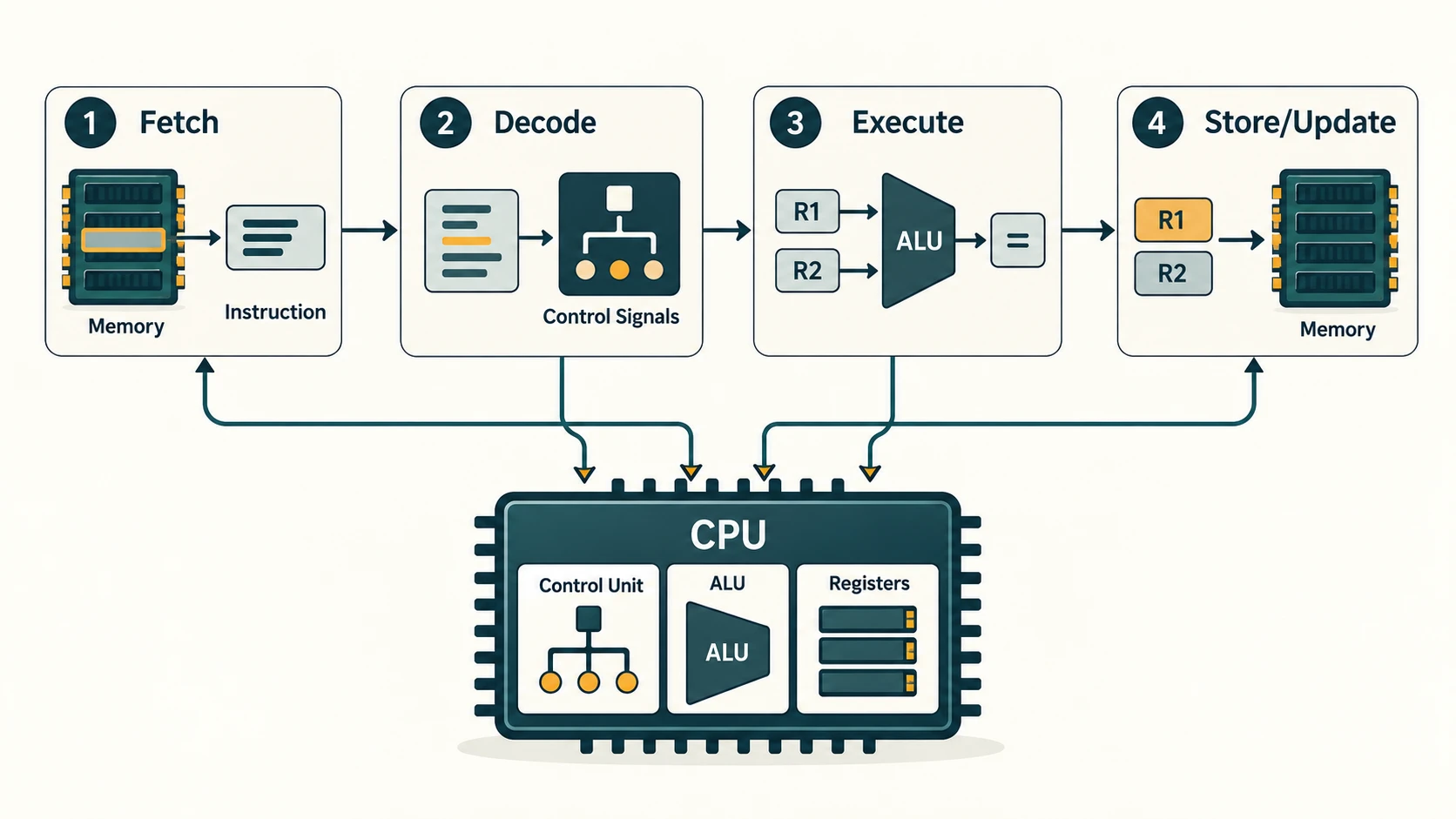
The CPU (Central Processing Unit) executes machine instructions and coordinates many operations. A simplified instruction cycle looks like this:
- Fetch: Obtain the next instruction from the memory hierarchy.
- Decode: Determine which operation the instruction represents.
- Execute: Perform the operation, perhaps using the ALU or transferring a value.
- Store or update: Save the result and determine which instruction comes next.
Actual CPUs overlap these phases, use internal caches and may execute instructions out of order. The simple cycle is still an excellent first model.
| CPU component | Main responsibility | Example |
|---|---|---|
| ALU | Arithmetic and logical operations | Addition, comparison, AND |
| CU | Directs and coordinates instruction execution | Decodes an instruction and controls movement |
| Registers | Hold immediately needed data, addresses or state | Temporary values and current instruction position |
If a program asks for 23 + 19, the operands must be made available to the processor. The ALU performs the addition and the answer 42 is held in an internal location or written to memory. The control unit coordinates the required steps.
2. Input, output and accessibility
Input devices convert user actions or physical signals into a digital form that software can interpret. Examples: keyboard, mouse, touch panel, scanner, microphone, camera and barcode reader. Output devices present processed results: monitor, speakers, printer, projector or a 3D printer that fabricates an object from digital design instructions.
Assistive computing matters: Braille keyboards and refreshable Braille displays support access for users with visual impairments. Speech recognition can accept commands; screen-reading software with audio output can help people understand on-screen information. A touchscreen may be both an input and an output surface; a network interface both sends and receives data.
3. How components communicate: the system bus
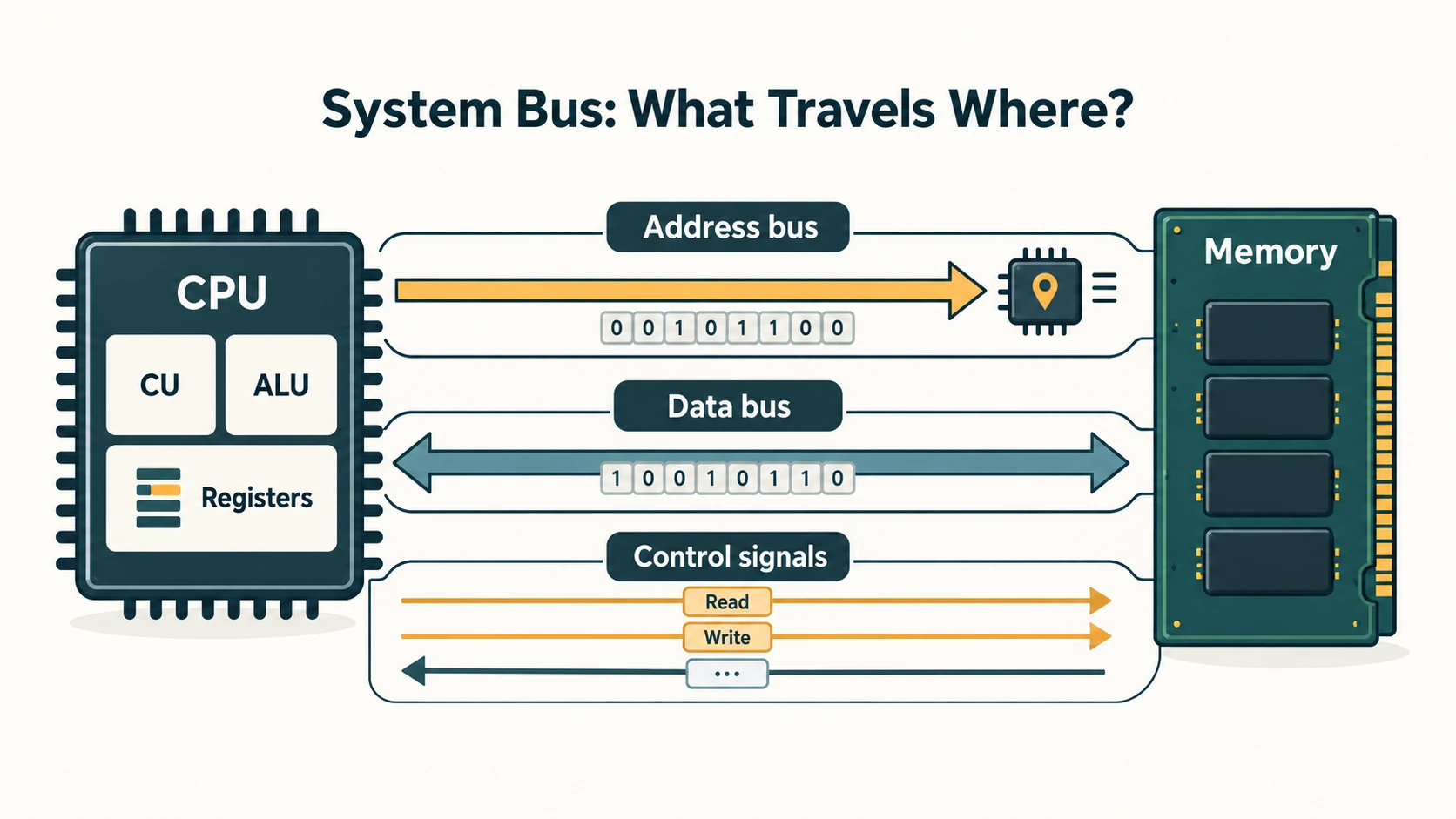
A bus is a communication pathway used to exchange signals among components. At the NCERT conceptual level, the system bus is described using three logically different kinds of signals:
| Bus | Purpose | Typical direction in a simple CPU–memory diagram |
|---|---|---|
| Address bus | Identifies a location or destination | CPU → memory |
| Data bus | Carries actual values | CPU ↔ memory |
| Control bus | Communicates read, write, timing and status control | Depends on the particular signal |
For a memory read, the CPU provides an address and read-control request; the memory system sends the requested data back. For a write, the CPU provides an address and the new data together with a write-control request. The data bus must support both directions in this simple model. The CPU-to-memory address bus is traditionally drawn in one direction because the CPU selects the address.
Accuracy note: NCERT describes the control bus as unidirectional. In real systems, individual control lines may point in different directions, and hardware interconnects can be much more sophisticated. For the Class XI exercise, explain the simple CPU-to-memory address and two-way data distinction; do not infer that every modern control bus consists of only one-way signals in a single direction.
4. Microprocessor versus microcontroller
A microprocessor implements a processor on an integrated circuit. It usually works with external or separately connected memory and input/output subsystems in a general-purpose computer design. A microcontroller typically integrates processor core(s), memory and peripheral interfaces on one chip so it can control a specific embedded task.
| Feature | Microprocessor-based system | Typical microcontroller |
|---|---|---|
| Primary purpose | Broad range of computing tasks | Control a dedicated device or process |
| On-chip resources | CPU with varying degrees of on-chip integration | CPU, RAM, non-volatile memory, peripheral interfaces |
| External components | Often requires a richer memory/peripheral system | Often fewer chips for small control tasks |
| Common uses | Laptop, desktop, server | Washing machine controller, thermostat, appliance sensor |
| Design emphasis | Throughput and general-purpose capability | Predictability, low cost, power and embedded interfaces |
A washing machine needs to read sensors, activate valves, rotate a motor and execute wash timings. A microcontroller is often suitable because it is compact, inexpensive and capable of reliable repeated control. Nuance: Modern processors and system-on-chip designs blur the simple textbook distinction; integration is not an exclusive property of microcontrollers.
5. Processor specifications
Word size describes the width of a processor's natural data handling; different architectures can have different widths for data, addresses and registers. An n-bit unsigned binary value represents integers from 0 to 2ⁿ − 1, but this does not mean an n-bit CPU always supports exactly 2ⁿ bytes of physical RAM; addressing capabilities depend on the full architecture.
Clock speed is measured in cycles per second: 1 GHz = 10⁹ cycles/second. It is not equal to the number of instructions completed per second; instruction complexity, core architecture, memory stalls and other factors matter.
A core is an independent processing unit within a CPU design. Dual-, quad- and octa-core describe two, four and eight cores. More cores may improve workloads that can run in parallel but do not guarantee that every single task runs faster.
Worked example: A 2.5 GHz CPU has a clock frequency of 2.5 × 10⁹ cycles/s. Its nominal clock period is 1 / (2.5 × 10⁹) ≈ 0.4 nanoseconds. This is an approximate clock-cycle duration, not the time for every instruction or whole program.
NCERT table caution: The textbook's broad historical “generations” table is an introductory teaching device, not a reliable specification for every modern CPU. Avoid treating its fixed maximum-RAM and GHz values as present-day hardware limits.
6. Quick revision
The ALU computes, the CU coordinates, registers hold very fast working values, and buses move addresses, data and signals. Input brings data into the system; output presents results. Microprocessors suit general-purpose platforms, while microcontrollers are especially useful for dedicated embedded control.
Lesson C11-CSO-03 — Primary, Cache and Secondary Memory
NCERT link: §1.3.2, plus §1.4's explanation of data movement.
1. Why are there several kinds of memory?
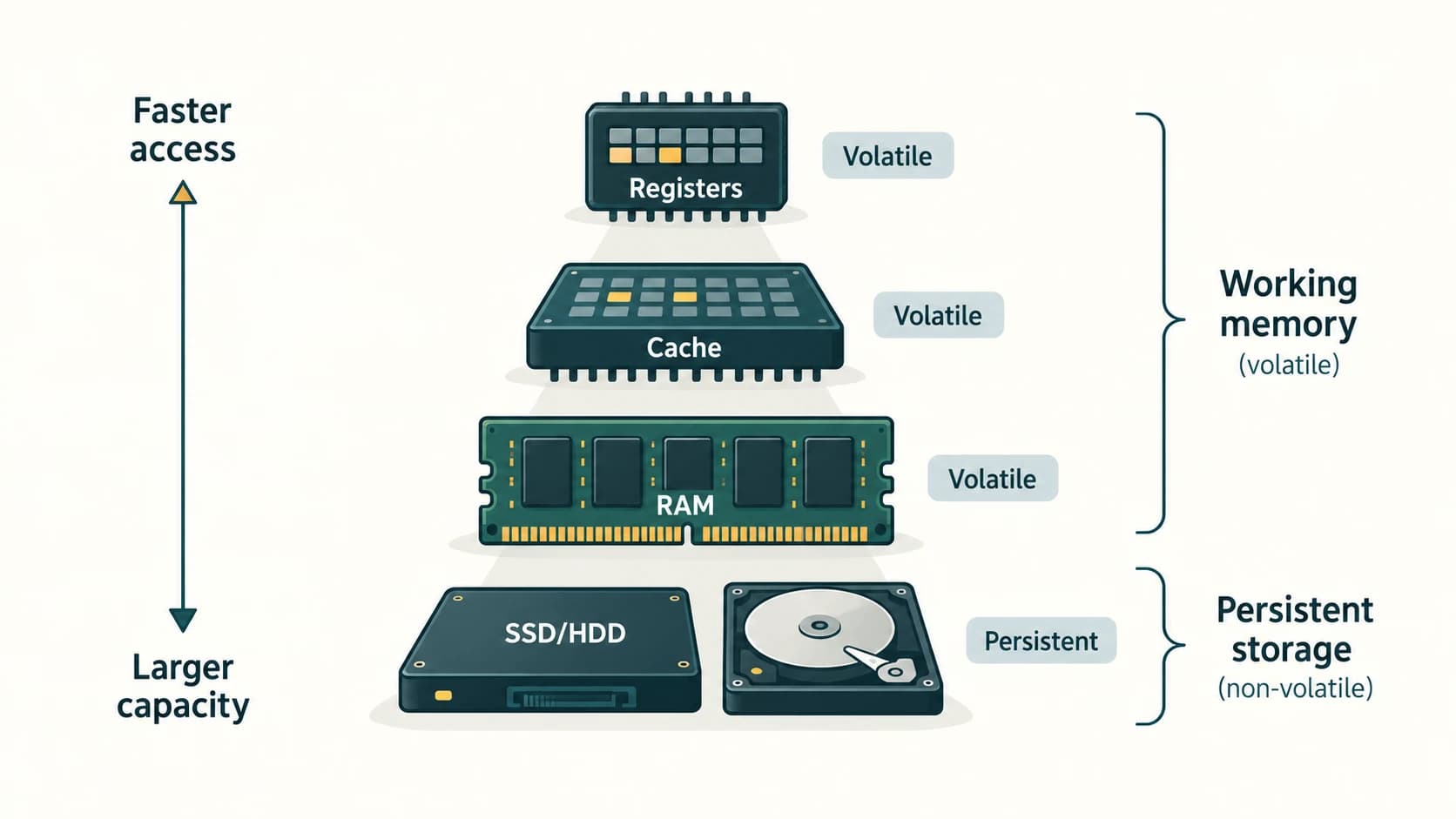
CPU operations are very fast, but large-capacity storage is relatively slow. One type of memory cannot economically deliver the highest speed, greatest capacity, lowest cost and permanent retention at once. A memory hierarchy balances these properties: registers and cache prioritise speed, RAM holds active working programs, and SSD/HDD storage retains files between sessions.
2. Primary memory: RAM and ROM
RAM (Random Access Memory) is the main read/write working space for running programs. The textbook correctly describes ordinary system RAM as volatile, meaning that it loses its contents when power is removed. Suppose you open an image editor: executable code and the image data needed for editing are loaded into working memory; changes not saved to storage can be lost on a sudden shutdown.
ROM (Read-Only Memory) is generally used to explain non-volatile memory holding persistent instructions, including firmware. Modern computers may use flash-based firmware storage that can be updated, rather than literally unchangeable ROM. The educational principle is that boot-related firmware persists without continuous power.
| Property | RAM | ROM / non-volatile firmware storage |
|---|---|---|
| Volatility | Typically volatile | Non-volatile |
| Main use | Active programs and data | Persistent startup or embedded instructions |
| Ordinary writing | Read/write | Read-mostly or controlled update |
| Example | Open document and running application state | System startup firmware |
Booting clarified: Firmware starts the machine and initiates a boot process, which then loads the operating system from persistent storage into RAM. The full modern operating system is not normally stored entirely in ROM.
3. Cache memory
Cache is a small, extremely fast memory positioned close to or within the CPU. It keeps copies of recently or frequently useful data or instructions, reducing trips to slower main memory. CPUs commonly use several levels such as L1, L2 and L3. A cache hit occurs when the required item is found there; a cache miss means the processor must obtain it from another cache level or main memory.
Example: A program processes many adjacent elements of an array. Once a block is fetched into cache, accesses to nearby elements may be faster because the data is already close to the processor. Real systems also use caching for other kinds of data; here we are discussing CPU cache.
4. Secondary storage
An SSD or HDD is secondary storage: it retains programs, photographs and school records after power is off. Hard disks use magnetic media; SSDs use non-volatile semiconductor memory. USB flash drives, memory cards and optical discs are other examples. Secondary storage typically offers much larger capacity per rupee than RAM, but slower access for CPU instructions.
| Feature | CPU cache | RAM | SSD/HDD storage |
|---|---|---|---|
| Main purpose | Rapid access to recently needed data | Current program workspace | Long-term files and installed software |
| Persistence after power off | No | No | Usually yes |
| Capacity | Relatively small | Medium | Relatively large |
| Relative typical access speed | Very fast | Fast | Slower than RAM |
| CPU executes directly from here? | CPU uses caches internally | Active code/data normally reside here | Programs generally loaded into RAM first |
Question to think about: Could a computer run with RAM but no secondary drive? Some computers can boot and run a temporary system from network or non-volatile firmware, but an ordinary laptop without storage would have no normal place to retain installed apps and files. Distinguish the theoretical possibility from a practical everyday arrangement.
Worked example — why saving matters
You type a paragraph in an editor. The unsaved changes are held in volatile working memory. Clicking Save causes the application and OS to write them to persistent storage. A successful save is not necessarily a substitute for a separate backup: device failure, accidental overwrite or malware can still destroy the only copy.
Common examination traps
- RAM is not another name for an SSD.
- Cache is usually faster and smaller than RAM; it is not the same as a browser's cached web pages.
- ROM is non-volatile but may be updateable in modern implementations.
- More RAM lets a system hold more active data, but does not automatically make its CPU execute individual instructions faster.
Lesson C11-CSO-04 — Memory Units and Storage Measurement
NCERT link: §1.3.1 and Table 1.1.
1. Bits, nibbles and bytes
A bit is a binary digit, either 0 or 1. A nibble contains 4 bits. A byte contains 8 bits, so 1010 0111 is one byte composed of two nibbles. Larger memory quantities are formed by grouping bytes.
Important convention: NCERT Table 1.1 teaches 1 KB = 1024 bytes, then 1024 KB per MB, and so on. That is the traditional binary convention commonly used in textbook problems. Formal decimal and binary unit symbols now distinguish kB = 1000 B from KiB = 1024 B (and similarly MB vs MiB). Use the textbook's 1024 convention for NCERT questions unless the question specifies SI decimal units; understand the distinction for real storage-device labels.
| NCERT classroom term (binary assumption) | Value in bytes | Precise binary unit |
|---|---|---|
| 1 KB | 1,024 | 1 KiB |
| 1 MB | 1,048,576 | 1 MiB |
| 1 GB | 1,073,741,824 | 1 GiB |
| 1 TB | 1,099,511,627,776 | 1 TiB |
| 1 PB | 1,125,899,906,842,624 | 1 PiB |
The NCERT chapter also mentions EB, ZB and YB; each successive traditional binary unit multiplies by 1024. For examinations, pay special attention to KB, MB, GB, TB and PB, which are specified in the CBSE unit outline.
2. Reliable conversion method
In the binary classroom convention, move from a larger unit to a smaller one by multiplying by 1024 per step; move from a smaller unit to a larger one by dividing by 1024 per step. Multiply bytes by 8 to obtain bits; divide bits by 8 to obtain bytes.
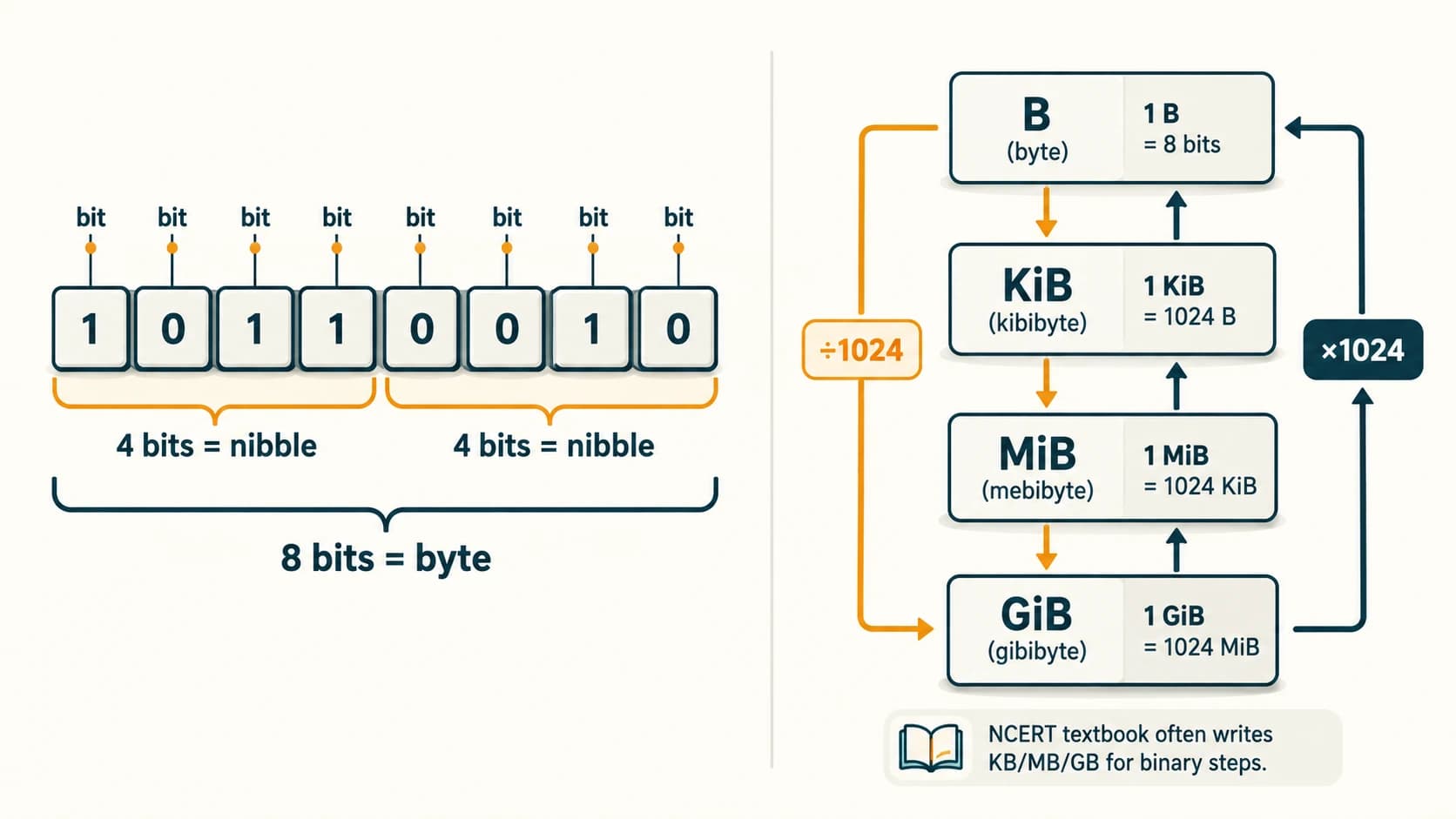
Worked example A — 3 MiB into bytes:
Worked example B — 8192 bits into bytes and KiB: 8192 ÷ 8 = 1024 bytes = 1 KiB.
Worked example C — 2 GiB into MiB: 2 × 1024 = 2048 MiB.
Worked example D — 16 MiB as a power of two: 16 × 2²⁰ = 2⁴ × 2²⁰ = 2²⁴ bytes.
3. Practical lab measurement
When comparing RAM and disk capacity, first record the exact values reported by the OS. The operating system may reserve part of installed RAM; a storage vendor may state decimal gigabytes while the OS presents binary gibibytes. That is why two screens may show different numerical amounts without either device being defective.
Quick self-check
512 KiB = 512 × 1024 = 524,288 bytes. A memory address and the amount of data stored at that address are different concepts: the address tells us where; the value tells us what.
Lesson C11-CSO-05 — System, Utility, Driver and Application Software
NCERT links: §§1.7.1–1.7.2, 1.7.4–1.7.5. Language translators are taught separately in C11-CSO-06.
1. Why hardware needs software
Hardware can manipulate signals, but it does not automatically know whether the user wants to open a photograph, print a report or calculate a salary. Software describes the required operations and provides a useful interface for carrying them out. In most general-purpose computer setups, the operating system coordinates how software uses the hardware.
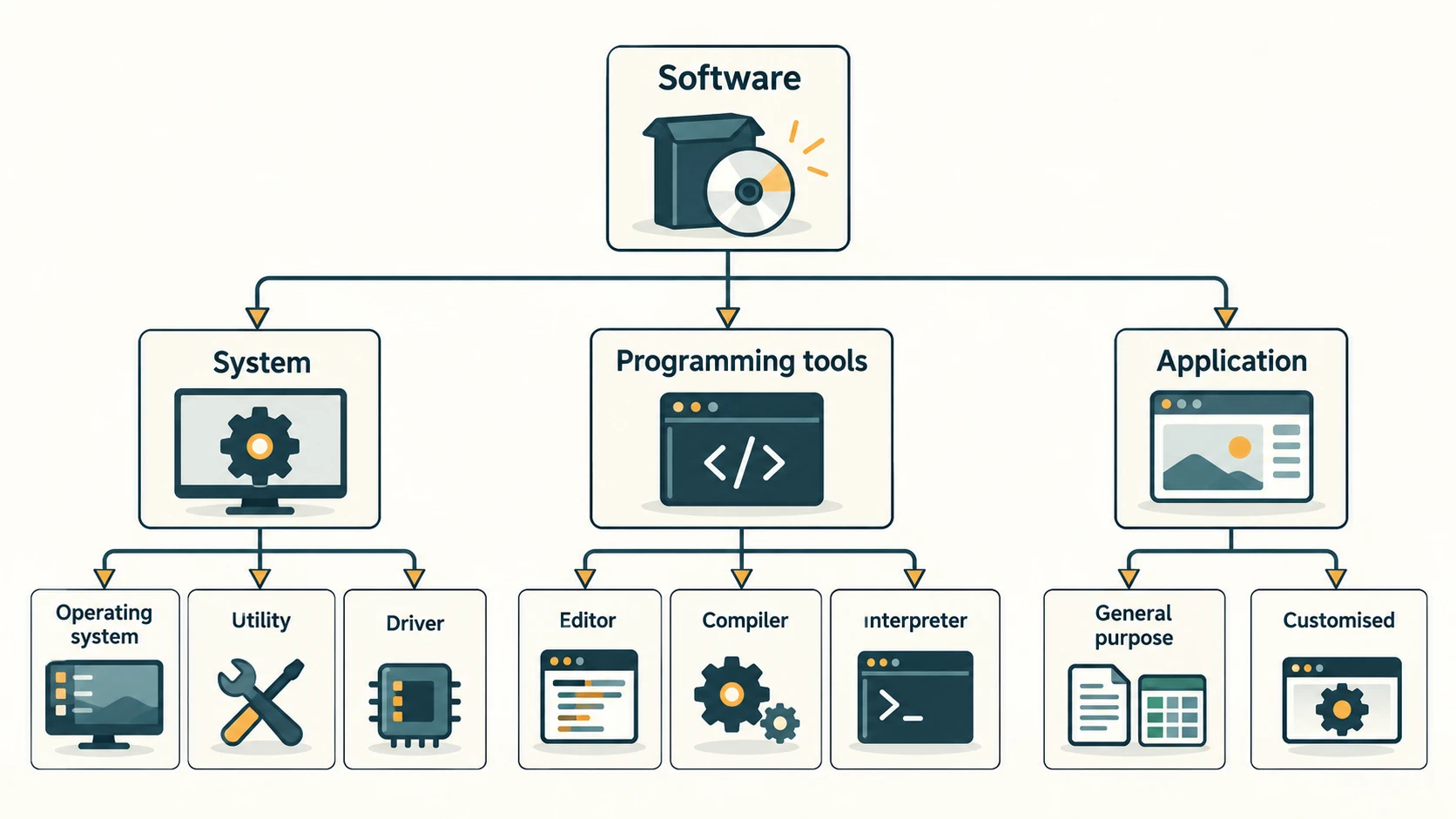
The supplied NCERT chapter groups software into three broad instructional classes:
- System software: Provides services required to run and manage the computer.
- Programming tools: Help people create, translate, test and maintain programs.
- Application software: Helps users perform specific tasks such as writing, drawing or keeping accounts.
2. System software: the foundation
An operating system is system software that manages hardware resources, provides a user interface and supports applications. Examples include Linux distributions, Windows and Android. A utility performs a maintenance or support task: backup, disk cleanup, compression, antivirus scanning, disk checks or data recovery. A device driver helps the operating system communicate with a particular hardware device or device family, translating generic requests into device-specific operations.
Suppose you connect a printer: an application requests printing, the OS manages the print job, and a printer driver communicates with the printer. Some drivers are already part of an OS; others are installed separately. Not every device needs a new download, and not all utilities are separate from the OS.
| System-software type | Typical work | Practical example |
|---|---|---|
| Operating system | Resource management, execution, security | Linux or Windows |
| System utility | Maintenance and protection | Backup application, disk cleanup |
| Device driver | Control of specific hardware | Display adapter or printer driver |
3. Application software
General-purpose applications are designed for a broad audience: web browsers, spreadsheets, word processors, image editors and media players. Customised applications are developed for an organisation's specific requirements: a school's attendance portal, a hospital's appointment system or a company's internal stock-management program.
The same kind of task may be supported by either kind. A generic spreadsheet can store marks, but a custom school information system can enforce particular workflows, report formats and permissions.
Soft copy vs hard copy: A document stored as a file is a soft copy. When it is printed on paper, the output is a hard copy. These describe representations, not whether the information is valuable.
4. Proprietary, freeware, free software and open source
These labels answer different questions: Who grants permission to use or change software? Is the source code available? Must the user pay a fee?
| Term | Core idea | What it does not automatically mean |
|---|---|---|
| Proprietary software | Rights holder controls copying, modification or distribution under a restrictive licence | Must always cost money |
| Freeware | Generally available for use at no monetary charge | Source code is open or redistribution is unrestricted |
| Free/open-source software (FOSS) | Licence permits access to source and important freedoms to use, study, modify and share, subject to its terms | Must never be sold |
| Paid software | Requires a payment under specified conditions | Must be closed source |
Examples: Microsoft Windows and Adobe Photoshop are proprietary products. Adobe Acrobat Reader and Google Chrome are commonly distributed for free use while still being proprietary; their licences govern permitted use. Python, LibreOffice and Mozilla Firefox are open-source projects. Software products, editions and licences may change; always check the licence of the exact version.
Important correction to a common textbook shortcut: Freeware is not simply the opposite of proprietary. A program can be both no-cost and proprietary. A free/open-source licence is fundamentally about permissions, not purchase price.
5. Choosing suitable software: mini-scenarios
- You want to play a video: choose a media player application.
- Your printer is detected but prints incorrectly: investigate the driver and printer configuration.
- You need to free storage space: use an appropriate disk-cleanup utility, after reviewing what it proposes to remove.
- A school needs personalised timetable and attendance approval rules: it may commission a custom application.
- You want to build a program in Python: use a code editor or IDE, which falls under programming tools in this NCERT framework.
Exam traps and summary
An OS is system software, not application software. A driver is not a physical cable. An application may be free to download without being open source. A text editor's category depends on its purpose: an editor specifically used for writing code is a programming tool in the textbook's context; a plain note-taking editor can be regarded as a general application.
Lesson C11-CSO-06 — Assemblers, Compilers and Interpreters
NCERT link: §1.7.3.
1. Machine, assembly and high-level languages
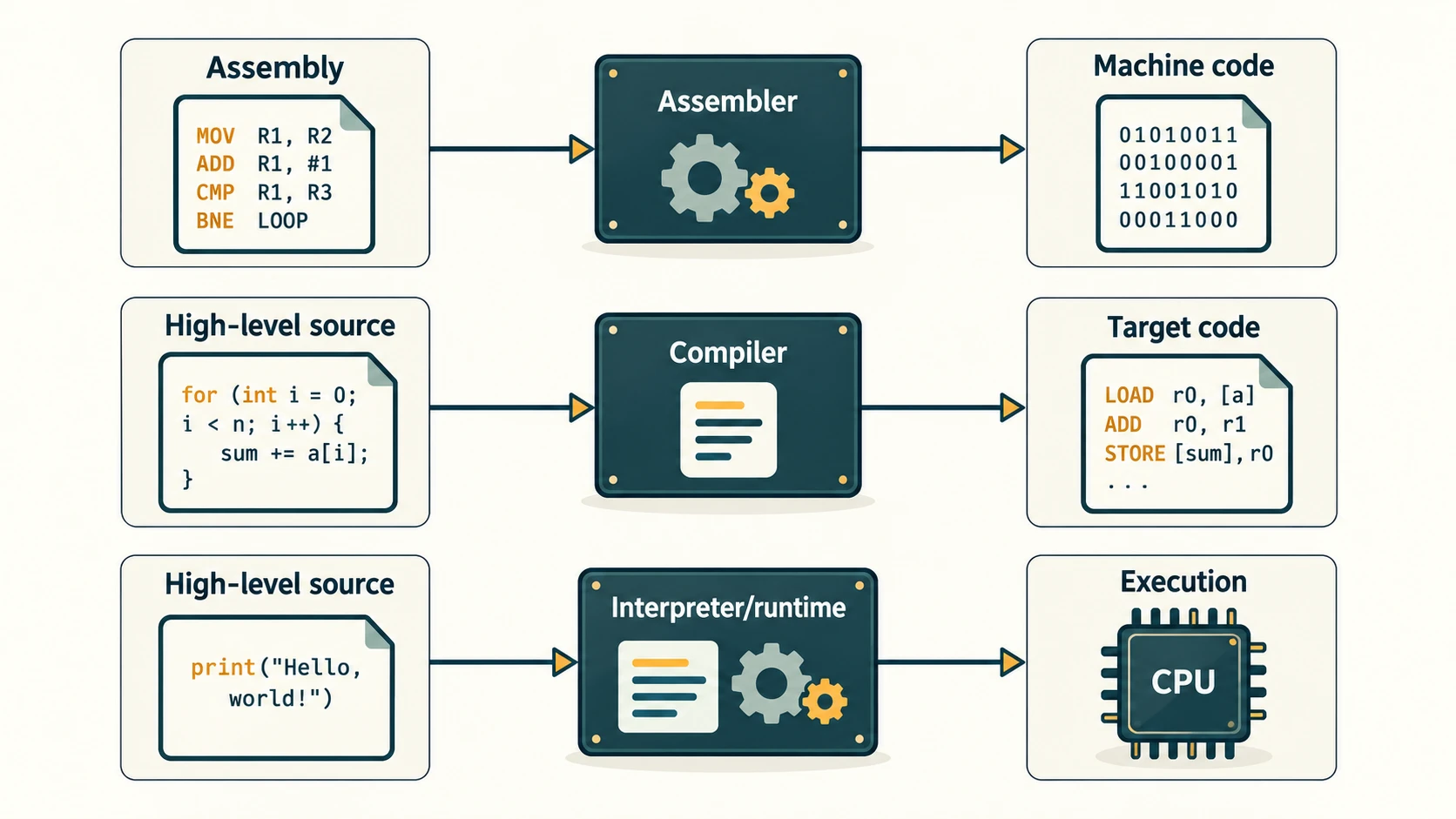
A processor acts on instructions encoded for its instruction set architecture (ISA). Machine language uses the low-level instruction encodings that a compatible CPU can execute. Assembly language names those operations using mnemonics (for example, an architecture may offer a mnemonic resembling ADD) and explicit operands. A high-level language expresses algorithms using more readable constructs; examples include Python, C++ and Java.
Machine instructions vary by CPU architecture. An assembly program written for one instruction set cannot normally run unchanged on an unrelated instruction set. High-level source code is usually more portable, provided an appropriate implementation and compatible libraries are available.
2. What a translator does
The textbook uses source code for a human-written program and machine/object code for its low-level translated representation. That model is helpful, but modern execution pipelines may include intermediate code, bytecode, runtime interpreters and just-in-time (JIT) compilation.
| Translator | Receives | Typical behaviour | Outcome |
|---|---|---|---|
| Assembler | Assembly-language source | Converts mnemonics for a particular instruction set | Object/machine code |
| Compiler | High-level or intermediate source | Translates a program or compilation unit before/for execution | Native code, object code or intermediate code |
| Interpreter | Source or intermediate representation | Processes/executes instructions using an interpreter at runtime | Program behaviour without necessarily producing a standalone native executable |
Textbook comparison: An introductory compiler translates a whole program or a sizeable block, while an introductory interpreter processes statements during execution. Real implementations may blend both techniques: for example, a Python implementation can compile source to bytecode and then execute it in a virtual machine. Do not assume every interpreter literally translates exactly one visible line and then discards it.
3. Example: the same intent, different stages
A high-level expression such as total = 7 + 5 expresses an operation. A compiler or interpreter implementation determines how to perform that operation on the target platform; the CPU ultimately executes machine instructions. The exact binary instructions vary with architecture, compiler optimisation and runtime.
# A simple high-level example
total = 7 + 5
print(total)  # 12
When is an executable faster? Native machine instructions often avoid some runtime translation overhead. But there is no universal law that every compiled program is faster than every interpreted program: algorithms, optimisation, JIT compilation and input size influence performance. Also, it is not meaningful to compare "execution time of source code" with "execution time of machine code" without specifying how the source is executed, because a CPU ordinarily does not execute high-level source directly.
4. Source code, errors and portability
An incorrect token or missing delimiter can cause a syntax error. A syntactically valid expression can still yield a wrong answer because of a logic error. A program may also encounter a runtime error, such as attempting an invalid operation during execution. Translators and development tools help detect or diagnose some of these mistakes.
Portability: High-level source can often be moved and retranslated for another architecture. Existing compiled native binaries generally need a compatible operating system, architecture and runtime environment. Assembly code is particularly architecture-specific.
Check your understanding
If the source is in assembly language, an assembler is the relevant translator. If a high-level program is translated into an executable, a compiler has likely been used. If a runtime reads/executes code or intermediate instructions, an interpreter may be involved. Python is a language, while particular Python runtimes decide how its programs are executed.
Lesson C11-CSO-07 — Operating-System Functions and User Interfaces
NCERT link: §1.8.
1. The operating system as a resource manager
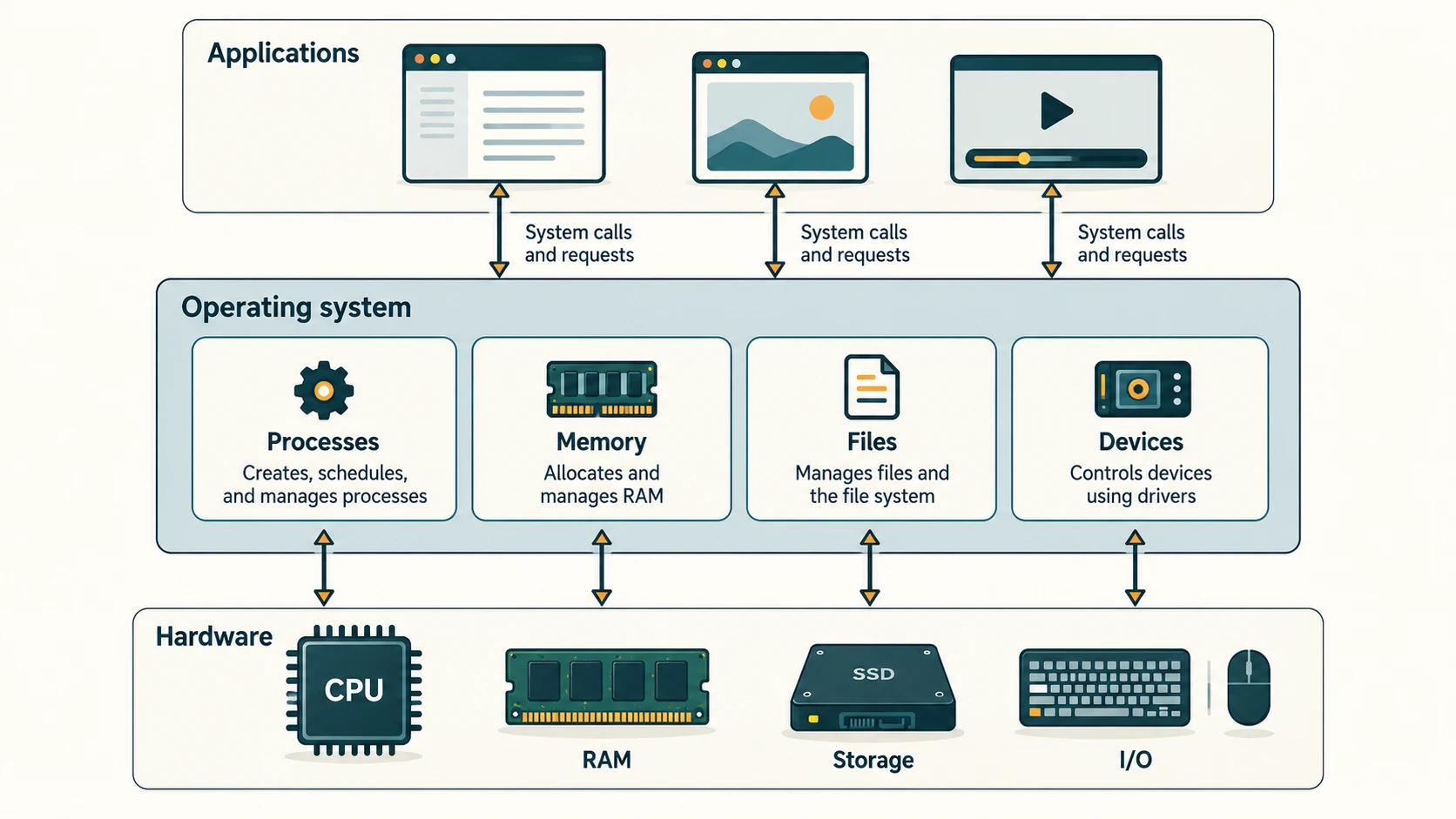
The operating system (OS) manages CPU time, working memory, files, hardware devices and access permissions. It provides services on which applications depend and a way for users to interact with the machine.
Imagine listening to music while writing a document. The OS must allocate processor time to both programs, keep their memory separate, route sound to the correct audio device, and save the document when requested. The goal is reliable, secure and reasonably efficient use of limited hardware resources.
2. Main OS functions
| Function | Responsibility | Real-life example |
|---|---|---|
| Process management | Start, schedule, pause and finish running programs | Browser and music player run concurrently |
| Memory management | Allocate and release RAM, protect address spaces | Editor uses memory without corrupting another app |
| File management | Organise files, folders, metadata and access | Create a folder and restrict who can open it |
| Device management | Coordinate hardware and drivers | Printing and audio output |
| User/security management | Authenticate users and enforce permissions | A student's login cannot read protected teacher files |
| User interface | Receive user commands and display responses | Desktop icons or typed terminal commands |
Program vs process: A program is stored instructions, such as an executable file. A process is a program that is currently executing, with its own runtime state and resources. Starting two instances of the same application can create separate processes.
Memory vs file management: RAM allocation for running applications is a memory-management responsibility. Naming, organising and securing files on persistent storage are file-management responsibilities. Both may cooperate when files are loaded into memory.
3. Ways to interact with an operating system
Command-line/command-based interface (CLI): The user types a command, such as a request to list files. It is powerful for scripting, administration and repeatable tasks, but requires learning the command syntax.
Graphical user interface (GUI): The user interacts through windows, icons, menus, pointers and visual controls. Most desktop operating systems provide a GUI.
Touch interface: Taps, swipes and gestures on a touchscreen control applications, common on phones and tablets.
Voice interface: Speech recognition enables spoken commands, useful for accessibility and hands-free work.
Gesture interface: Cameras, motion sensors or touch-surface gestures can detect movement and translate it into commands.
Exam accuracy: CLI does not inherently allow only one program to run at a time. Modern command-line environments often support multitasking, and modern operating systems may offer both CLI and GUI. An interface is a means of interacting with an OS, not necessarily a different operating system.
4. Booting and a complete example
When a computer powers on, firmware initialises essential hardware and selects a boot path. A bootloader or equivalent startup mechanism loads an OS kernel from persistent storage into RAM. The OS then configures devices, starts background services and presents a login or user interface. The details depend on the platform, but the central roles are the same.
Example — printing a report: You click Print in the application. The application sends a request to OS printing services. The OS queues the job; a printer driver converts the job into a suitable device-specific form; the printer makes a hard copy. The system may track status, errors and access permissions during this process.
Common mistakes
- Saying OS = Windows only (Linux distributions, Android and others are also examples).
- Confusing process management with storing files.
- Claiming a GUI cannot accept typed commands.
- Assuming every voice assistant is entirely part of the OS; voice features can also be applications or cloud services.
- Assuming firmware, bootloader and the full operating system are interchangeable.
Lesson recap
The OS is the resource coordinator for software and hardware. Its most frequently examined responsibilities are process, memory, file and device management, along with interface and security services. Knowing which resource is being managed is often the key to an exam answer.
NCERT Chapter 1 — Complete Exercise Solutions
Source: NCERT Class XI Computer Science, Chapter 1, Computer System, Reprint 2026–27, Exercise on textbook pages 24–25. There are 14 numbered questions, with 7 lettered parts in Q13 and 4 lettered parts in Q14. The identifying question descriptions here are original paraphrases; students can match them to the exact wording in their book. Answers are independently explained, and factual clarifications are marked where the NCERT's simple model omits important details.
Exercise 1 — Operating software and two essential services
Question reference: NCERT Ch. 1, Exercise Q1 (software required to operate a computer; two services).
Answer: The operating system is the system software normally required to make an ordinary general-purpose computer usable and to run other programs. Two fundamental services are:
- Resource management: It shares the CPU, RAM, storage and input/output devices among running programs, preventing inappropriate interference.
- User/application services: It offers an interface for commands and standard facilities for loading programs and accessing files and devices.
For example, when two applications are open, the OS schedules their execution and manages their memory; when the user saves a file, it provides the file-system service. In embedded systems, software can sometimes run without a conventional OS, but operating system is the intended school-level response.
Exercise 2 — How a high-level-language program runs
Question reference: NCERT Ch. 1, Exercise Q2.
Answer: The CPU understands machine instructions, not high-level source text directly. A compiler, interpreter or suitable runtime converts, interprets or otherwise implements the higher-level instructions in a machine-executable form. A compiled executable may be created ahead of time; an interpreted runtime may execute bytecode or perform translation as the program runs.
Process: High-level source → language implementation (compiler/interpreter/runtime) → machine operations on the CPU → result. A language such as Python may involve more than one intermediate step.
Exercise 3 — Executing machine code compared with source code
Question reference: NCERT Ch. 1, Exercise Q3.
Answer: Machine code can be executed directly by a compatible CPU, whereas high-level source typically requires a compiler, interpreter or runtime before or during execution. That translation or interpretation can introduce overhead, so a native compiled program may run faster than a comparable interpreted version.
Important qualification: Source code is not directly executed as high-level text by an ordinary CPU. The exact speed difference cannot be inferred without knowing the programming language, translator, runtime and program. Optimised or JIT-compiled systems may narrow or reverse a simplistic comparison. The central textbook point is the extra processing often needed to turn source instructions into CPU actions.
Exercise 4 — Why RAM is required; contrast with ROM
Question reference: NCERT Ch. 1, Exercise Q4.
Answer: RAM temporarily holds programs and data that are currently in use so the CPU can access them efficiently. When you open a browser, relevant parts of its code and data are placed in working memory. ROM or non-volatile firmware storage retains essential instructions even when the system is switched off, typically supporting startup.
| RAM | ROM / persistent firmware |
|---|---|
| Normally volatile | Non-volatile |
| Read and write during operation | Usually read-mostly, sometimes updateable |
| Holds running programs and working data | Holds persistent firmware/startup instructions |
Both are memory, but they have different roles. ROM is not a substitute for general-purpose RAM.
Exercise 5 — Why secondary memory is necessary
Question reference: NCERT Ch. 1, Exercise Q5.
Answer: Secondary storage is needed because main RAM generally loses unsaved contents when power is removed and is not a practical or economical substitute for persistent mass storage. HDDs, SSDs and memory cards preserve documents, programs and media for later use and provide comparatively large capacity at lower cost per unit than RAM.
For example, a student's project file must still be available after the school computer is shut down. Saving it to persistent storage allows reopening it later. A separate backup remains important.
Exercise 6 — Communication among components
Question reference: NCERT Ch. 1, Exercise Q6.
Answer: Components exchange data and signals using communication pathways; in the textbook's model, the system bus connects the CPU, memory and other relevant components. Its three logical signal groups are:
- Address: Identifies which memory location or device location is involved.
- Data: Carries values being read or written.
- Control: Coordinates read/write operations and other control or status events.
On an instruction fetch, the CPU requests the necessary address, sends control information and receives the instruction's data. Real computers can also use specialised point-to-point interconnects; the bus model provides the intended Class XI explanation.
Exercise 7 — Block diagram and component functions
Question reference: NCERT Ch. 1, Exercise Q7.
Answer: Use the following simplified block diagram as a study aid.
                +-------------------+
                | Secondary storage |
                |    SSD / HDD      |
                +---------+---------+
                          | transfer of files
                +---------v---------+
                |   Primary memory  |
                |       RAM         |
                +---------+---------+
                          | data/instructions
+--------------+          |             +-----------------+
| Input devices|----->+---v----------+--->| Output devices  |
| key, scanner |      |    CPU       |    | screen, printer |
+--------------+      | CU, ALU,     |    +-----------------+
                      | registers    |
                      +--------------+
Functions: Input devices obtain data or commands; the CPU executes instructions (CU coordinates, ALU calculates/compares, registers hold immediate working values); primary memory holds active instructions and data; secondary storage preserves programs and results; output devices present results to users. Buses and interconnects move information among these elements.
In a real block diagram, CPU↔memory and CPU↔I/O interactions may be shown through a bus or controller, and storage is reached through appropriate I/O interfaces. Do not mistake the illustrative layout for actual motherboard wiring.
Exercise 8 — System bus; data versus address direction
Question reference: NCERT Ch. 1, Exercise Q8.
Answer: The system bus coordinates communication by carrying address, data and control signals. The data bus is bidirectional in the simplified CPU–memory model because the CPU must both read from memory and write to memory. The address bus is unidirectional in that model because the CPU supplies the memory address it intends to access.
Read: CPU → address; memory → data. Write: CPU → address and data; memory receives data. This is the precise reason for the different arrow directions in a classroom diagram.
Exercise 9 — Proprietary software versus freeware; examples
Question reference: NCERT Ch. 1, Exercise Q9.
Answer: Proprietary software is governed by a rights holder's restrictive licence and ordinarily does not grant public permission to modify and redistribute source code. Freeware is software distributed for use without a monetary charge, though the licence may still restrict modification and redistribution.
| Label requested | Two suitable examples | Why |
|---|---|---|
| Proprietary | Microsoft Windows; Adobe Photoshop | Distributed under proprietary licence terms |
| Freeware | Adobe Acrobat Reader; Google Chrome | Offered for no-cost use; the products are not fully open-source |
Exam nuance: These are overlapping classifications. Windows and Photoshop are typically paid and proprietary; Acrobat Reader and Chrome are no-cost and proprietary. Therefore payment is not the defining legal property of proprietary software. Check the licence for any particular product version.
Exercise 10 — Microcontroller versus microprocessor in home appliances
Question reference: NCERT Ch. 1, Exercise Q10.
Answer: A microprocessor is a processor implemented on a chip and is commonly used as the computing core in a general-purpose system. A microcontroller combines processing, some memory and peripheral interfaces in a compact integrated design intended for embedded control.
Smart appliances often use microcontrollers because they need to read buttons and sensors, operate motors or relays, follow timing sequences and consume little energy at low cost. A washing machine controller, for example, does not need all the components of a full desktop computer to control its wash cycle. Some advanced smart devices also include larger processors; the choice depends on complexity and cost.
Exercise 11 — Types of data encountered on the Internet
Question reference: NCERT Ch. 1, Exercise Q11.
Answer: Examples include text (articles and comments), numbers (scores and prices), images (photographs and diagrams), audio (podcasts), video (tutorials), structured records (tables, search results) and semi-structured documents (web pages with HTML markup or API responses with JSON). Links, timestamps, location fields and metadata are also digital data.
A single website may present many types simultaneously. The same piece of information—such as a cricket score—can have different digital representations.
Exercise 12 — Classify four data examples by structure
Question reference: NCERT Ch. 1, Exercise Q12.
| Textbook example | Expected classification | Explanation |
|---|---|---|
| Newspaper | Unstructured | Ordinary newspaper pages mix free-form articles, headlines, pictures and layouts; a separately designed article database could instead be structured |
| Cricket match score | Structured | A conventional scorecard follows defined fields such as player, runs, wickets and overs |
| HTML page | Semi-structured | Tags and attributes mark elements, while content/layout may vary |
| Patient records in a hospital | Structured | In a structured hospital system, records have fields such as ID, visit date, diagnosis and treatment |
Qualification: Real patient records can also contain unstructured doctor's notes, photographs and scans. The expected school answer assumes organised hospital database records. Always consider the form in which data is stored, not merely its subject.
Exercise 13 — Identify input or output devices (all seven parts)
Question reference: NCERT Ch. 1, Exercise Q13(a–g).
| Part | Task paraphrased | Answer | Reason |
|---|---|---|---|
| (a) | Produce sound | Speaker / headphones | Converts digital sound signals into audible output |
| (b) | Enter written characters | Keyboard | Provides alphanumeric input |
| (c) | Produce a paper copy | Printer | Creates a hard copy |
| (d) | Show information visually | Monitor / display | Presents visual output |
| (e) | Supply spoken instructions | Microphone | Captures audio input, interpreted by speech software |
| (f) | Fabricate a three-dimensional object | 3D printer | Makes a physical object based on a digital model |
| (g) | Enter information for a user with visual impairment | Braille keyboard / Braille input device | Enables tactile character entry |
Distinction: A refreshable Braille display is an output device; a Braille keyboard is an input device. Do not interchange them in part (g).
Exercise 14 — Software-category identification (all four parts)
Question reference: NCERT Ch. 1, Exercise Q14(a–d).
| Part | Software | Intended NCERT category | Why |
|---|---|---|---|
| (a) | Compiler | Programming tool | Translates program source |
| (b) | Assembler | Programming tool | Translates assembly instructions |
| (c) | Ubuntu | System software | Ubuntu is a Linux-based OS distribution |
| (d) | Text editor | Programming tool (in the chapter's coding context) | Code/text editor used for writing program source |
Context note: A text editor used only for general notes is also sensibly classified as application software. But in NCERT §1.7.3, editors are introduced as program-development tools, which explains the expected category for this exercise.
NCERT “Explore Yourself” — Guided Answers and Lab Records
Source: NCERT Chapter 1, printed pages 25–26, questions 1–8. These are observational tasks, so there is no honest single answer that applies to every student's machine. Each entry provides a repeatable method and, where appropriate, a sample answer explicitly labelled as an example. Replace sample hardware values with your own findings.
Explore Yourself 1 — Find any two installed device drivers
Method (Windows): With teacher permission, open Device Manager, expand a category such as Display adapters or Keyboards, select a device and view its Driver information. Do not uninstall or update drivers for this exercise.
Sample record:
| Device category | Driver/device shown | Purpose |
|---|---|---|
| Display adapter | Installed graphics/display driver | Lets the OS use the display hardware |
| Network adapter | Installed Wi-Fi adapter driver | Helps the OS communicate over wireless networking |
What to submit: The two driver names actually displayed on your computer, not the generic names in this sample. Linux alternative: A teacher can inspect information through the system's hardware tools or appropriate commands such as lspci -k where available.
Explore Yourself 2 — List two system and two application programs
Sample answer only (verify installation):
| Type | Example 1 | Example 2 |
|---|---|---|
| System software | Operating system (e.g., Windows) | Disk-management / disk-check utility |
| Application software | Web browser | Word processor |
How to verify: Open the installed-applications view and find named products, then classify them by function. Some OS components are not listed as separately uninstallable apps. Do not claim an example is installed unless you have seen it on your device.
Explore Yourself 3 — Identify processor and its generation
Method: On Windows, open Settings → System → About or Task Manager → Performance → CPU. Note the exact model. On a Linux workstation, the teacher may use lscpu or the hardware information panel.
Sample observation: Processor: Intel Core i5 [full model number recorded by student].
Generation distinction: A vendor's product generation (for example, a named Core product series generation) is not identical to the NCERT textbook's simplified first–fifth historical microprocessor generations. Identify the exact model and look up the manufacturer's specification, then report its vendor generation only if the model supports such a determination. For textbook comparison, modern 64-bit multicore processors broadly fit the later-generation category; this is an educational grouping, not a precise manufacturer model-generation label.
Explore Yourself 4 — Find CPU clock speed
Method: Check the CPU information in Task Manager, the OS system information tool or the processor manufacturer's product specifications. Record whether the displayed frequency is a base, current, or boost frequency.
Example only: A processor displaying 2.40 GHz has a nominal frequency of 2.40 × 10⁹ cycles per second. A live clock readout may fluctuate with workload, temperature and power management. Compare the reported values with peers and explain whether the figures measure the same clock property.
Explore Yourself 5 — Identify two microcontroller-based devices
Sample answer: An automatic washing machine (controls water, motor and timing) and a microwave oven (controls timer, keypad, power and safety signals). Many other products, including smart thermostats and electric-toothbrush controllers, use embedded controllers. Not every apparently “smart” device has a single microcontroller; complex products may combine multiple kinds of processors.
Explore Yourself 6 — Measure RAM and HDD capacity and convert units
Method: Record installed RAM and the actual reported drive capacity. The question mentions an HDD; if the computer has an SSD instead, label it correctly rather than calling it an HDD. The table below is a worked sample for exactly 8 GiB of RAM and 256 GiB of storage, not measurements taken from your school.
| Sample component | Bytes | Binary KB (KiB) | Binary MB (MiB) | Binary GB (GiB) |
|---|---|---|---|---|
| Sample RAM: 8 GiB | 8,589,934,592 | 8,388,608 | 8,192 | 8 |
| Sample drive: 256 GiB | 274,877,906,944 | 268,435,456 | 262,144 | 256 |
Calculation: For 8 GiB, 8 × 1024³ = 8,589,934,592 bytes. Divide by 1024 for KiB, by 1024² for MiB, and by 1024³ for GiB. Under NCERT's older notation, these quantities might be labelled GB, MB and KB; binary names are shown to avoid modern unit ambiguity. A nominal 256 GB vendor-labelled drive may have a smaller numeric capacity in GiB—do not confuse those two measurements.
What to submit: The real values of your RAM and hard drive/SSD, the unit convention you used, and a table with all four requested columns.
Explore Yourself 7 — List available secondary storage devices
Possible observations: Internal HDD, SSD, USB flash drive, external SSD/HDD, SD or microSD card, optical disc and network-attached storage. Sample answer: “The lab has internal SSDs in student computers and a USB flash drive used for transferring assignments.” Only include devices you actually found; do not invent a CD/DVD drive when one is absent.
Explore Yourself 8 — Identify the installed operating system
Method: Open the OS information screen, often Settings → About in Windows or the system's About panel in Linux. On phones/tablets, look under device Settings → About. Record the OS name and version if visible.
Sample answer: “Windows [exact edition and version from this computer]”. This is a template, not a claim that your school machine uses Windows.
NCERT In-Chapter Activities — Worked Guidance (1.1–1.8)
The chapter contains eight numbered Activities in addition to the end exercise. Results that depend on local equipment are presented as examples or procedures—not made-up observations.
Activity 1.1 — Express the microprocessor table's memory capacities as powers of two
Source: NCERT §1.5, Table 1.2, textbook page 9.
Using the textbook's 1024-based units, the maximum capacities shown in the five generation rows convert as follows:
| Textbook row | Listed capacity | Computation | Power-of-two answer |
|---|---|---|---|
| First | 1 KB | 1 × 2¹⁰ bytes | 2¹⁰ bytes |
| Second | 1 MB | 1 × 2²⁰ bytes | 2²⁰ bytes |
| Third | 16 MB | 16 × 2²⁰ = 2⁴ × 2²⁰ | 2²⁴ bytes |
| Fourth | 4 GB | 4 × 2³⁰ = 2² × 2³⁰ | 2³² bytes |
| Fifth | 64 GB | 64 × 2³⁰ = 2⁶ × 2³⁰ | 2³⁶ bytes |
Check: Each increase from MB to GB is three 1024-based steps (KB→MB→GB), i.e. factors of 2¹⁰. These five values answer the activity as printed, rather than asserting real modern processor limits.
Activity 1.2 — Compare CPU clock speeds
Open your computer's CPU information and record a base clock or clearly labelled current clock, along with the model name. Ask peers for the same kind of reading. Use a table with headings Device, Processor model, Clock type, GHz. Sample comparison: Device A 2.4 GHz and Device B 3.0 GHz: B's listed clock is 3.0 / 2.4 = 1.25 times A's, or 25% higher. This does not prove B is 25% faster at applications; architecture, cores and load also matter.
Activity 1.3 — Identify digital data capture devices in public places
The activity asks for two or three tools at places such as banks, shopping centres or offices. Illustrative examples (verify with observation or teacher discussion):
| Place | Digital capture tool | Captured information |
|---|---|---|
| Retail checkout | Barcode / QR scanner | Product identifier |
| Bank branch | Document scanner | Scanned forms or identity documents |
| Government office | Keyboard or biometric capture device | Typed fields or authorised authentication measurements |
Safety and privacy: Observe normal public use or ask staff with permission. Do not collect, photograph or record other people's identity documents, biometric readings, PINs or account information.
Activity 1.4 — Explore data recovery after deletion or corruption
Possible methods: Restore from the Recycle Bin/Trash; restore a previous version or a backup; use an authorised cloud version-history or restore feature; or, with teacher supervision, attempt legitimate file-system recovery on a non-sensitive test device. If data loss is suspected, stop writing new files to the affected device because overwriting may reduce recovery chances.
Expected learning: A successful recovery is not guaranteed. Damage, overwriting, SSD TRIM and encryption can make recovery impossible. A known-good backup is more reliable than hoping deleted bits remain recoverable.
Activity 1.5 — Create and attempt to recover a safely deleted test file
- With teacher approval, create a new, disposable plain-text file named
recovery-practice.txtcontaining only a harmless sentence. - Make a second copy in a separate folder named
safe-backup. - On a Windows test machine, use Shift+Delete only on the disposable original, after confirming its path and that it contains no useful work. On other systems, the shortcut and deletion behaviour may differ.
- Check whether a normal trash restore is available; for a file bypassing the bin, it usually is not. Where approved, try a backup/version-history restore; you may also observe a teacher-demonstrated recovery utility on a suitable test medium.
- Record which method succeeded or failed and explain why no general guarantee exists.
Example report: “We restored the practice file from our pre-created backup. We did not claim that the erased original remained recoverable.” This faithfully demonstrates a successful recovery process without pretending that restoring a backup proves forensic undelete works.
Activity 1.6 — Locate two device drivers
Follow the procedure in Explore Yourself 1. Record an installed network adapter driver and an installed display driver by their actual device names. Explain in one sentence for each what functionality the OS obtains from it. Do not delete, disable or replace drivers simply to complete the task.
Activity 1.7 — Install one application with teacher assistance
Choose a legitimate application appropriate for the lab, such as a word processor, and confirm its official publisher, permitted use and school policy. Ask the teacher or system administrator to perform or approve installation. Open the program, perform a harmless basic action (e.g. create a blank document), then close it. Example completion note: “Application installed/verified: [student enters exact program]; purpose: [student describes its use].” No specific installation is asserted here.
Activity 1.8 — Install one free/open-source application with teacher assistance
Select an appropriate free and open-source program, for example LibreOffice, GIMP or Mozilla Firefox, subject to school policy. Verify the program's authentic publisher and licence, obtain it through an official source and let the teacher supervise installation. Check it opens and that its licensing meets the FOSS criterion. Sample explanation: “LibreOffice is an office suite distributed under open-source licensing; its word processor can prepare a school report.” Downloading at no charge alone does not establish open-source status.
NCERT “Think and Reflect” — All Three Responses
These three short reflective prompts occur inside the chapter (pp. 6, 12 and 20). They are included for completeness because they are separate from both the 14 exercises and the numbered activities.
Reflection on page 6 — RAM without secondary storage
A computer with RAM but no traditional internal secondary storage can sometimes run software, depending on how it starts and where the program comes from. Embedded firmware, network boot or a temporary RAM-based environment can provide code without a conventional installed drive. However, a normal desktop user generally cannot install and keep conventional applications in the usual permanent way without some non-volatile storage. In exams, emphasise that RAM is volatile and secondary storage is ordinarily needed for persistent installed software; the absolute answer depends on the computer's design.
Reflection on page 12 — More examples of unstructured data
Examples include digital photographs, an audio recording of a lecture, free-form essays, handwritten scans and a video of a sports event. They are labelled unstructured when treated as raw media or free-form content, rather than being converted into consistent database fields. A structured catalogue describing a photograph does not make the image pixels themselves a relational database record.
Reflection on page 20 — How the OS gets into RAM during startup
Boot firmware (such as BIOS/UEFI in a typical PC), followed by an appropriate bootloader/startup mechanism, begins the process of locating and loading the operating system into working memory. The processor runs firmware instructions at startup; the OS subsequently takes control as booting progresses. Details vary among computers, phones and microcontrollers.
Additional Original Examination Practice — With Explained Answers
These are new practice questions authored for this resource, not NCERT exercise questions or claimed previous-year board questions. They extend the 14 NCERT exercises by checking understanding, application and common exam traps.
Part A — Multiple-choice questions
P1. A class uses a scanner to digitise paper answer sheets. Which component performs the input function?
(A) SSD (B) Scanner (C) Monitor (D) Speaker
Answer: (B). The scanner captures physical document content and sends a digital representation into the computer. A monitor and speaker are output devices.
P2. Which statement best describes a CPU register?
(A) A removable drive (B) A small, very fast storage location within the CPU (C) A cloud backup (D) A permanent optical disk
Answer: (B). Registers hold immediate operands, addresses or CPU state. They are not substitutes for SSDs.
P3. In a simple processor–memory model, which bus must carry values in both directions?
(A) Address bus (B) Data bus (C) Printed circuit label (D) Input keyboard cable
Answer: (B). A processor reads values from memory and writes values back, so data traffic is bidirectional.
P4. Which memory normally loses its contents when power is removed?
(A) RAM (B) SSD (C) ROM/flash firmware (D) Optical disc
Answer: (A). Ordinary system RAM is volatile; the other listed examples retain stored content.
P5. A processor repeatedly accesses a small group of recently read memory locations. Which component most directly reduces average access delay?
(A) Printer (B) CPU cache (C) Mouse (D) Microphone
Answer: (B). Cache stores nearby or recently needed data/instructions for faster reuse.
P6. Using the textbook's 1024 convention, 2 MB is:
(A) 2¹¹ bytes (B) 2²⁰ bytes (C) 2²¹ bytes (D) 2²⁴ bytes
Answer: (C). 2 × 2²⁰ = 2²¹ bytes.
P7. A webpage containing labelled HTML elements is normally classified as:
(A) Semi-structured (B) Unreadable (C) Always relational data (D) Pure machine code
Answer: (A). HTML has markup and hierarchy even when the page content varies.
P8. Which tool translates assembly-language instructions?
(A) Compiler only (B) Assembler (C) Printer driver (D) Spreadsheet
Answer: (B). Assembly mnemonics are mapped to the target instruction set using an assembler.
P9. A free-to-download program whose source code may not be modified or redistributed is best described as:
(A) Necessarily FOSS (B) Freeware, possibly proprietary (C) A physical input device (D) Always public domain
Answer: (B). Price and licensing freedoms are different dimensions.
P10. An OS chooses which of several ready programs should use the CPU next. This is an example of:
(A) File formatting (B) Process management (C) Printing a hard copy (D) Optical scanning
Answer: (B). CPU scheduling is a process-management responsibility.
P11. Which arrangement is most suitable for a basic automatic washing-cycle controller?
(A) A monitor alone (B) An embedded microcontroller connected to sensors/actuators (C) Only external optical discs (D) An empty RAM chip
Answer: (B). Integrated processing and peripheral control fit the repeatable embedded task.
P12. A student says a 3 GHz processor must finish all tasks 50% faster than a 2 GHz processor. What is the best response?
(A) Always correct (B) Only the frequency is 50% greater; performance needs other information (C) GHz measures disk size (D) CPU frequency is never measurable
Answer: (B). Architecture, core count, instruction throughput and memory behaviour affect task speed.
Part B — Short-answer and reasoning
P13. Explain the difference between a stored program and a stored data file.
Answer: A program encodes operations to perform; a data file contains values the program may process. Both are represented as bits on storage or in memory. In a stored-program computer, executable instructions and data can be held in memory for the CPU to access; their meaning depends on interpretation and permissions.
P14. A printer works from one app but not another. Name two software layers you would investigate.
Answer: First inspect the failing application's print settings, then the OS printing service/driver. If the same printer works from one app, the physical printer itself may be operational; compare formats and settings before reinstalling anything.
P15. Why does opening a 1 GB file not guarantee that exactly 1 GB of RAM becomes permanently occupied?
Answer: Applications may stream or map only parts of a file, operating systems use caches and paging, and additional memory may be allocated or freed dynamically. File size on disk and a process's RAM usage measure different things.
P16. Give one example of each: structured, semi-structured and unstructured data, all from a library.
Answer: Structured: a loan table with member ID and due date. Semi-structured: an XML or JSON record of catalogue metadata. Unstructured: a scanned photograph of a handwritten review. Justify each category by its representation.
P17. Why is a file's deletion from a recycle bin not the same as securely destroying all traces?
Answer: File systems may remove logical references without overwriting the underlying blocks. Recovery depends on the storage medium and device behaviour; SSD TRIM and encryption change the practical possibilities. Secure disposal requires appropriate sanitisation methods, not merely hiding a file.
P18. In the simple CPU–memory model, describe a write operation.
Answer: The CPU supplies a destination address, makes the new value available on the data lines, and asserts a write request through the control interface. The memory controller/device stores the value at the selected location, subject to any acknowledgement or timing requirements.
Part C — Application-style mini cases
P19. School examination results. A teacher enters marks in a form; the program calculates percentages; a result PDF is saved and printed. Identify one input component, processing component, primary memory, secondary storage and output device.
Answer: Input: keyboard or form-entry device. Processing: CPU executing the result program. Primary memory: RAM containing active marks and calculations. Secondary storage: SSD/HDD storing the PDF. Output: monitor for on-screen result and printer for paper. The application and OS provide the software needed for these operations.
P20. A music player stops after a sudden power cut, and unsaved settings disappear. Explain which kinds of memory/storage are involved and what could improve data safety.
Answer: Current changes may have been retained only in volatile RAM. Saving to SSD/HDD preserves them across power loss. Autosave, periodic backups and safe shutdown reduce accidental losses; they do not eliminate every failure mode.
P21. A campus website lists registration fees in a database and embeds fee information inside an HTML page. Classify both representations.
Answer: The database table is structured; the HTML document is semi-structured. Both may describe the same fees, so data category depends on format.
P22. A class needs a lightweight sensor-controlled automatic watering system. Select a suitable computing component and explain two advantages.
Answer: An embedded microcontroller suits the task because it can read moisture sensors and operate a pump through appropriate driver circuitry, with low power requirements and small physical size. Safe electrical isolation, a suitable power supply and protective electronics must be used when controlling real pumps.
Chapter Revision Sheet
Essential terms
| Term | One-line meaning |
|---|---|
| Computer system | Coordinated hardware and software that processes data |
| CPU | Executes machine instructions and coordinates operations |
| ALU | Performs arithmetic and logic operations |
| CU | Directs the instruction-processing sequence |
| Register | Very fast, small CPU storage location |
| Input/output | Entry and presentation of data/results |
| System bus | Logical pathway for address, data and control signals |
| RAM | Volatile active working memory |
| ROM/firmware | Persistent boot-related or embedded instructions |
| Cache | Fast temporary copies of useful instructions/data |
| Secondary storage | Persistent file/program storage |
| Microprocessor | Processor implemented on an integrated circuit |
| Microcontroller | Compact embedded processor with integrated memory/peripherals |
| Structured data | Predetermined record fields or schema |
| Semi-structured data | Tags/markers without a single rigid table schema |
| Unstructured data | Free-form content without standard record columns |
| Driver | Software interface between OS and hardware |
| Utility | Software for maintenance, support or protection |
| Compiler | Translates code into a target representation |
| Interpreter | Runs or implements instructions at runtime |
| Operating system | Resource manager and service/interface provider |
| Process | Running instance of a program |
Five comparisons to memorise and understand
- Hardware vs software: tangible devices versus instructions/programs.
- RAM vs ROM: ordinary volatile working memory versus persistent firmware-related storage.
- Cache vs secondary storage: very fast and small working copies versus slower persistent bulk files.
- Microprocessor vs microcontroller: broad processor-focused platform versus compact embedded control design.
- Compiler vs interpreter: translation ahead of/for execution versus runtime instruction processing; real implementations can combine techniques.
Formulas and unit reminders
1 nibble = 4 bits;1 byte = 8 bits.- In NCERT's binary classroom convention:
1 KB = 2¹⁰ bytes,1 MB = 2²⁰ bytes,1 GB = 2³⁰ bytes,1 TB = 2⁴⁰ bytesand1 PB = 2⁵⁰ bytes. - In unambiguous modern unit notation, use KiB, MiB, GiB, TiB, PiB for these powers of two; kB, MB, GB are formally decimal units.
- CPU frequency:
f = cycles / secondand cycle durationT = 1/f(idealised clock definition, not per-instruction runtime). - To convert traditional classroom GB to MB, multiply by 1024; MB to GB, divide by 1024.
Answer-writing strategy
For differences, make a two-column comparison with at least two correct contrasts. For why questions, start with the purpose, then show a practical example. For bus direction, describe both a read and a write. For software categories, separate purpose, licence and price. For activity findings, give genuine observed values, not invented hardware specifications.
Where to go next: The computer system you studied here represents text and numbers using binary encodings. Later Unit 1 lessons cover logic gates, number systems and character encoding; those topics should be studied in their appropriate NCERT chapters, not silently appended to this chapter.