
How to Choose Compatible RAM and SSD Upgrades for Your Laptop
Check your laptop's RAM type, memory slots, maximum capacity, SSD interface and physical size before buying a compatible upgrade.
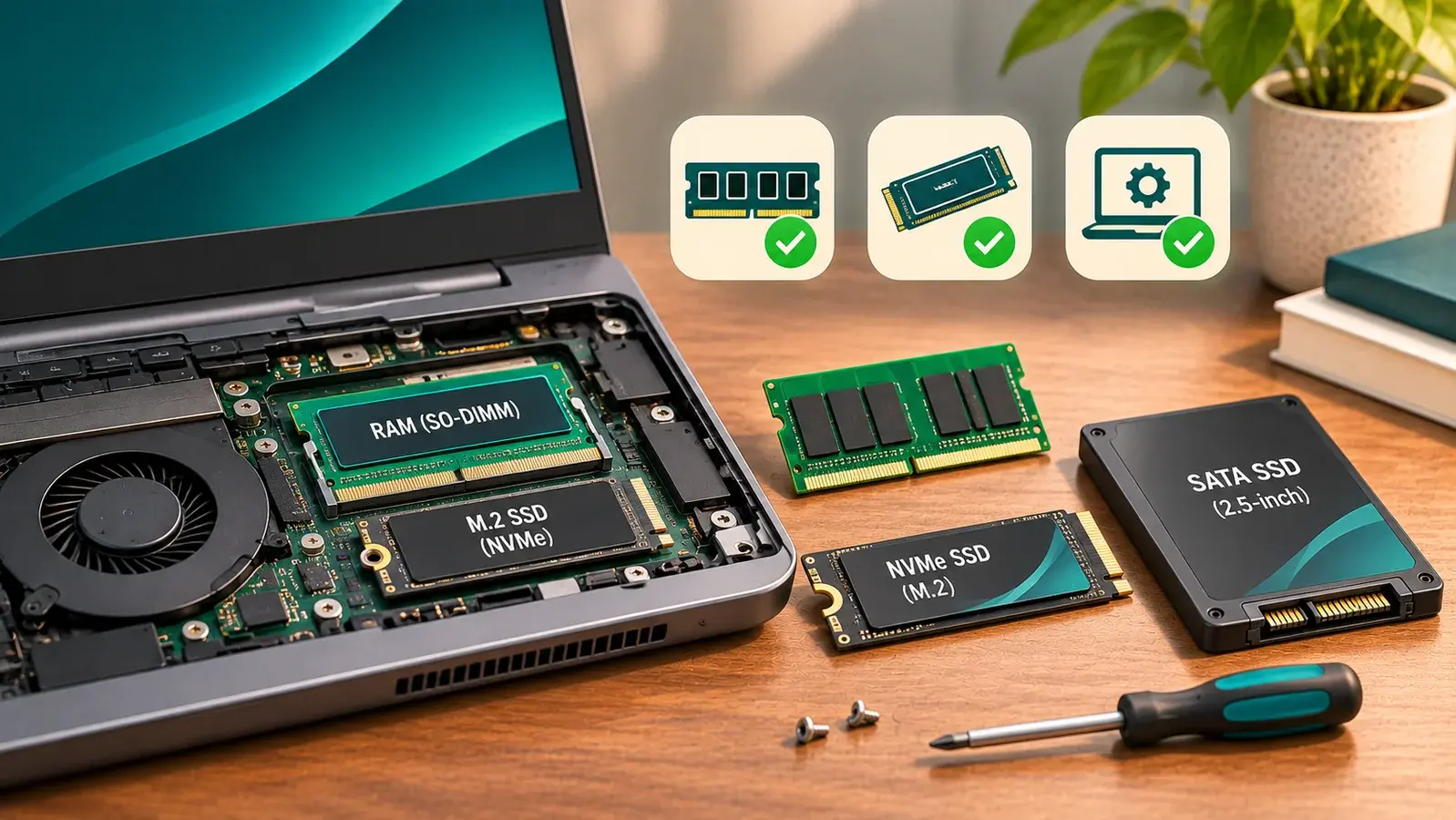
Quick Answer
Check your exact laptop model before ordering RAM or an SSD. Two laptops from the same series can support different components. Use the manufacturer's specifications or service manual to confirm compatibility.
| Your problem | Upgrade to consider |
|---|---|
| Slow startup; mechanical HDD | Compatible SSD |
| Apps slow down when multitasking | More RAM, if memory is nearly full |
| Running out of storage | Larger or additional SSD |
| Slow CPU or graphics performance | RAM or SSD may not solve it |
For a typical Windows laptop, 16 GB RAM and a 500 GB or 1 TB SSD are sensible starting targets, provided the laptop supports them.
1. Identify your exact laptop
- Press
Windows + R, entermsinfo32and check System Model and System SKU. - Open Task Manager (
Ctrl + Shift + Esc) → Performance → Memory. Note the installed capacity, speed and slot information where available. Check Disk for your current drive model and type. - Find the manufacturer's support page using the full model number or service tag. Open the specifications and service manual.
Confirm which parts are replaceable, how many slots exist and whether they are already occupied. Task Manager's slot information can be incomplete or misleading; it cannot prove that an upgrade is possible.
For help finding compatible parts, use the Kingston Memory Finder (adjust the filters for your system). Cross-check any results against the laptop documentation.
2. Choose compatible laptop RAM
| Specification | What to check |
|---|---|
| Generation | DDR3/DDR3L, DDR4 or DDR5, exactly as supported |
| Module type | Usually SO-DIMM; some models use CAMM2/LPCAMM2 |
| Capacity | Maximum total RAM and supported capacity per slot |
| Speed | Supported data rate in MT/s, such as DDR4-3200 |
| Other requirements | Voltage, memory density, ECC or non-ECC, and supported configurations |
DDR4 and DDR5 are not interchangeable. Faster RAM of the correct generation may operate at a lower speed, but compatibility is not guaranteed. Prefer standard JEDEC profiles supported by your laptop rather than paying extra for overclocking profiles it cannot use.
Check for soldered memory: Some laptops have no replaceable RAM; others combine soldered memory with one expandable slot. Apple silicon MacBooks do not offer conventional user-installable RAM upgrades.
How much RAM should you buy?
| Usage | Suggested total RAM |
|---|---|
| Basic browsing and office work | 8–16 GB |
| College, programming and multitasking | 16 GB |
| Virtual machines, large projects and editing | 32 GB or more if needed |
If a laptop has one 8 GB DDR4-3200 SO-DIMM and an empty compatible slot, adding another compatible 8 GB module can provide 16 GB and enable dual-channel operation on a supported platform. Matching specifications or a validated pair reduces compatibility risks.
3. Choose a compatible SSD
| SSD type | Required connection |
|---|---|
| 2.5-inch SATA | SATA drive bay and connector |
| M.2 SATA | M.2 slot supporting SATA |
| M.2 NVMe | M.2 slot supporting PCIe/NVMe |
M.2 describes the physical format, not the storage interface. An M.2 SATA drive and an M.2 NVMe drive can look similar but may not work in the same slot.
For M.2 SSDs, confirm:
- Length: 2230, 2242 or 2280, for example. A 2280 module is 22 mm wide and 80 mm long.
- Interface and key: Check the supported protocol and connector notch, not just whether the drive fits.
- PCIe generation: A compatible Gen 4 NVMe drive can generally operate at Gen 3 speeds in a Gen 3 slot. Confirm firmware and boot support.
- Clearance and capacity: Check supported capacities, single- or double-sided fit, cooling and mounting hardware. Avoid bulky desktop heatsinks unless supported.
For a 2.5-inch SATA SSD, verify drive thickness, the required cable and mounting bracket. An empty space in a laptop does not guarantee a usable drive bay.
Choose 500 GB for ordinary use, 1 TB for larger app and media libraries, or 2 TB if your workload and laptop support it. An existing NVMe SSD does not necessarily need replacing just because a faster model exists.
4. Before buying and installing
- Decide whether you are adding a second drive or replacing your existing system drive. For replacement, plan disk cloning or a fresh OS installation.
- Back up important files and save your BitLocker recovery key if encryption is enabled.
- Buy from a reputable Indian seller; check the exact part number, local warranty, invoice and return policy for incompatible components.
- Check the laptop's service and warranty terms. If uncertain, use an authorised service centre.
- Shut down, unplug the charger, follow the model-specific battery-disconnection procedure and use anti-static precautions. Never force a component into a slot.
- After installation, verify the detected RAM or SSD capacity in BIOS/UEFI and Windows. Test memory stability; initialise and format only a confirmed new blank data drive, never your existing system disk.
Final recommendation: Buy the component your exact laptop supports, not the one with the highest advertised speed. Upgrade an HDD to an SSD first when storage is the bottleneck; add RAM when memory is insufficient.
Sources and useful links
- Dell India — RAM upgrade and model-specific requirements
- Kingston — DDR4 and DDR5 compatibility
- Kingston — Notebook memory support
- Kingston — SSD compatibility FAQ
- Kingston — SSD form factors
- Microsoft — Windows system configuration tools
Related reading: Primary Memory: RAM, ROM and Cache and Secondary Storage: HDD, SSD, Optical and Flash Storage.
If a replacement SSD will become your Windows system drive, use the HDD-to-SSD migration checklist to plan the backup and first boot.