Does Incognito Mode Really Make You Anonymous?
Incognito mode hides some browsing activity from your device, but it does not make you anonymous online. Learn what private browsing really protects.
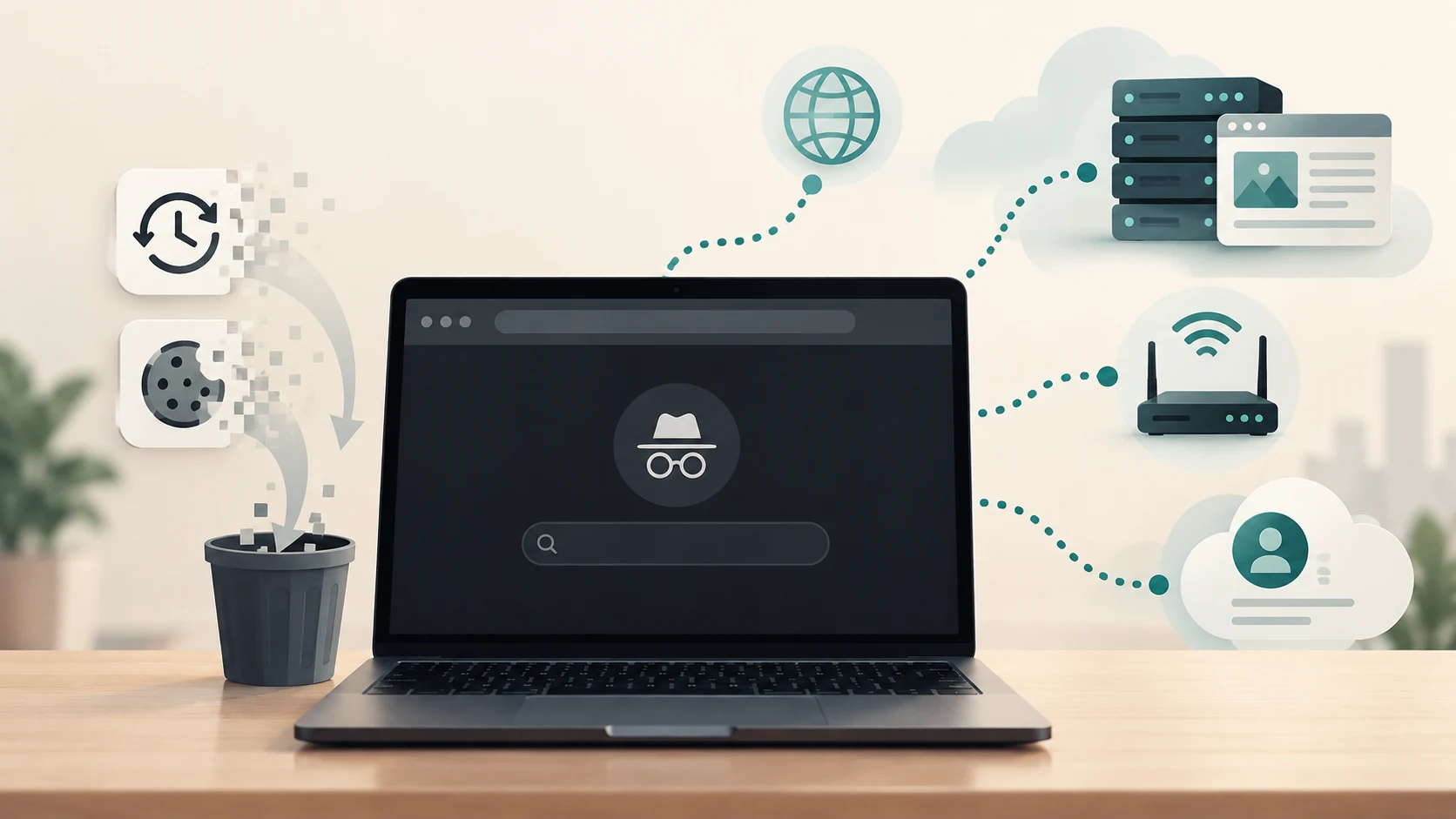
Open an Incognito window in Chrome and the browser suddenly looks different.
The colours change. Your existing website logins disappear. Pages you visit don't show up later in your normal history. When you close the window, the session seems to vanish.
It is easy to interpret that as:
Nobody can see what I'm doing now.
That is not what Incognito mode does.
Google's own Chrome documentation says Incognito can help keep browsing private on your device, but does not make you invisible. Websites, schools, employers and internet service providers may still be able to observe your activity.
The same basic limitation applies to similar features such as Firefox Private Browsing, Microsoft Edge InPrivate and Safari Private Browsing. They are primarily designed to control what the browser remembers locally, although some browsers now add extra anti-tracking and fingerprinting protections as well.
The easiest way to understand private browsing is to stop asking:
"Am I anonymous?"
and instead ask:
"Anonymous from whom?"
That question changes everything.
What Incognito Mode Actually Does
When you open an Incognito window, Chrome starts a separate browsing session.
During that session, websites can still set cookies and store temporary site data so they function normally. But when you close all Incognito windows, Chrome removes the session's cookies and site data and does not retain a normal record of the sites you visited.
That makes Incognito useful for situations such as:
- using a shared computer
- signing into a second account
- searching for something you don't want appearing in your normal browser history
- testing a website without your usual cookies
- shopping for a surprise gift without leaving obvious local browsing history
The important word is local.
Incognito changes what your browser keeps after the session.
It does not create a secret internet connection.
Think of Privacy as Several Different Layers
A normal web visit involves several different parties.
Imagine you open a news website.
There is:
- Your device
- Your browser
- The local network or Wi-Fi
- Your internet service provider
- The website you visit
- Any account you sign into
- Advertising, analytics or other third-party services on that site
Incognito mainly changes what happens at the browser/device layer.
It does not automatically hide your activity from every other layer.
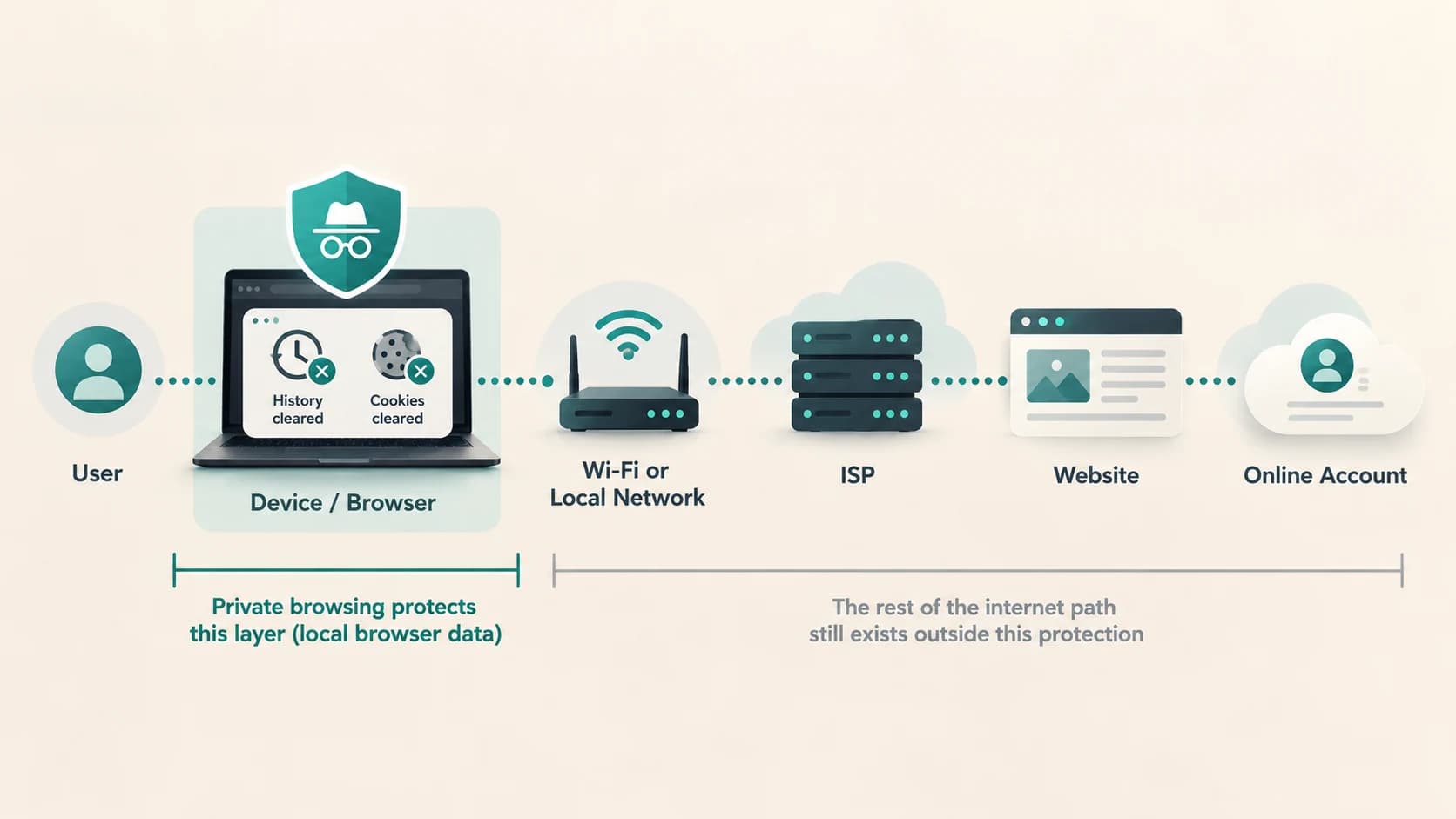
That is why a person sitting down at your laptop later may not see your Incognito browsing history, while the website you visited may still know that you visited it.
Both statements can be true at the same time.
What Happens to Your Browsing History?
In a normal browser window, the browser usually records the pages you visit so they can appear in:
- history
- address-bar suggestions
- previously visited links
- recently closed tabs
- other browser features
Private browsing avoids retaining much of that session information after the private session ends.
Chrome says that once an Incognito session ends, it does not retain site data or a record of the sites visited during that session.
Firefox similarly removes browsing history, cookies and site data after all Private Windows are closed.
Safari says that Private Browsing does not remember pages visited, recent searches or AutoFill information.
So if another person later opens your normal browser history, your completed private session should not appear there in the normal way.
That is the feature private browsing was built for.
What Happens to Cookies?
Cookies are small pieces of site data that help websites remember things such as:
- whether you are logged in
- shopping-cart contents
- preferences
- session identifiers
- sometimes tracking information
Private browsing normally begins with a fresh or isolated cookie environment.
That is why opening a private window often makes websites behave as if you are visiting for the first time.
During the private session, however, cookies still exist.
If you sign into a website, the website needs a way to remember that you are signed in as you move between pages.
The difference is that private-session cookies are generally discarded when the private session ends.
Chrome also currently blocks third-party cookies by default in Incognito mode.
That can reduce some forms of cross-site tracking, but it still does not make the user anonymous.
What About Downloads and Bookmarks?
This catches many people by surprise.
If you download a file in Incognito mode, the file does not disappear when you close the window.
It remains on your computer until you delete it.
Similarly, bookmarks you create are preserved.
Chrome explicitly says both downloaded files and bookmarks remain after Incognito ends.
Firefox behaves similarly: downloads remain on the device and saved bookmarks remain available.
So imagine you use Incognito to download:
private-document.pdfYour browser history may not show the download session afterward, but the file itself may still be sitting in the Downloads folder.
Private browsing is not an automatic cleanup system for everything you do on the computer.
Can Websites Still See You?
Yes.
When you connect to a website, the website still receives a network request.
That request may reveal or contain information including:
- your IP address
- browser characteristics
- device characteristics
- account identity if you sign in
- pages you request
- actions you perform on the site
Firefox's current documentation states explicitly that Private Windows do not hide your IP address or location.
Chrome likewise warns that websites can still gather information about you in Incognito.
So if you visit a website from your normal connection in Incognito mode, the website does not suddenly see you arriving from nowhere.
Your network connection still exists.
Your IP Address Does Not Disappear
Every normal internet connection needs some way for data to travel back to you.
Your public IP address plays an important role in that process.
Incognito mode does not replace it.
Suppose a website normally sees a request coming from a particular public IP address.
Opening an Incognito window does not automatically give you a different public IP.
The site may therefore still infer information such as your approximate region or recognize that repeated visits are coming from the same network.
This is one major difference between private browsing and technologies designed to alter or obscure the network path, such as VPNs or Tor.
What If You Sign Into an Account?
Suppose you open Incognito mode and sign into your social-media account.
The private window prevented your normal cookies from automatically logging you in.
But the moment you deliberately type your username and password, you have identified yourself to that service.
Firefox explains this clearly: once you sign in, the site knows who you are for the rest of that session, and activity performed while signed in can be associated with the account.
Incognito mode cannot simultaneously tell a site:
This is Akhilesh's account.
and:
You must not know that this is Akhilesh.
Logging in is identification.
The browser cannot undo that.
Can Your Internet Provider Still See Your Activity?
Private browsing does not change the basic network connection between your device and the internet.
Chrome explicitly lists internet service providers among the organizations that may still be able to observe Incognito activity.
However, what exactly a network operator can see depends on the technologies being used.
Most major websites now use HTTPS, which encrypts the connection between your browser and the website. Chrome describes HTTPS as making information sent between you and the site private in transit.
Additional technologies such as encrypted DNS can hide DNS lookups from parts of the network path. Firefox's DNS over HTTPS documentation explains that traditional DNS requests can reveal which domain names a device is trying to access, while DoH encrypts those lookups.
So it is too simplistic to say that an ISP can always read every page and search term you use.
But the important point remains:
Incognito itself is not what provides network anonymity or encryption.
Your visibility to the network depends on HTTPS, DNS configuration, VPNs, Tor and other networking technologies.
What About Your Employer or School?
If you are using:
- a work laptop
- a school computer
- a managed browser
- a corporate network
- monitoring software
Incognito should not be treated as a way to bypass monitoring.
An organization can manage browser settings, install monitoring or security software and observe activity at the network or device level.
Microsoft explicitly warns that school and workplace organizations may still be able to access browsing-related information during Edge InPrivate sessions.
Chrome gives the same warning for school and employer networks.
The browser deleting its own local history does not force independently installed monitoring systems to forget what they observed.
Can Websites Track You Without Cookies?
Yes.
Cookies are only one tracking mechanism.
A website can collect information about the browser and device, including characteristics such as:
- screen size
- fonts
- operating system
- hardware capabilities
- rendering behaviour
- browser configuration
When enough of these characteristics are combined, they can form a browser fingerprint.
Firefox describes fingerprinting as identifying a device from a combination of characteristics even after cookies have been cleared.
Modern browsers increasingly attempt to reduce this type of tracking.
Firefox Private Browsing adds enhanced fingerprinting protections.
Safari Private Browsing also includes protections against known trackers, tracking parameters in URLs and advanced fingerprinting techniques.
This means modern private modes can provide more privacy than simply deleting history.
But "harder to track" still does not mean "anonymous."
Different Browsers Provide Different Private-Mode Protections
"Incognito mode" is technically Chrome's name for the feature.
Other browsers use different names and provide somewhat different protections.
| Browser | Private mode | Examples of current behaviour |
|---|---|---|
| Google Chrome | Incognito | Does not retain normal history/site data after session; blocks third-party cookies by default |
| Mozilla Firefox | Private Browsing | Clears session history/cookies; includes tracking and additional fingerprinting protections |
| Microsoft Edge | InPrivate | Clears history, cookies and site data after session; does not hide activity from networks or websites |
| Apple Safari | Private Browsing | Does not retain browsing history/search history; includes tracker, URL-tracking and fingerprinting protections |
These products evolve, so it is better to understand the principle than assume all private modes behave identically.
Is Incognito Mode a Security Feature?
Not in the sense people sometimes assume.
Incognito mode does not automatically protect you from:
- phishing
- malicious websites
- viruses
- fraudulent downloads
- scams
- passwords you willingly give to a website
- files you download
- surveillance software already installed on the device
Browsers may include separate security technologies such as malware warnings, certificate checking and safe-browsing services.
But those protections are not the same thing as private browsing.
A phishing site remains a phishing site whether you visit it in a normal tab or an Incognito tab.
Private Browsing and a VPN Are Not the Same Thing
A VPN operates at a different layer.
Private browsing mostly changes what the browser remembers locally.
A VPN routes internet traffic through a VPN server and typically replaces the public IP address visible to websites with the VPN server's address.
Mozilla describes a VPN as encrypting traffic between the device and VPN infrastructure and preventing visited sites from seeing the user's normal public IP address.
A simplified comparison looks like this:
| Feature | Incognito / Private mode | VPN |
|---|---|---|
| Keeps session out of normal browser history | Yes | Not necessarily |
| Clears session cookies afterward | Usually | No |
| Changes public IP seen by websites | No | Usually |
| Changes network path | No | Yes |
| Stops websites knowing who you are after login | No | No |
| Guarantees anonymity | No | No |
A VPN shifts some trust from your internet provider toward the VPN provider.
It is therefore not a magic anonymity button either.
What About Tor Browser?
Tor Browser is designed for a much stronger anonymity goal than ordinary private browsing.
Tor routes traffic through multiple relays and is designed to prevent visited websites from learning the user's normal source IP address. It also contains specific protections intended to reduce browser fingerprinting.
The Tor Project explicitly contrasts this with Incognito and private tabs, which it says do not provide the same anonymity protections.
Even Tor is not magical.
If you use Tor Browser and then log into an account containing your real identity, the website knows which account is being used.
The Tor Project also warns that perfect anonymity cannot be guaranteed and that users can reveal themselves through information they voluntarily provide.
Privacy tools can reduce information leakage.
They cannot prevent you from identifying yourself.
So When Should You Actually Use Incognito Mode?
Incognito is useful when your goal matches what it actually does.
It is particularly helpful when you want to:
Keep a session off a shared browser's normal history
If several people use the same computer, private browsing helps prevent the next person from casually seeing the pages you visited.
Temporarily avoid existing cookies
You can open a website as a fresh session without logging out of your normal browser.
Sign into multiple accounts
One account can remain open in the regular browser while another is used privately.
Avoid leaving temporary site data behind
Once all private windows are closed, session cookies and site data are removed.
Reduce some forms of tracking
Depending on the browser, private mode may block third-party cookies, known trackers or some fingerprinting techniques.
Those are useful protections.
None requires pretending that private browsing makes you invisible.
A Better Mental Model for Incognito Mode
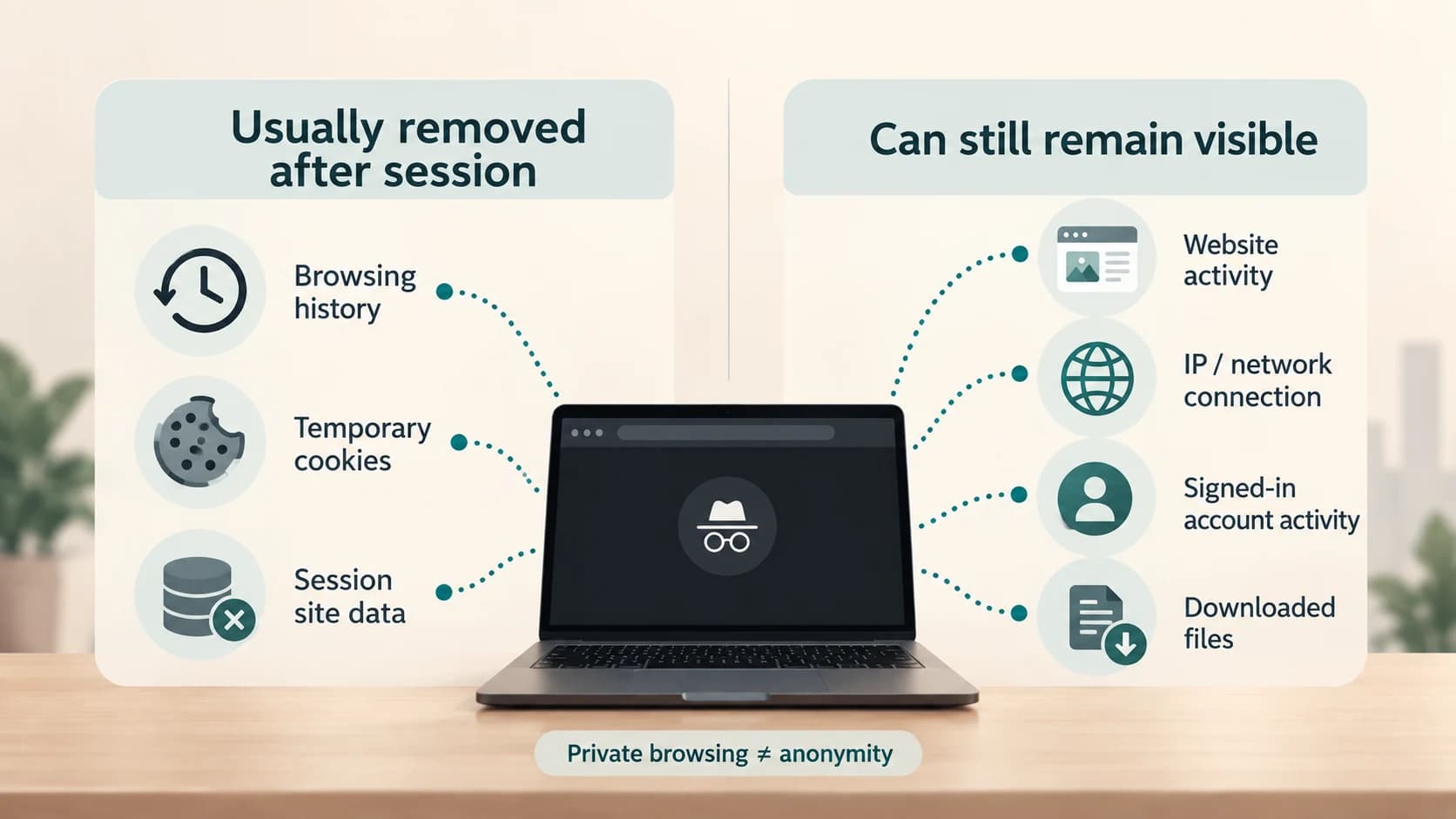
Think of normal browsing as leaving footprints in several places:
Browser history
Cookies
Website logs
Account activity
Network activity
Downloaded files
Private browsing cleans up some of those footprints.
Primarily:
Browser history
and
temporary browser cookies/site data
It may also add anti-tracking features depending on the browser.
But other footprints can remain.
The website still received your visit.
An account you logged into can still record your actions.
A downloaded file may still exist on your device.
Your network connection still happened.
That is why the most accurate description of Incognito mode is not:
Browse anonymously.
It is closer to:
Browse without leaving the normal browser-session history and cookies behind on this device after you close the session.
That sounds less dramatic.
It is also much closer to what the feature actually does.
The Answer: Private, but Not Anonymous
Incognito mode is genuinely useful.
The mistake is expecting it to solve a different problem from the one it was designed for.
It provides local browsing privacy.
It can prevent another user of the same browser from easily seeing your completed private session.
It can isolate cookies.
Some browsers add meaningful protection against third-party tracking and fingerprinting.
But Incognito does not automatically hide:
- your IP address
- your activity from websites
- your identity after you log in
- your network traffic from network-level monitoring
- files you download
- activity captured by separate monitoring software
So does Incognito mode make you anonymous?
No.
It gives you a cleaner, more isolated browsing session.
True online anonymity is a much broader problem involving the browser, network, accounts, IP address, tracking technologies and even the information you voluntarily reveal.
Incognito handles only part of that picture.