Tablet vs Laptop for Students: Which Should You Buy?
Should a student buy a tablet or laptop? Compare note-taking, assignments, software, multitasking, portability and cost before choosing the right device.
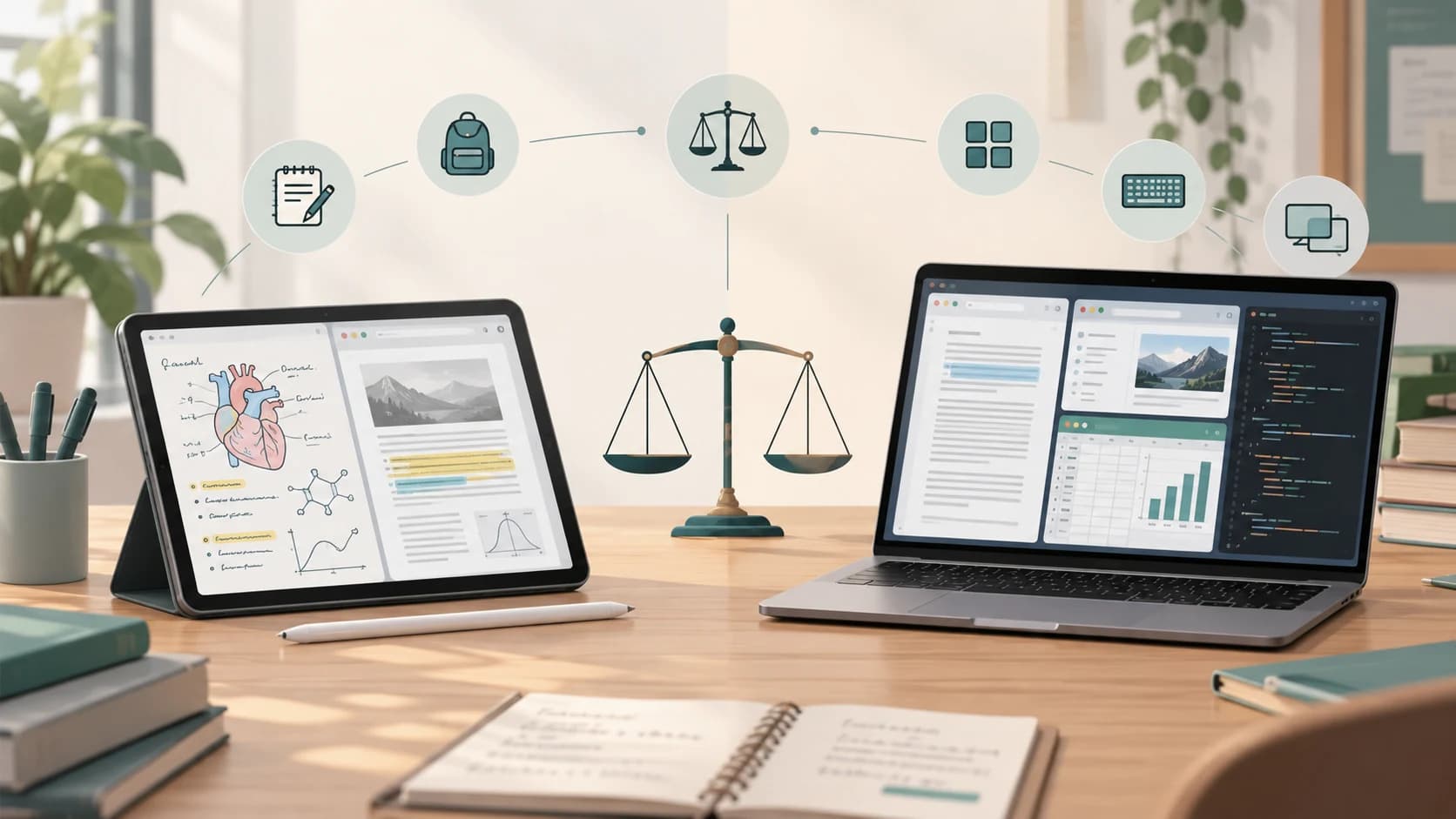
A student walking into a classroom today might carry a laptop, a tablet with a keyboard, or a tablet and stylus that appears capable of doing almost everything a laptop can do.
That makes the buying decision much less obvious than it used to be.
Modern tablets can handle documents, presentations, video calls, handwritten notes, web research, photo editing and multiple apps on screen. Apple's current iPad software, for example, supports resizable app windows and multiple simultaneous windows, while external keyboards, mice and trackpads can also be used with iPad.
At the same time, laptops have not stood still. Windows and ChromeOS provide desktop-style window management, keyboards, trackpads, file systems and broad software ecosystems designed around multitasking. Windows 11 supports Snap layouts for arranging several applications, while ChromeOS supports split windows, floating windows and virtual desks.
So the real question is no longer:
Can a tablet do student work?
Of course it can.
The better question is:
Can a tablet do all the work your course will require, comfortably, for the next several years?
For most students who can buy only one computing device, a laptop remains the safer all-purpose choice.
But there are important exceptions.
For some students, especially those who spend much of their time reading, annotating PDFs and taking handwritten notes, a tablet can be the more enjoyable device to use every day.
Start With the Most Important Question: Is This Your Only Computer?
This one question changes almost everything.
Suppose you already have a capable desktop computer at home.
A tablet becomes much more attractive.
You can use the desktop for:
- long assignments
- specialized software
- coding
- large spreadsheets
- file management
- demanding projects
while carrying the tablet for:
- class notes
- textbooks
- PDFs
- presentations
- web research
- video lectures
In that situation, the tablet does not have to replace a laptop.
It only has to be a good portable student device.
But if this will be your only computer, it needs to handle every unexpected task your school or university might give you over several years.
That is where a laptop usually has an advantage.
Where Tablets Are Genuinely Better
Tablets are not simply weaker laptops.
Their form factor creates advantages that conventional laptops do not reproduce as naturally.
Handwritten notes
This is probably the strongest academic argument for a tablet.
A stylus lets you write directly onto lecture slides, PDFs and diagrams.
That can be especially useful for subjects involving:
- mathematics
- chemistry
- physics
- engineering diagrams
- anatomy
- economics graphs
- languages
- handwritten problem solving
Apple's current Pencil features, for example, support handwriting, drawing, annotation and conversion of handwritten input into typed text. The Notes app also supports handwritten notes, sketches, scanned documents and structured text.
A laptop can also support a pen if it has a touchscreen or convertible design. Windows specifically supports digital pens for handwriting, annotation and converting handwriting into text.
But on an ordinary clamshell laptop, writing directly onto the display is rarely as natural as writing on a flat tablet.
Reading textbooks and PDFs
Hold a tablet vertically and it resembles a sheet of paper.
That makes it well suited to:
- textbooks
- journal articles
- lecture notes
- PDFs
- ebooks
You can sit on a sofa, stand in a library or hold it while moving around a classroom.
A conventional laptop usually expects to be placed on a desk or your lap.
For students who spend more time reading and annotating than creating complex documents, that difference matters.
Portability
A tablet by itself can be extremely compact.
You can take it out for a five-minute reading session without setting up a full computer.
That convenience sounds minor until you use the device several times a day.
However, portability comparisons become less dramatic once you add:
- keyboard case
- trackpad
- protective cover
- stylus
A fully accessorized tablet can become much closer to a small laptop in both weight and bulk.
Where Laptops Still Have the Advantage
The laptop's main strength is not one feature.
It is generality.
A laptop is designed to handle a much wider range of computing workflows without needing you to ask whether each one has been adapted for a tablet.
Typing Long Assignments Is Usually Easier
Writing a short email on a touchscreen keyboard is fine.
Writing a 4,000-word project report is different.
A physical laptop keyboard is always present.
So is a trackpad.
You open the lid and start working.
A tablet can achieve a similar experience with a keyboard case, but that accessory becomes part of the practical cost of the device.
Once a tablet needs:
tablet + keyboard + trackpad + stylus
the price comparison should be against the complete setup, not the tablet alone.
Multitasking Is More Natural on a Laptop
Imagine working on an assignment with:
- a browser
- Word processor
- PDF textbook
- spreadsheet
- file manager
- messaging app
all open.
Desktop operating systems were built around that style of work.
Windows Snap lets users arrange several application windows and switch between groups of snapped windows.
ChromeOS similarly allows split, partial and floating windows and supports multiple virtual desktops.
Modern tablets have improved significantly here.
Current iPadOS supports multiple resizable windows, and users can choose between Windowed Apps and Stage Manager.
That means the old claim that tablets can run only one app at a time is badly outdated.
The difference is now more about workflow comfort and flexibility than whether multitasking exists at all.
A tablet can multitask.
A laptop is still usually designed around multitasking from the beginning.
Software Compatibility Can Decide the Entire Question
This is the most important area students often overlook.
Your course may require specific software.
For example:
- programming tools
- statistical packages
- CAD software
- engineering tools
- accounting packages
- simulation software
- specialist exam software
- research applications
A tablet may have an equivalent application.
It may have a simplified mobile version.
It may have a browser-based version.
Or it may have no compatible version at all.
Programming is a good example
Microsoft's current Visual Studio Code desktop application officially supports Windows, macOS and Linux.
Web-based development environments can make coding possible from tablets, but that is not identical to having a full local development environment with:
- terminal access
- language runtimes
- compilers
- local servers
- extensions
- debugging tools
- project folders
For a computer-science or software-development student, that distinction can be decisive.
Creative software is another example
Tablet versions of professional applications have become remarkably capable.
Adobe Photoshop on iPad, for example, supports large Photoshop files, layers, selections, retouching, brushes and cloud documents.
But Adobe also continues to maintain platform-specific interfaces and feature sets.
The important lesson is not that tablets lack serious software.
They do not.
The lesson is that you must check the exact software required by your course before assuming that a tablet version is equivalent to the desktop version.
File Management Matters More Than Students Expect
Students eventually accumulate:
- PDFs
- assignments
- presentations
- scanned documents
- photographs
- downloaded research
- project folders
- ZIP archives
Modern tablet operating systems can manage files far better than early tablets could.
But desktop workflows still tend to be more natural when you frequently need to:
- move large folder structures
- rename many files
- work with external drives
- unzip archives
- drag files between multiple applications
- manage local development projects
This becomes particularly important in technical courses where folder structure itself may be part of the work.
For simpler workflows based mostly around cloud storage, documents and PDFs, the difference becomes much smaller.
A Laptop Gives You More Ports—Usually
Many thin tablets have one main USB-C connector.
Some laptops are similarly minimal, but laptops generally provide more opportunity for ports such as:
- USB-C
- USB-A
- HDMI
- headphone jack
- SD card reader
depending on the model.
That matters if you regularly connect:
- projectors
- USB drives
- external monitors
- wired networks
- cameras
- laboratory equipment
Adapters can solve many tablet limitations.
But each adapter becomes another item you need to carry.
Tablets Can Be Excellent Presentation Devices
The ability to hold the screen directly gives tablets an advantage in certain situations.
They work well for:
- showing someone a diagram
- presenting a portfolio
- displaying notes while standing
- signing documents
- working with visual material
Some tablets can also connect to external displays. Apple's Keynote on iPad, for example, can show a presentation on a separate display while the iPad displays presenter notes and controls.
So a tablet should not be dismissed as a consumption-only device.
Modern tablets are fully capable productivity computers.
Their limitation is that they are not necessarily the same kind of productivity computer as a laptop.
What About Battery Life?
It is common to say that tablets automatically have better battery life.
That is too broad.
Runtime depends on:
- processor efficiency
- battery capacity
- display
- workload
- screen brightness
- network use
- operating system
Some tablets last exceptionally long.
So do some modern laptops.
A student's better approach is to compare independent battery testing for the exact models being considered, rather than assuming one device category always wins.
The same applies to charging speed.
What About a Chromebook?
A Chromebook complicates the tablet-versus-laptop distinction.
It has the physical advantages of a laptop:
- keyboard
- trackpad
- desktop-style windows
- file management
but ChromeOS is more web-focused than Windows or macOS.
ChromeOS supports split windows, virtual desks and multitasking, and some Chromebooks can also run Android applications through Google Play.
For students whose work happens mainly in:
- browser applications
- Google Docs
- online classrooms
- video calls
- web research
a Chromebook can be a very practical option.
But, just like a tablet, you should verify whether specialized course software is available before buying one.
What About a 2-in-1 Laptop?
A convertible Windows laptop attempts to combine both device categories.
It can give you:
- desktop operating system
- physical keyboard
- traditional software
- touchscreen
- stylus support
- tablet mode
For some students, this is the most logical compromise.
You can type an assignment like a laptop and fold the device over to annotate notes.
The compromise is that a convertible laptop may be:
- heavier than a tablet
- less pleasant to hold for long reading sessions
- more mechanically complex
- more expensive than a basic laptop
It combines many benefits.
It does not eliminate every trade-off.
Which Is Better for Different Types of Students?
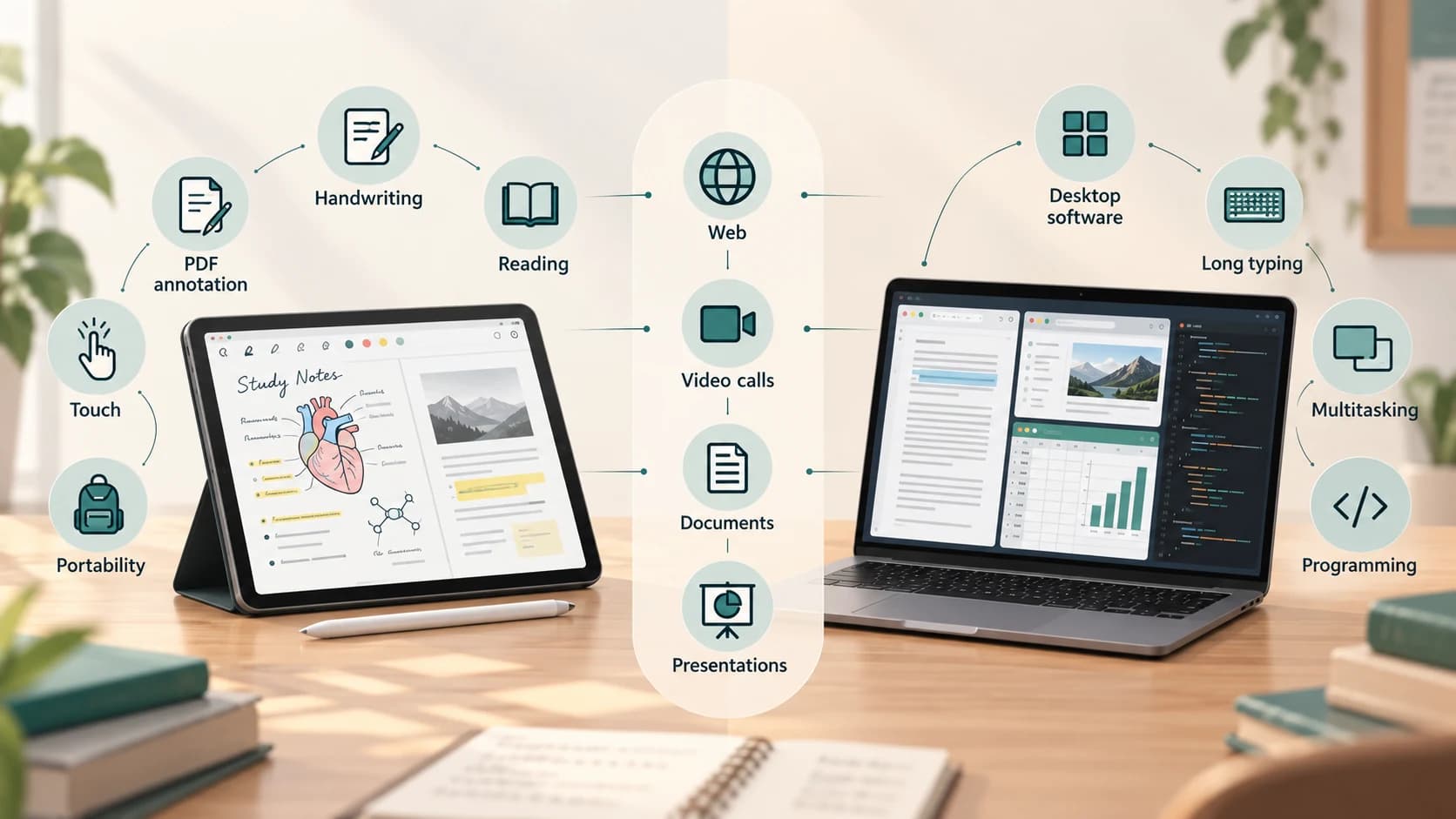
The answer becomes clearer when the course is considered.
| Student / workload | Usually more practical |
|---|---|
| School student doing browser-based assignments | Either |
| Humanities / literature | Laptop or tablet + keyboard |
| Medical / biology student taking annotated notes | Tablet can be excellent |
| Mathematics student | Tablet is excellent for handwritten work; laptop useful for software |
| Computer science / programming | Laptop |
| Engineering | Usually laptop; tablet useful as companion |
| Graphic illustration / handwritten design | Tablet can be excellent |
| Accounting / heavy spreadsheets | Laptop |
| Research with many PDFs | Tablet for reading, laptop for writing; combination works well |
| Video editing / advanced creative work | Usually laptop, depending on software |
| Mostly online classes and Google Docs | Tablet, Chromebook or laptop |
These are practical tendencies rather than rules.
A medical student running specialist desktop software could still need a laptop.
A computer-science student might use a tablet extremely effectively for textbooks and handwritten algorithms while keeping a laptop for actual development.
The more specialized your course becomes, the more important exact software requirements become.
Can a Tablet Completely Replace a Laptop?
Yes, for some students.
A tablet can realistically be a primary device when most work consists of:
- web browsing
- reading
- note-taking
- video lectures
- presentations
- word processing
- light spreadsheets
- cloud-based coursework
Add a good keyboard and the experience can become surprisingly laptop-like.
The tablet becomes a weaker choice when your work depends on:
- desktop-only applications
- heavy programming
- advanced file management
- complex spreadsheets
- professional engineering software
- virtual machines
- local development tools
- unusual hardware peripherals
So asking:
“Can an iPad or Android tablet replace a laptop?”
is too broad.
The correct question is:
“Can it replace a laptop for my particular workflow?”
The Hidden Cost of Turning a Tablet Into a Laptop
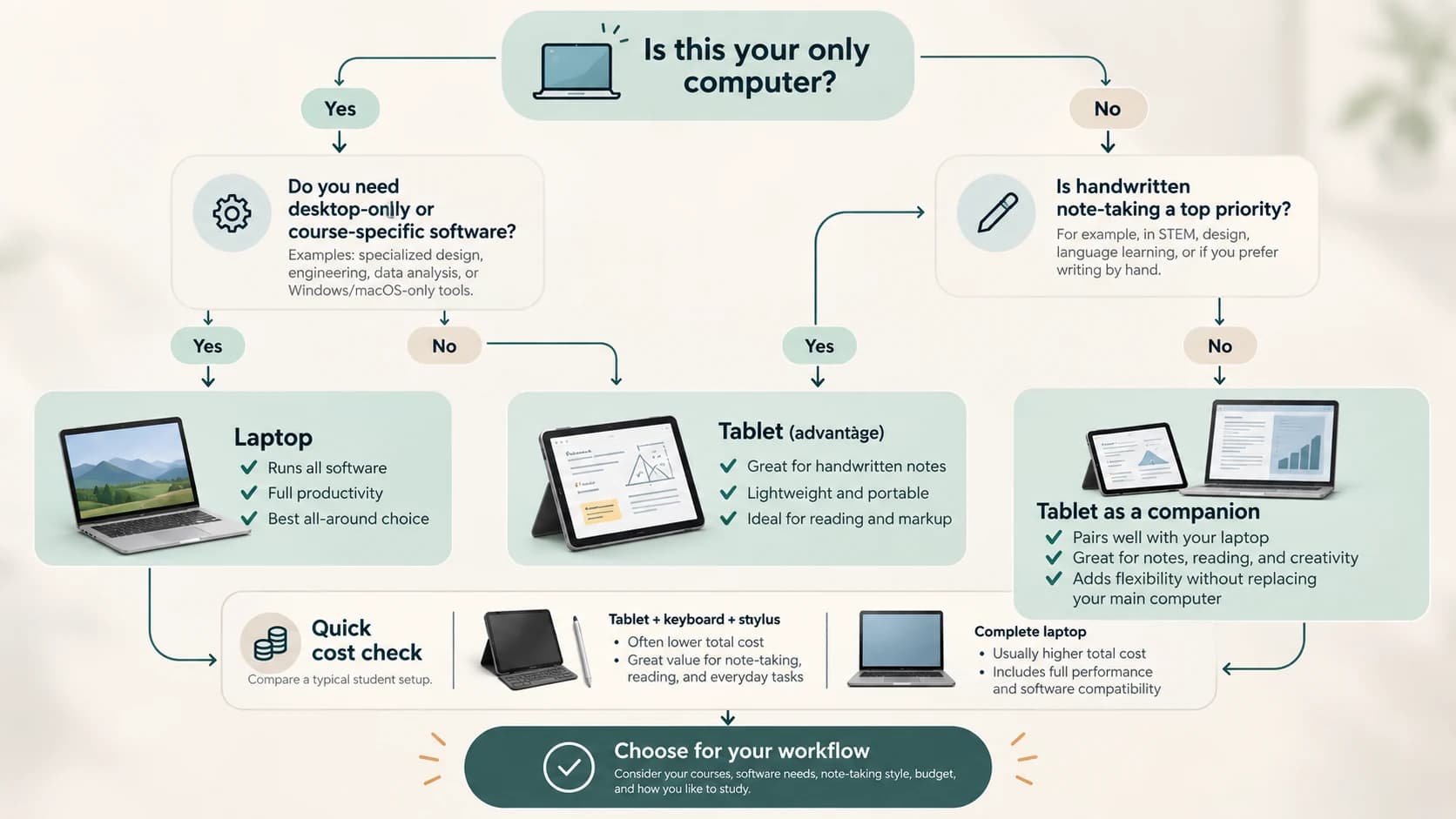
Suppose you compare:
₹50,000 tablet
with:
₹55,000 laptop
The tablet initially looks cheaper.
But perhaps you also need:
- keyboard case
- stylus
- stand
- USB hub
Suddenly the comparison changes.
This does not mean tablets are bad value.
A stylus may provide capabilities the laptop cannot match.
But always compare complete setups.
Ask:
What do I need to buy before this device can actually handle my coursework?
That is a far better question than comparing base prices.
What Should a Student Prioritize in a Laptop?
If you decide on a laptop, prioritize balance rather than impressive headline specifications.
For general academic work, focus on:
- comfortable keyboard
- good battery life
- sufficient RAM
- enough storage
- reliable processor
- readable display
- manageable weight
- webcam and microphone quality
- software compatibility
Do not buy a heavy gaming laptop merely because it has the most powerful processor if your daily work is Word, PDFs and web research.
Likewise, do not buy an ultra-cheap laptop with too little RAM or storage if you expect to keep it throughout a degree.
What Should a Student Prioritize in a Tablet?
For a tablet, ask different questions.
Stylus experience
If handwritten notes are the main reason for buying it, the stylus matters enormously.
Check:
- writing latency
- palm rejection
- pen accuracy
- note-taking software
- replacement nib availability
Keyboard
If you will write assignments, test the keyboard.
A beautiful tablet paired with an uncomfortable keyboard can become frustrating very quickly.
Screen size
A small tablet is excellent for portability.
A larger one is better for:
- split-screen work
- documents
- drawing
- keyboard use
but becomes less convenient to hold.
Storage
Students can accumulate large numbers of:
- PDFs
- lecture videos
- scanned textbooks
- recordings
- creative files
Cloud storage helps, but local capacity still matters.
App ecosystem
This should be checked before purchase, not afterward.
The Five-Minute Test Before Buying Either Device
Before choosing, write down the ten tasks you expect to perform most often.
For example:
- Take handwritten notes.
- Read PDFs.
- Write assignments.
- Create presentations.
- Attend video classes.
- Run Python.
- Use Excel.
- Connect to a projector.
- Edit photographs.
- Take online exams.
Now mark each device:
Excellent
Acceptable
Awkward
Not supported
That exercise is more useful than comparing processor benchmarks for devices that perform fundamentally different roles.
Which Should Most Students Buy?
If you are buying one device only and are unsure what your course will require over the next few years, a laptop is generally the safer choice.
It gives you:
- broader desktop-software compatibility
- built-in keyboard and trackpad
- stronger traditional multitasking
- easier file management
- fewer surprises with specialized software
A tablet makes more sense as the primary device when your work is heavily centered on:
- handwriting
- reading
- annotation
- presentations
- web applications
- touch-based creative work
And if you already have access to a desktop or laptop, a tablet can be an excellent second device for study.
The most powerful setup for some students may actually be:
laptop for creation + tablet for reading and handwritten notes.
But that is obviously more expensive than choosing only one.
The Best Device Is the One That Removes Friction
A tablet can feel better in a lecture hall because you can write directly on a PDF.
A laptop can feel better two hours later when you need twelve browser tabs, a spreadsheet, a presentation and specialist software open at the same time.
Neither is universally better.
They solve slightly different problems.
So before choosing between them, do not ask which device has:
- the better processor
- the nicer screen
- the bigger specification number
Ask something more practical:
What will I actually be doing with it every week for the next three or four years?
If the answer involves unpredictable software and lots of traditional computer work, buy the laptop.
If the answer revolves around notes, reading, annotation and portability—and your required applications are available—a tablet may be the better study tool.
The device that fits your workflow will usually help you more than the device that looks more impressive on a specification sheet.