
USB-C Cables Explained: Why Some Support Fast Charging but Transfer Data Slowly
A USB-C cable can fast-charge your phone yet copy files slowly. Learn what USB 2.0, 10Gbps, 60W, 240W and e-markers actually mean before buying.
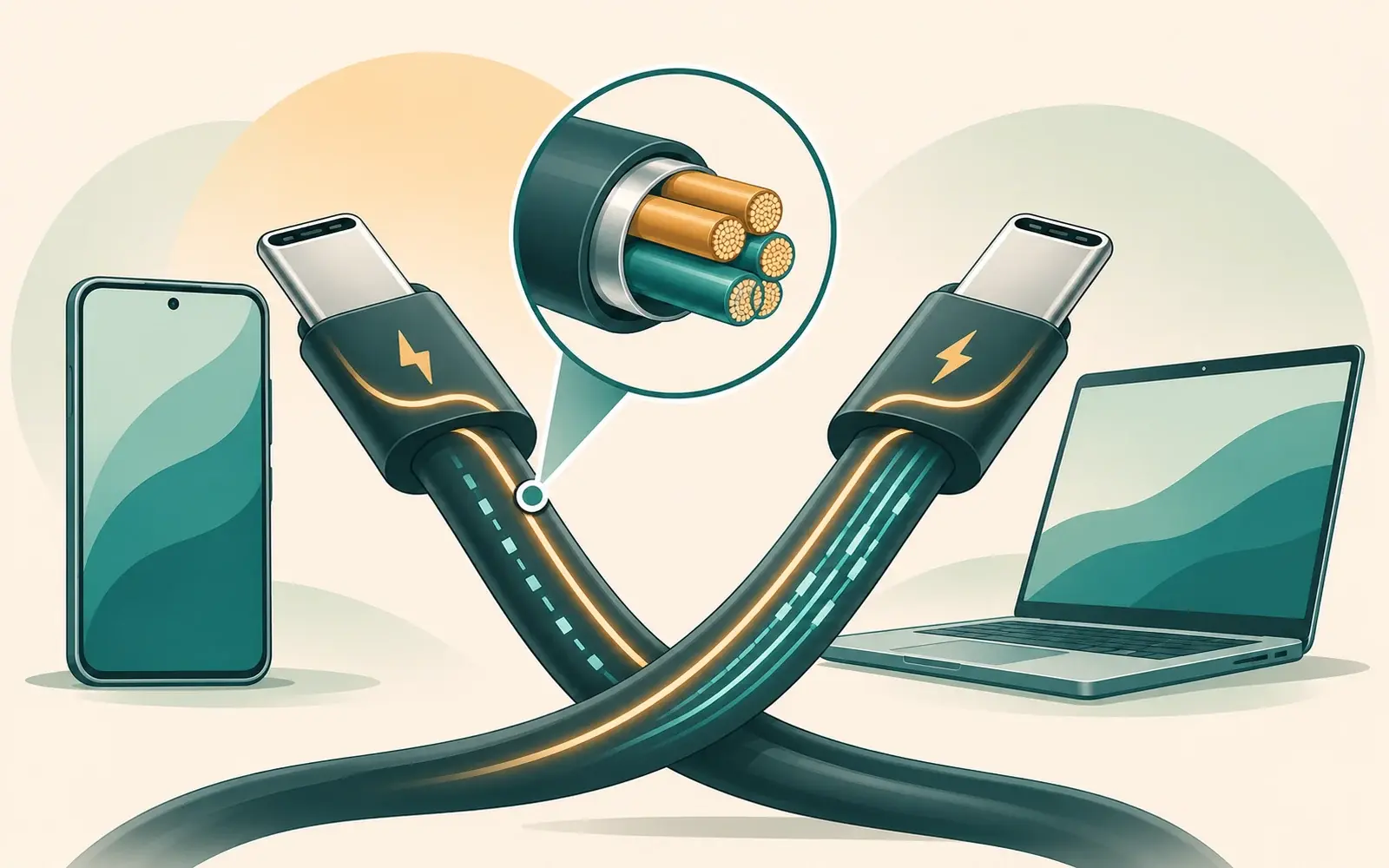
You connect your phone to a powerful charger, and the battery fills quickly. Then you connect the same USB-C cable to your laptop to copy a large video. The transfer crawls. Nothing is necessarily broken: the cable may support high charging power but only basic USB 2.0 data speeds.
This is one of the most confusing things about modern phone accessories. Two cables can have identical reversible USB-C plugs while offering very different capabilities. A prominent “100W” or “240W” label tells you something about power—not how quickly your files will move.
Understanding three separate things—connector, charging capability and data capability—is enough to avoid most expensive mistakes.
USB-C describes the connector, not the speed
USB-C (technically USB Type-C) is the small, reversible plug and port found on many smartphones, tablets, laptops and accessories. It does not, by itself, promise a particular transfer speed, charging wattage or display output.
The same connector shape can carry different technologies:
- USB 2.0 data, with a signalling rate up to 480 megabits per second (Mbps).
- Faster USB data, with advertised rates such as 5, 10, 20, 40 or 80 gigabits per second (Gbps), depending on the cable and connected devices.
- USB Power Delivery (USB PD), which lets compatible equipment negotiate how much electrical power to deliver.
- Video and other functions, where the devices, cable and relevant protocols support them.
These are related through the connector, but they are not interchangeable features. A cable designed primarily for bedside charging may be perfectly suitable for its purpose even if it is a poor choice for transferring a phone's video library.
How can one cable charge quickly but transfer files slowly?
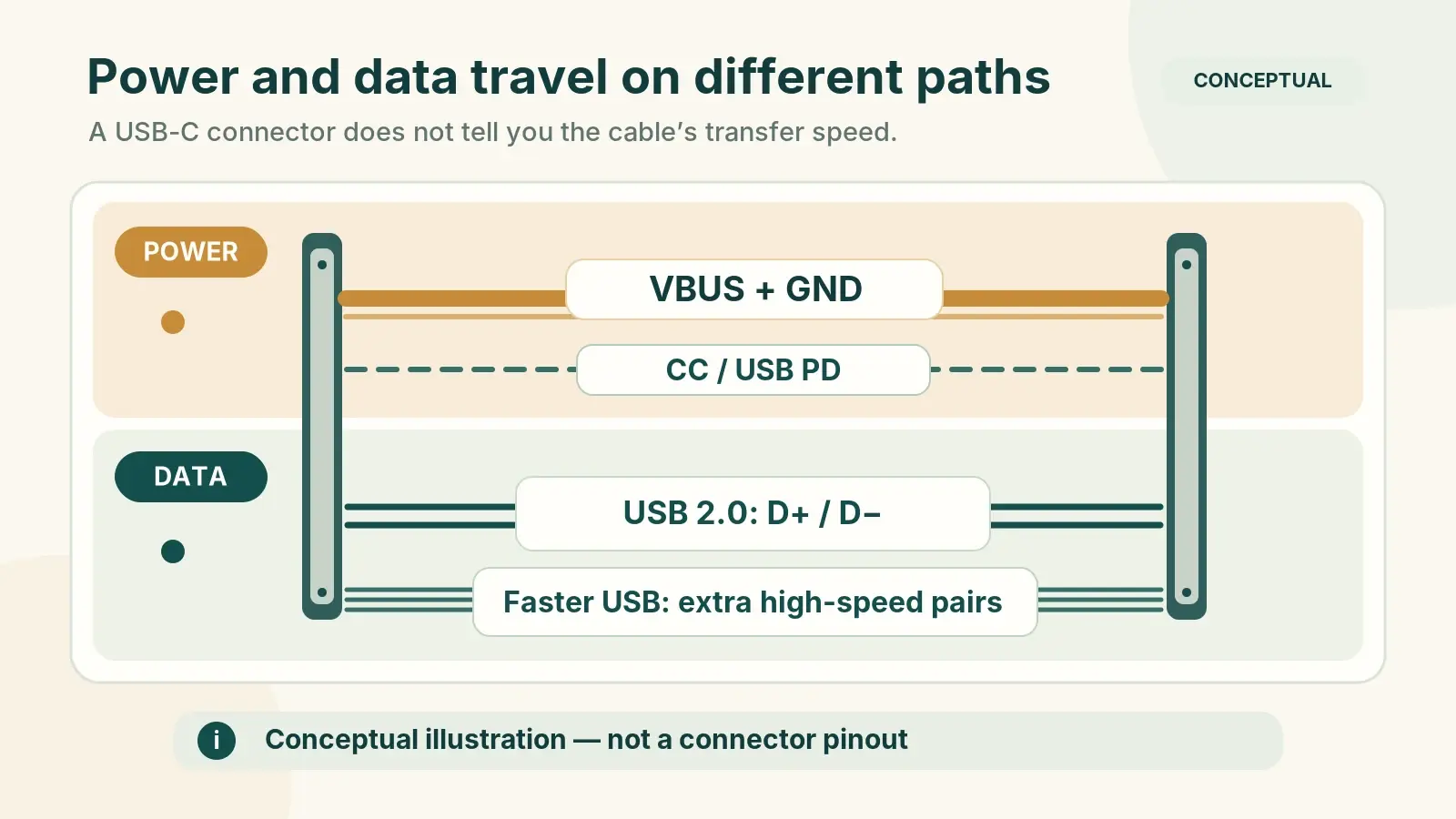
Power and data use different electrical paths and controls inside a USB-C connection.
For charging, the cable carries electrical power through power and ground conductors. USB-C configuration-channel connections help devices establish the connection and negotiate supported behaviour; USB PD adds communication for compatible higher-power operation.
For data, USB 2.0 has its own signal pair. Faster USB connections require additional high-speed signal paths and more demanding cable construction. A cable can therefore be built to carry substantial current while supporting only the USB 2.0 data path.
Imagine a road with an excellent electricity supply running beside a narrow data lane. Upgrading the electrical supply does not automatically add more lanes for files. The analogy is imperfect, but it captures the important distinction.
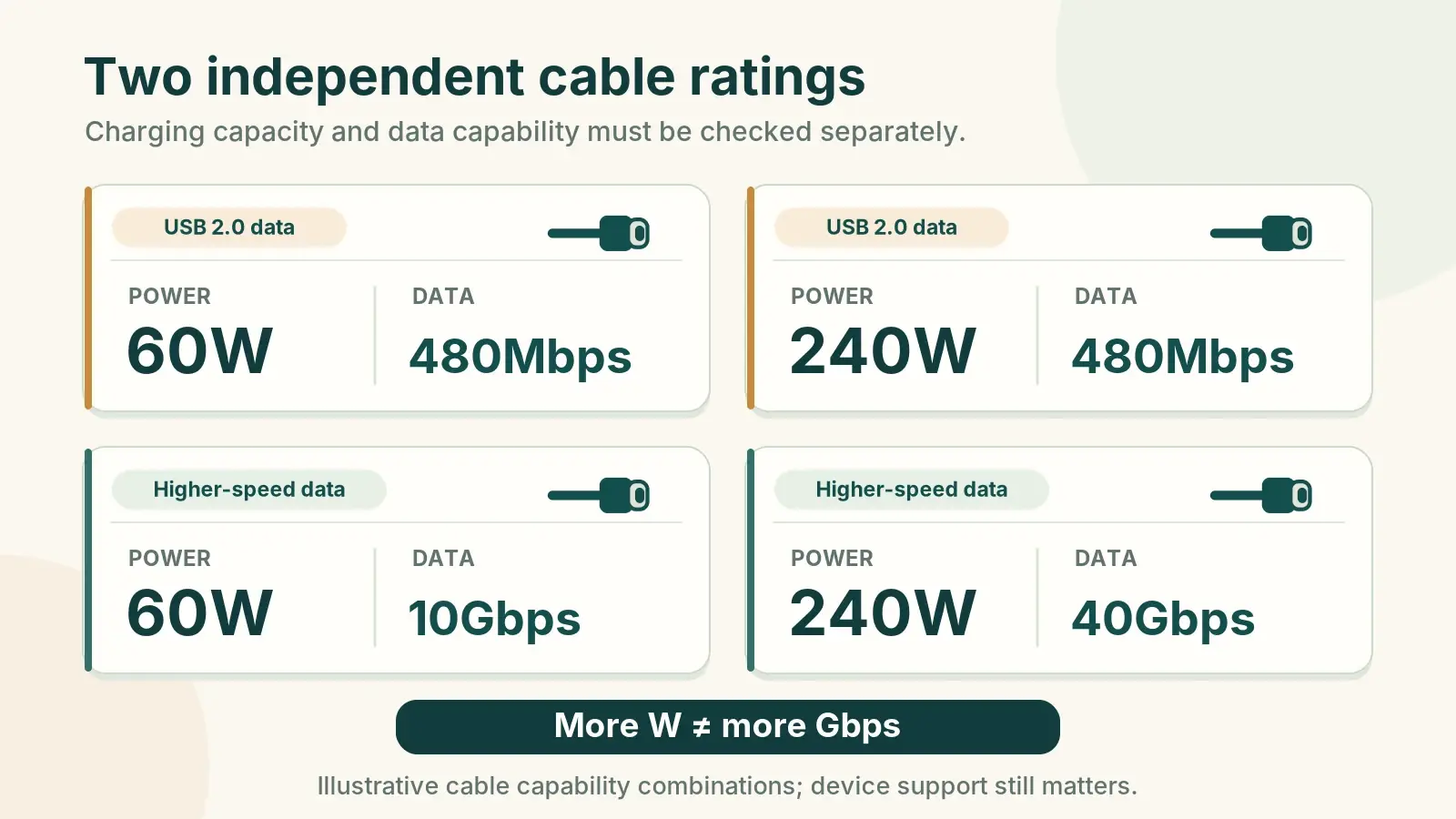
The USB Implementers Forum (USB-IF), which maintains the standards, explicitly recognises USB-C cables that support 60W or 240W charging while transferring USB 2.0 data at up to 480Mbps. So a high-wattage cable with slow data is not automatically counterfeit or defective. It may simply be designed that way.
A typical standards-compliant USB-C charging cable still supports USB 2.0 data. However, some non-standard, damaged or limited cables may fail to transfer files at all. “Charging works” is not proof that the data connection works.
What do 480Mbps, 5Gbps and 10Gbps actually mean?
Cable packaging often uses numbers without explaining what they measure. These are maximum signalling rates, not guaranteed file-copy speeds.
| Advertised USB data capability | Maximum signalling rate | What it generally suits |
|---|---|---|
| USB 2.0 | 480Mbps | Charging, occasional file transfers, basic accessories |
| USB 5Gbps | 5Gbps | Faster photo and file transfers, compatible storage |
| USB 10Gbps | 10Gbps | Large video transfers and capable external SSDs |
| USB 20Gbps and above | 20Gbps, 40Gbps or 80Gbps | Supported high-performance computers, docks and storage |
The old technical naming—such as USB 3.2 Gen 1, Gen 2 and Gen 2x2—can make shopping unnecessarily difficult. The simpler question is: what explicit Gbps figure does the cable support? A listing that says only “USB-C” or “USB 3” leaves important details unanswered.
A 10GB transfer illustrates the difference
Suppose you are copying a 10GB file, using decimal units (10 gigabytes = 80 gigabits):
- At 480Mbps, the ideal mathematical minimum is about 167 seconds (2 minutes 47 seconds).
- At 5Gbps, the theoretical minimum is 16 seconds.
- At 10Gbps, the theoretical minimum is 8 seconds.
These figures are calculations, not measured benchmarks. Real transfers take longer because of protocol overhead, the phone's storage performance, the computer's port, file-handling software and other bottlenecks. You should not expect a 10Gbps cable to finish a 10GB transfer in eight seconds.
The useful lesson is the scale of the difference. When both connected devices support faster transfers, changing from a USB 2.0 cable to an appropriate high-speed cable can materially reduce waiting time.
A 100W or 240W rating does not describe data speed
Charging labels answer a different question: how much power is the cable designed to carry under suitable conditions?
A familiar baseline is 60W, corresponding to 20 volts at 3 amps in a conventional USB PD arrangement. Cables that support higher current require suitable design and electronic identification. Earlier high-power USB-C cables were commonly advertised at 100W (20V × 5A).
USB PD's Extended Power Range expanded the standard's potential to 240W, using up to 48V at 5A with compatible hardware. USB-IF's current certified cable power markings use 60W and 240W categories. Older or retailer-specific 100W and 65W labels still appear in stores; the number itself does not prove certification or data capability.
These are cable capabilities, not instructions to force that power into your phone. A 240W-capable cable does not make a 25W smartphone charge at 240W. The phone, power adapter, charging protocol, temperature and battery state determine the actual charging rate.
What is an e-marker?
An electronically marked cable, commonly called an e-marked cable, includes circuitry that communicates supported cable characteristics to compatible equipment. That information matters for certain higher-current and faster-data configurations.
It is helpful, but not magical. An e-marker does not make a USB 2.0 cable transfer files at 10Gbps. Nor does the phrase “e-marked” alone prove that a seller's claimed wattage, speed or safety testing is genuine. Look for detailed specifications and credible certification rather than treating one marketing term as a quality guarantee.
Fast charging depends on the phone and charger too
Imagine buying a 240W-rated cable, connecting it to a 100W laptop adapter and plugging in a phone advertised as supporting 45W charging. It does not follow that the phone will receive 45W.
The charger and phone must support mutually compatible charging profiles. USB PD provides one common negotiation system; PPS (Programmable Power Supply) is an additional capability used for some fast-charging modes. Samsung India, for example, explains that a charger with a high maximum output may still fail to provide Super Fast Charging if the required PPS support is missing.
Cable current requirements can also vary by phone model and charging combination. Some manufacturers use additional proprietary charging methods that require a matching adapter and cable. Buying a cable advertised at the highest possible wattage will not necessarily unlock those modes.
For an Indian buyer, especially when replacing a lost cable, the safest approach is to check the exact phone model's charging requirements, the adapter's output profiles and the cable's rating as a set. Do not equate “65W cable”, “65W charger” and “65W phone charging” as though they are the same claim.
Your phone or laptop may be the speed limit
Even a correctly rated 10Gbps cable cannot overcome a USB 2.0-only port on a smartphone. The connection operates according to the capabilities of the devices and cable involved, with the effective speed limited by the relevant bottleneck.
Apple provides a particularly clear example. It says that its included USB-C iPhone charge cable supports charging and USB 2 speeds, while certain Pro iPhones support transfers up to 10Gbps when used with an appropriate USB 3 cable. The connector looks the same, but the supplied cable and the phone's faster-capable port are different parts of the equation.
A similar distinction matters on Android phones: having a USB-C socket does not establish whether the phone's wired transfer controller supports USB 2.0 or faster USB modes. Consult the manufacturer's specifications for your specific variant, rather than inferring speed from the device's price or the shape of its port.
The destination matters as well. A slow flash drive, limited laptop port, external-storage enclosure or cable adapter can reduce the real transfer rate. If you connect a fast phone and fast SSD through a USB 2.0-only hub, that hub becomes the bottleneck.
Does a fast USB-C cable also support a monitor?
Not necessarily. USB-C can support external displays, but video depends on the device's capabilities, the cable and the connection method. Some connections use DisplayPort Alternate Mode; USB4 and Thunderbolt environments introduce additional possibilities.
A USB 2.0 charging cable is not a safe assumption for display output. Conversely, a cable advertised at 10Gbps should not be treated as a universal guarantee of every monitor resolution or refresh rate.
If your goal is to connect a laptop to a USB-C monitor or docking station, verify the laptop's video-output support, the monitor or dock's requirements and the specific cable's stated video capability. Charging wattage alone is not a video specification.
For most smartphone owners, premium USB4 or Thunderbolt cables are unnecessary unless the phone and other equipment can actually use those features. Buying a cable with an impressive 80Gbps label will not upgrade a phone's USB controller.
How to choose the right cable in India
Start with the task, not the largest number on the product image.
For everyday charging: A well-made, correctly rated USB-C to USB-C cable from a trustworthy seller is usually sufficient. If you mainly charge a phone overnight and rarely copy files, USB 2.0 data speed may be entirely acceptable. Match any special fast-charge requirements to the phone and charger.
For regularly copying photos and videos: Check whether your phone actually supports faster USB data. If it does, consider a clearly specified 5Gbps or 10Gbps cable, supported by the computer and storage device. Paying for extra speed brings little benefit if the phone itself is USB 2.0-only.
For one cable shared with a laptop, SSD and monitor: Look for a product that separately states the required charging wattage, data rate and video support. If you need USB4 or Thunderbolt features, confirm compatibility across the whole setup, not merely the cable's headline number.
Read the product listing in this order
An Amazon India, Flipkart or offline-shop listing may emphasise a wattage such as “120W fast charging” while burying the data specification. Look for these details before buying:
- Connector ends: USB-C to USB-C, or USB-A to USB-C? The two arrangements are not interchangeable for every charger or feature.
- Maximum supported data rate: Does it explicitly say 480Mbps, 5Gbps, 10Gbps or another supported rate?
- Power rating: Is the cable rated appropriately for your charger and device? Does it meet any 5A or high-power requirements?
- Certification and traceability: Is there credible USB-IF certification or an identifiable manufacturer specification, rather than an unexplained logo?
- Length and intended use: Is it suitable for your desk, vehicle or bedside setup, and are its high-speed capabilities specified at that length?
USB-IF says cables submitted for its certification programme must carry appropriate power markings; certified higher-speed USB-C cables also need speed markings. A genuine “240W” marking without a Gbps figure does not establish fast data. Conversely, a clear 10Gbps marking is evidence of the stated data capability, not evidence of a particular charging wattage unless that is also specified.
Do not assume that a braided jacket, gold-coloured connector or expensive price proves performance. Those details are not substitutes for electrical specifications and legitimate product testing.
How to check the cable you already own
Before spending money, test the complete connection.
First, connect the phone to a computer with the cable, unlock the phone and check whether it offers file transfer. On many Android devices, Google advises opening the USB charging notification and selecting File Transfer under “Use USB for”. Charging-only mode is a common reason a working data cable initially appears unable to move files.
If the computer still cannot recognise the device, try a known-good data cable, a different port and a direct connection without a hub. Inspect both connectors for damage or debris; avoid forcing or cleaning ports with metal objects. If one cable works and another does not, the cable may be the limiting factor.
If transfers work but seem slow, check the phone and computer specifications before blaming the cable. Compare copying the same large file through two known, correctly rated cables, using the same ports and destination. Do not treat one short, unrepeatable test as a laboratory-grade benchmark.
Remember that charging power and data throughput are different tests. A charging animation cannot reveal whether the cable supports USB 2.0 or 10Gbps data. A phone's “fast charging” notification does not certify the cable's data speed either.
The bottom line
Buy for the capabilities you need, not the USB-C plug or a large wattage number. For a phone used mainly for charging, a reliable USB 2.0 data cable may be a sensible purchase. For repeated large-file transfers, a clearly rated 5Gbps or 10Gbps cable can be worth the extra cost—but only if the phone and destination support it.
When comparing cables, treat power, data and video as three separate specifications. That simple habit explains why one USB-C cable can charge brilliantly yet move files painfully slowly.
Related reading: match a charger to your phone and cable.
Sources and Further Reading
- USB-IF — Cables and Connectors: USB-C cable power and data logos
- USB-IF — USB Charger (USB Power Delivery)
- USB-IF — USB 3.2 overview
- USB-IF — USB4 overview
- Apple Support India — Charge and connect with the USB-C connector on your iPhone
- Apple Support India — About the Apple Thunderbolt 3 (USB-C) cable
- Samsung India — Enable fast charging on a Galaxy phone
- Google Android Help — Transfer files between your computer and Android device