Why Restarting Your Phone or Computer Fixes Problems
Why does a restart fix a frozen app, slow computer or broken Wi-Fi? Learn what happens behind the scenes, what a restart resets and when it cannot help.

Your phone stops connecting to Wi-Fi. A computer app freezes. The sound disappears for no obvious reason. Then someone suggests a restart—and, annoyingly, it works.
It can feel as though the device fixed itself while it was off. What actually happened is more specific: the restart ended running programs and system processes, then started them again. Whatever had gone wrong in their current running state may have disappeared with them.
That distinction explains both why restarting is so effective and why it sometimes helps for only a few minutes.
What happens when you restart?
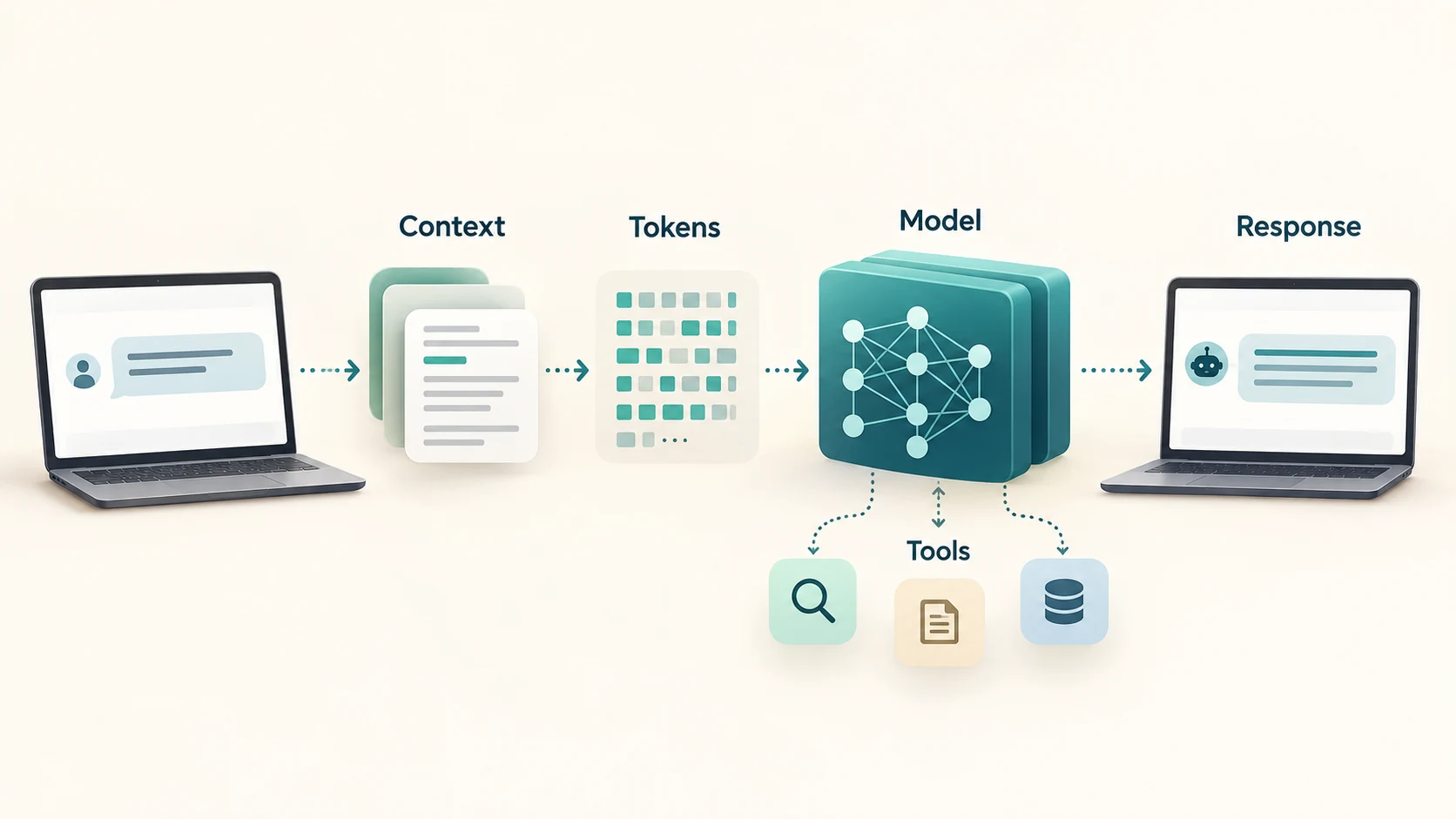
A phone or computer is doing much more than displaying the app in front of you. Its operating system is coordinating apps, network connections, sound, notifications and hardware. Many of these jobs are handled by processes: running pieces of software that keep track of what they are doing.
When you choose Restart, the device normally asks programs to close, ends running processes and starts the operating system again. Apps and system services launch in a new state. The device reconnects to networks and prepares its hardware for use.
A normal restart also gives apps a chance to save work and close properly. That is why it is sensible to save an open document before restarting. Holding down the power button to force a restart or shutdown is mainly for a device that will not respond; unsaved changes may be lost.
The difference between RAM and storage
To understand the effect, picture two places where your device keeps information.
RAM is the working space used by software while it runs. It holds things such as open app data, calculations in progress and the current state of background processes. Storage is where saved files, installed apps, photos and many settings live, even when the device is off.
Restarting discards and rebuilds much of the running state held in RAM. It does not normally erase your photos, documents or installed apps. Nor does it wipe every kind of temporary data: an app can keep cached files on storage, and those files may still be there after a restart. Android’s developer documentation, for example, distinguishes in-memory state from persistent files and files kept in an app’s cache directory.
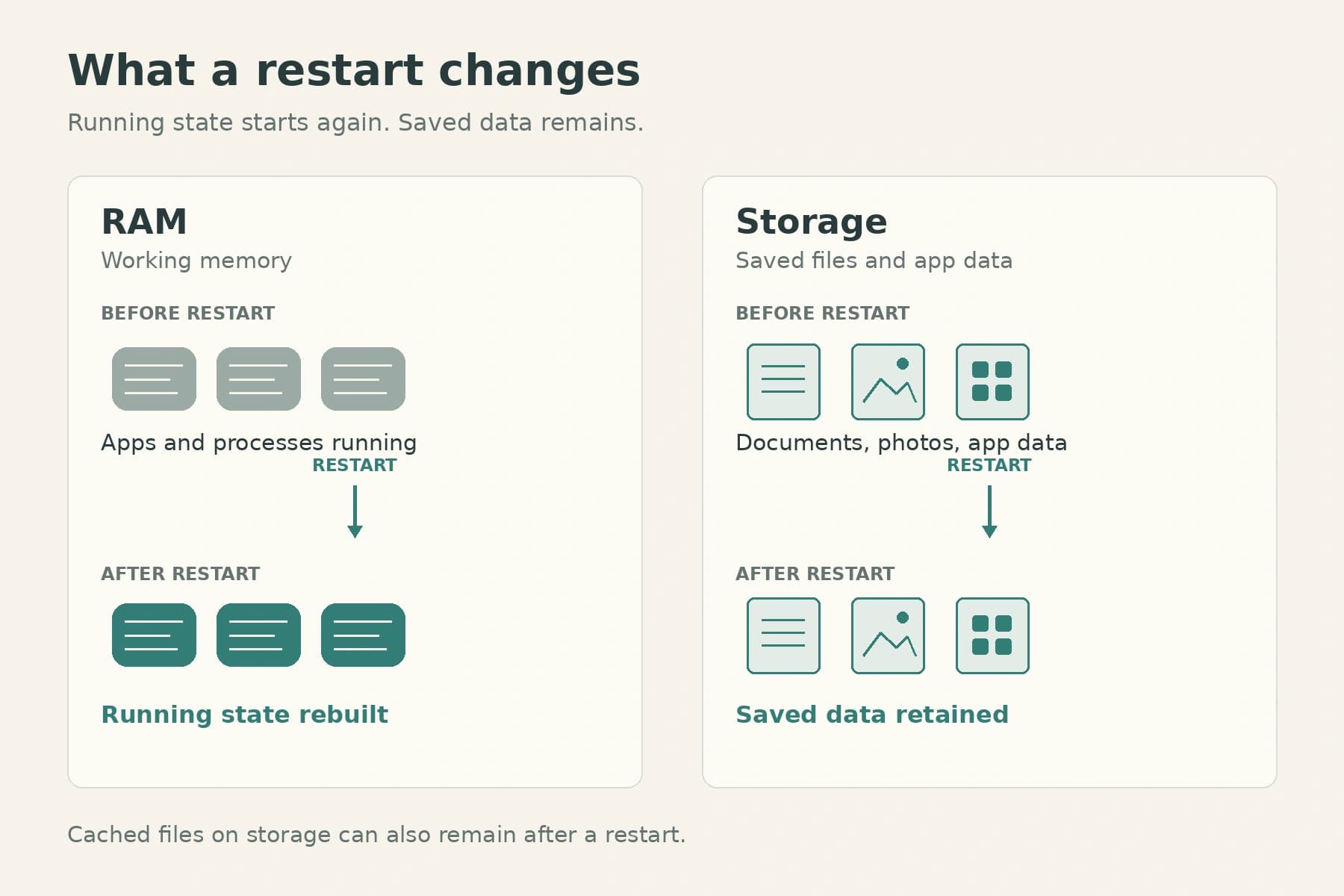
So the familiar explanation that a restart “clears the memory” is partly right, but incomplete. The useful part is that software stops and starts afresh. The device then uses RAM again as soon as it boots.
Why can a fresh start fix a problem?
There is no single fault that every restart repairs. Several different problems can produce the same familiar result: everything works again after the device starts up.
A running app may be stuck in a bad state
Imagine an app waiting for a response that never arrives. It might keep showing a loading symbol, ignore a button or fail to update what is on screen. The app may still be open, but its current attempt to do the job has gone wrong.
Closing and reopening that app can be enough. The stalled attempt ends, and the app tries again from the beginning. If the problem involves software that stays active in the background, restarting the whole device can have a wider effect.
This is also why “the app is open” does not necessarily mean “the app is working.” A process can be running while part of its work is stuck.
Background services start again
Some jobs belong to the operating system rather than to the app you can see. A service may help manage a wireless connection, audio or another shared function. If it stops responding correctly, several apps can appear broken at once.
For example, if sound fails in every app, reopening one music app may achieve little. Restarting the device gives the relevant system software a chance to start again. That does not prove which component caused the failure, but it explains why a device restart can succeed where reopening an app does not.
Connections are made again
A device maintains active connections to Wi-Fi networks, Bluetooth accessories and online services. During a restart, those connections are interrupted and established again as the device comes back up.
That can help if the device’s side of a connection was stuck. It will not repair an internet outage, a router that has failed or an online service that is unavailable. If every device in your home has lost internet access, restarting one phone is unlikely to solve the shared problem.
Hardware-related problems also have limits. A restart can make the operating system and its drivers—the software that communicates with hardware—start again. It does not guarantee that every component or external accessory loses power and resets completely. Microsoft, for instance, advises reconnecting an external device or restarting the PC when a peripheral misbehaves after sleep or hibernation.
A pending update may finally take effect
Sometimes a restart fixes a problem because something has changed, rather than because a temporary glitch has gone away.
An update may need a restart to replace a file that is currently in use or to load a new driver. Until then, the old running version may still be active. On the next start, the device can use the updated version. A restart will not create an update that has not been installed; it can complete one that is waiting.
Why does the problem sometimes come back?
A restart removes the immediate bad state. It may leave its cause untouched.
Suppose a particular app freezes every time it handles a certain file. Restarting lets you open the app again, but opening that file may trigger the same fault. An outdated driver, a troublesome startup app or a damaged setting can behave similarly: the device starts cleanly, then recreates the problem.
Saved data also survives. If an app keeps a problematic file or setting on storage, restarting does not automatically delete it. Likewise, restarting will not create free storage space, mend faulty hardware or increase the amount of RAM installed in an older computer.
The timing of a recurring problem offers a clue:
| What you notice | What it might suggest |
|---|---|
| Only one app fails | Start by checking that app and its updates. |
| Several apps lose the same function, such as sound | Check the shared system function or connected accessory. |
| The problem returns as soon as one app opens | That app or something it loads may be involved. |
| The device works briefly, then slows down again | Look for recurring background activity, limited storage or another persistent cause. |
These are clues, not diagnoses. A restart tells you that starting over helped; by itself, it does not identify exactly what went wrong.
Is restarting different from closing an app or putting the device to sleep?
Yes. Each action starts over at a different level.
Close and reopen an app when one app is misbehaving and the rest of the device works. It is the smallest useful reset. Apple recommends this for an unresponsive iPhone app, followed by restarting the phone if the app still does not respond. You do not need to routinely close every background app to keep an iPhone working.
Restart the device when the problem affects more than one app, involves a shared function or continues after reopening the affected app.
Sleep is mainly a pause. A sleeping computer can quickly return to where you left off because it preserves much of its working state. If that state includes a problem, waking the computer may bring the problem back with it.
Shut down and turn on often sounds equivalent to restarting, but Windows has an exception worth knowing about. When Fast Startup is enabled, a Windows shutdown closes your apps but saves part of the system’s state to make the next startup quicker. Choosing Restart performs a full Windows boot cycle. If you are troubleshooting a Windows PC, use Restart from the Power menu.
A restart is also different from a factory reset. A factory reset removes device data and settings; it is a much larger step that calls for a backup and careful consideration.
What should you do if restarting does not help?
Begin with the smallest step that matches the problem. If one app fails, close and reopen it, then check for an app update. If a connection fails, check whether other devices have the same issue. If the whole phone or computer is affected, restart it normally after saving your work.
If the problem returns, look for a pattern instead of repeating the restart indefinitely. Does it happen after opening a particular app, connecting an accessory or waking the device from sleep? Did it begin after an update? Those details can narrow the cause.
Check available storage and relevant software updates. Low storage, outdated software and too many startup apps are among the causes manufacturers identify when devices run poorly. On Android, Safe Mode can temporarily disable downloaded apps to help test whether one of them is involved. Windows offers a clean boot for investigating conflicts with startup programs and services. The steps vary by device and operating system, so use the manufacturer’s instructions for yours.
If a device repeatedly crashes, restarts on its own or will not start normally, treat that as a problem to investigate. Repeated restarts may give temporary relief, but they are not a repair.
The next time “turn it off and on again” works, you can give it a little more credit. The restart did something useful: it ended the device’s current work and gave its software another attempt from a fresh starting point. Whether the fix lasts depends on what caused the trouble in the first place.