Windows Laptop Running Slowly After an Update? How to Identify the Real Cause
Windows laptop slow after an update? Use Task Manager, update history and diagnostics to find the cause before changing drivers or rolling back.
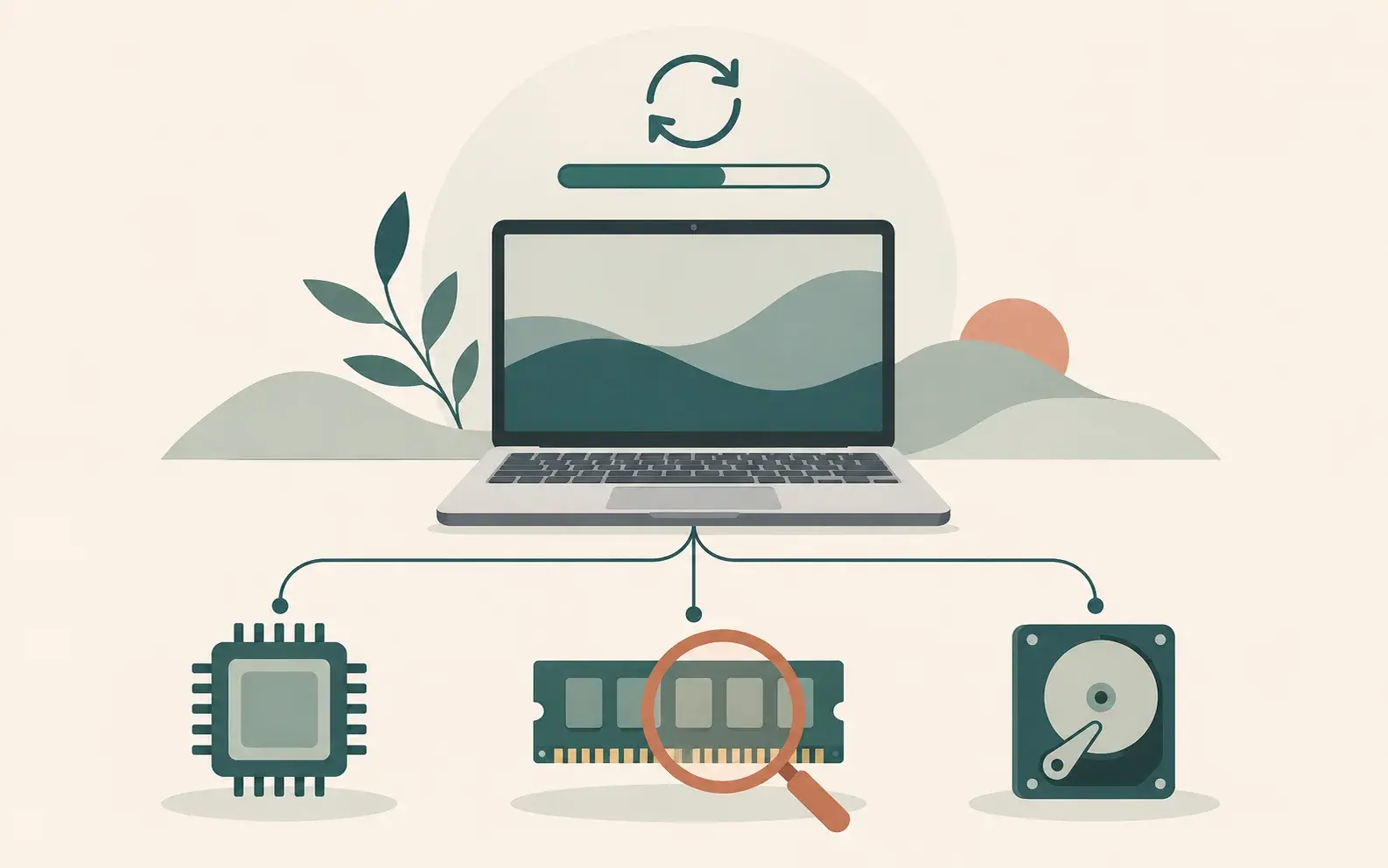
Yesterday, your laptop opened applications normally. Today, after installing a Windows update, the desktop feels sluggish, the fan is louder and even switching browser tabs takes longer.
It seems obvious: the update slowed down the laptop.
Possibly. But several different events can happen around an update. Windows may still be finishing maintenance. Search may be processing changed files. A security scan might be competing with your work. A driver could have changed. Or an already-full drive might have reached the point where ordinary background activity becomes noticeable.
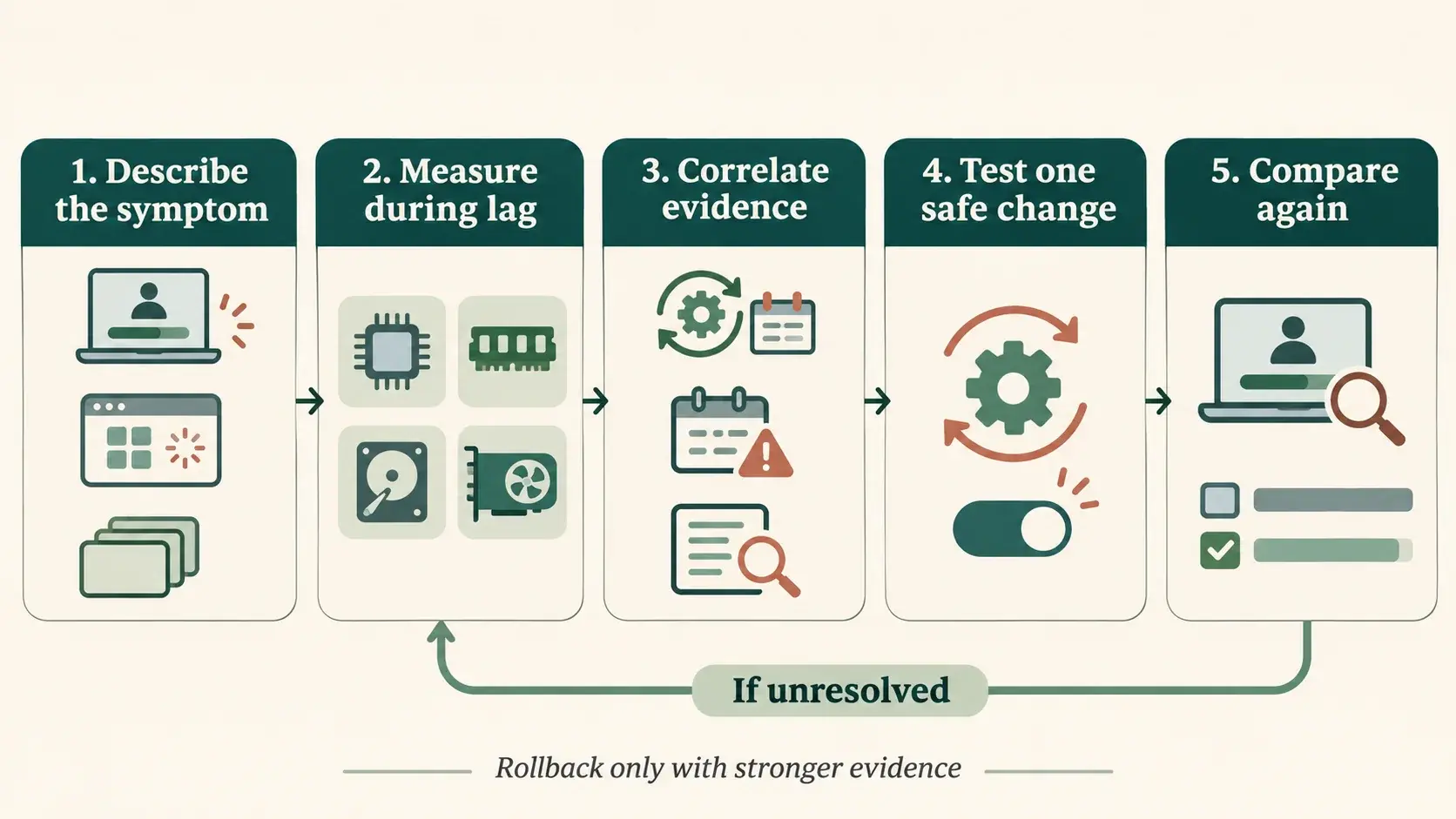
The timing tells you when the problem appeared; it does not, by itself, tell you what is causing it. The useful next step is not to try a dozen popular “speed-up” tricks. It is to identify which resource or component is actually struggling, connect that evidence to the update timeline and test one targeted change at a time.
This Article focuses on Windows 11 laptops. Menus can vary slightly between releases and manufacturers, but the diagnostic principles apply broadly.
First, Describe What “Slow” Actually Means
A slow laptop is not one problem. The pattern of the slowdown often provides the strongest initial clue.
| Symptom | What it may indicate | Best first observation |
|---|---|---|
| Slow for several minutes after signing in | Startup programs, background maintenance, synchronization | Watch Task Manager after login; check startup apps |
| Constantly slow, even with few apps open | Sustained CPU or disk activity, storage or memory pressure, power limits | Compare idle and active resource usage |
| Only one application is slow | Application update, extension, incompatibility or its own data files | Compare that application with another |
| Browser tabs keep reloading | Memory pressure, browser processes and extensions | Inspect RAM use and open tabs |
| Games or video editing suddenly stutter | GPU driver, power mode, heat or application-specific issue | Check GPU, CPU and power behavior under the same workload |
| File Explorer freezes or files open slowly | Storage delays, indexing, connected drives or shell extensions | Watch disk activity and check storage health |
| Slow only on battery | Energy-saving mode, manufacturer performance profiles or power constraints | Compare performance on battery and original compatible charger |
| Slow internet, but local apps are fine | Network, adapter driver or connection issue | Compare local responsiveness with a network-dependent task |
These are diagnostic hypotheses, not one-to-one diagnoses. For example, an unresponsive program can make the whole computer feel slow even while total CPU usage is low.
Before changing anything, note three things: when the slowdown occurs, which actions trigger it and whether it improves after the machine has settled. Repeating the same simple activity—opening a local document, launching a browser or navigating File Explorer—makes later comparisons more meaningful.
If the laptop also shows disk-health warnings, repeated unexpected restarts, unusual clicking from a mechanical drive or files disappearing, prioritize backing up important data before running repairs. A possible failing drive is a data-protection problem, not just a performance inconvenience.
A Windows Update Can Trigger Work That Continues After Installation
The installation screen reaching 100% does not mean every related background task has stopped. Windows and installed applications can still be updating information, scanning files or finalizing changes after the next sign-in.
Windows servicing and related processes
Windows uses background components to install and maintain updates. You might notice activity associated with Windows Modules Installer Worker, servicing components or other Windows processes. An update may also require another restart to complete.
Brief, declining activity after a completed update is different from a process consuming substantial resources through repeated restarts with no sign of completion.
Do not end an unfamiliar Windows process simply because its name sounds technical or because it temporarily uses the CPU. Check the actual Windows Update status and whether the activity ends first.
Search indexing and background security checks
Windows Search maintains an index of file names, properties and sometimes file contents. Microsoft explains that the index is updated as files change. Rebuilding or processing a large set of changes can therefore create background disk and processor activity. The SearchIndexer.exe process may be one clue, but its presence alone does not establish that it is the cause.
Likewise, Microsoft Defender and other security products scan files and processes. A scan or a collection of newly changed files can increase resource use. Disabling real-time protection is not a sensible first response to temporary scan activity.
Cloud sync clients, backup utilities, software stores and installed application updaters can also resume work when the computer comes back online. Some of this work merely occurs around Windows Update rather than being part of Windows Update itself.
The key test is whether the workload is temporary and attributable. If resources return to normal and your usual tasks become responsive again, a one-off background workload may explain the slowdown. If the pattern returns on every boot, investigate further rather than assuming it will fix itself eventually.
Measure the Bottleneck Before Changing Settings
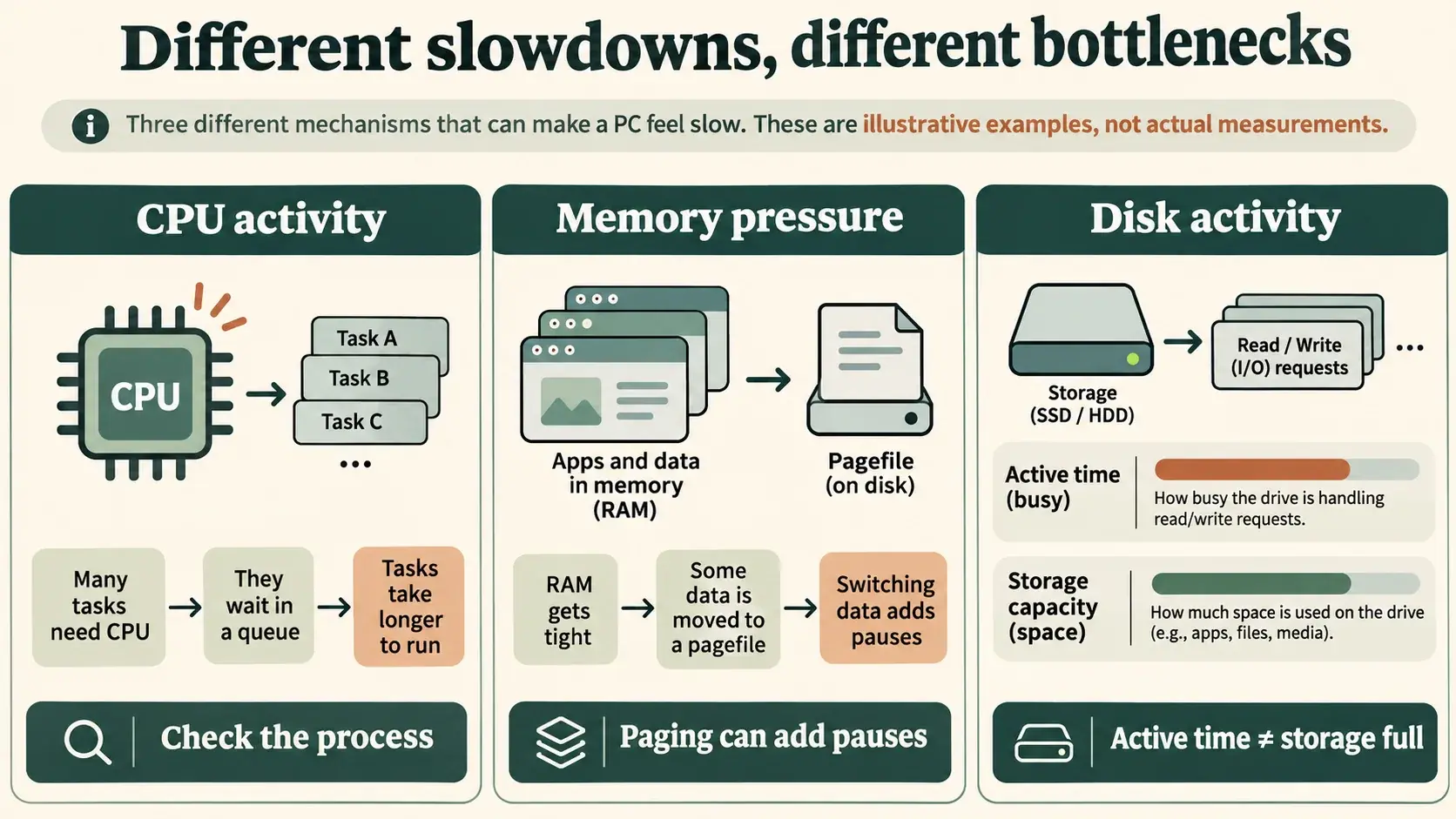
Open Task Manager with Ctrl + Shift + Esc. If you see only a simplified window, expand it. On the Processes page, watch the CPU, Memory, Disk and, where relevant, GPU columns while reproducing the slowdown. Click a column heading to sort by usage.
Then open Performance to see the overall trend. A screenshot or a short note of what is busy during the lag is more useful than a snapshot after everything has recovered. Microsoft's PC performance guidance recommends monitoring these resources and startup applications.
High CPU: what is doing the work?
If CPU usage remains high while the system feels sluggish, identify the process using it.
A browser with dozens of tabs is a different finding from a Windows servicing process. An application using a full core can feel slow without the total CPU indicator reaching 100%, especially on a many-core processor. Brief spikes while opening an app are normal; sustained, reproducible activity is more informative.
If a process is unfamiliar, verify its identity and purpose before disabling it. The broad labels System and Service Host do not automatically mean a Windows update is broken.
High memory: is Windows short of room?
RAM holds the data that active programs need quickly. When memory becomes constrained, Windows may compress memory, reclaim cached data or use storage-backed paging. This can cause pauses when switching programs, even if the CPU itself is not especially busy.
Look for persistent high memory usage alongside sluggish tab switching, slow application launches or paging-related disk activity. A browser, virtual machine or large design project may be the real driver. High memory use alone is not proof of a fault: Windows also uses otherwise available RAM for caching.
The question is whether your normal workload now exceeds the computer's practical memory headroom.
High disk activity: 100% does not mean the drive is full
Task Manager's Disk percentage generally reflects disk activity or active time, not the percentage of storage capacity occupied. A drive can show very high active time while transferring surprisingly little data if it is handling many small or slow operations.
A nearly full drive is a separate problem: lack of free capacity can interfere with updates, temporary files and ordinary applications. Check actual remaining space in Settings → System → Storage and look at the drive's workload in Task Manager.
Disk-intensive indexing, antivirus scans, cloud syncing and paging are possible causes. A mechanically driven HDD can respond much more slowly to scattered operations than a healthy SSD. But high disk activity can also indicate storage errors, so avoid concluding that every 100% reading is harmless post-update housekeeping.
Low usage everywhere: investigate outside the four headline numbers
Sometimes Task Manager shows no obvious sustained CPU, memory or disk load, yet the laptop still feels slow. Consider a GPU or graphics-driver problem, a single hung application, power limits, cooling, an external device or a stalled network request.
A laptop can also reduce processor performance when hot or restricted by a battery-saving setting. That may produce low or moderate reported CPU usage but poor responsiveness. Compare a repeatable task on battery and while plugged into an appropriate charger, with similar temperatures and other conditions. Do not block ventilation or force a performance mode simply to mask overheating.
Read the Evidence as a Pattern, Not a Diagnosis
The following table is a practical interpretation guide. None of its observations proves a root cause on its own.
| Observation during the slowdown | Stronger next question | Safer next check |
|---|---|---|
| Windows servicing process uses sustained CPU | Is an update still completing or repeatedly failing? | Windows Update status and update history |
| Search indexer is unusually active | Is indexing catching up after file changes? | Search-indexing settings and whether activity settles |
| Security process is busy | Is an authorized scan running? | Windows Security or installed security software status |
| Memory is constrained and disk is busy | Are applications paging because RAM is insufficient? | Close one heavy application and repeat the same task |
| Disk active time stays high with poor responsiveness | Which process is issuing I/O, and is storage healthy? | Disk process activity, free space and supported health indicators |
| Slow only after startup | Which apps are starting automatically? | Task Manager → Startup apps |
| Graphics-heavy tasks degrade, ordinary browsing is fine | Did display drivers or power behavior change? | Driver/update history and manufacturer support |
| System freezes or crashes at particular times | Was a software or driver failure recorded? | Reliability Monitor and relevant event details |
The goal is to move from “Windows updated, therefore Windows is slow” to a testable explanation such as “a background scan consistently saturates disk activity for a period after login” or “a display-driver change coincides with repeatable graphics failures.”
Connect the Performance Problem to the Right Update
The date matters, but you need the specific update and specific symptom.
Open Settings → Windows Update → Update history. Record the recent update date and its identifier, often a KB number. You can also press Win + R, enter winver and note the Windows version and OS build. Depending on your system, update history may include quality updates, drivers and other update categories.
Next, review Microsoft's Windows release-health information for your version. Microsoft's published known-issues pages distinguish identified problems from general user reports and describe whether fixes or safeguards are available. A known issue affecting another version or different hardware is not proof that your machine has the same problem.
Use Reliability Monitor to check what changed
Press Win + R, enter perfmon /rel, and review Reliability Monitor. Microsoft documents /rel as the option that launches this tool.
Look at the days before and after the slowdown began. An application crash, failed installation or hardware error near the update is potentially meaningful. A list of warnings with no matching symptom is less useful.
Ask whether an error matches the actual failure. For example, a repeated graphics-app crash immediately after a display-driver update provides a more specific lead than a generic warning logged during every normal startup.
For advanced investigation, Event Viewer can supply timestamps and error details. But Windows logs many informational events and unrelated warnings. Do not treat every red icon or event ID as something that requires a fix.
Five Common Causes That Can Be Mistaken for a Bad Update
1. Startup software accumulated over time
Restarting after an update can reveal programs that always launch at sign-in: messaging apps, cloud tools, launchers and manufacturer utilities. If several all initialize together, the computer may be slow at login even though the Windows update is functioning normally.
Check Settings → Apps → Startup or Task Manager → Startup apps. Temporarily disable a nonessential, recognizable startup app and compare another startup. Do not turn off security, backup or device-management software without understanding the consequences.
2. Storage space or storage health has become a constraint
A laptop with little free storage may struggle during large installs and when applications create caches. Review Settings → System → Storage and cleanup recommendations. Check what will be removed: Downloads, personal files, cloud files and previous-Windows-installation files can have recovery implications.
Windows includes some storage-health alerts for NVMe SSDs, but Microsoft's built-in monitoring does not cover every SATA SSD or HDD in the same way. No visible warning is not a health certificate. If you suspect failing storage, preserve data first and seek manufacturer diagnostics rather than stress-testing the drive repeatedly.
3. The driver changed, not just Windows itself
Updates may include drivers. A graphics, Wi-Fi, audio or storage driver can affect one category of tasks much more than others. A bad driver hypothesis becomes stronger when the trouble is device-specific, begins with a documented driver change and recurs under the same conditions.
Use Device Manager, Windows Update's relevant driver information and the laptop maker's official support page. Microsoft's driver guidance points users to Windows Update and manufacturer sources when necessary.
Avoid generic “driver booster” programs or downloading a random driver package from an unfamiliar website. Update, reinstall or roll back one identified driver only when the evidence points to it and a supported compatible version is available.
4. Power or temperature behavior changed
Performance profiles may reduce CPU/GPU power on battery. Cooling systems may restrict performance when hardware gets too hot. A laptop covered by a blanket, clogged with dust or using an underpowered charger may perform poorly even if the software is healthy.
Check Settings → System → Power & battery and your manufacturer's performance utility, if present. Test using the correct power adapter, clear vents and a consistent workload. If the machine overheats or shuts down unexpectedly, prioritize a hardware or thermal inspection rather than repeatedly forcing maximum performance.
5. One application became incompatible or misconfigured
If only a browser, editor or game is slow, focus on that application: extension conflicts, background tabs, updates and graphics acceleration may matter more than the operating-system build. Compare with a different application that performs similar work.
A targeted test is more revealing than reinstalling Windows for a problem that occurs only in one browser profile.
A Safer Troubleshooting Order, from Least Disruptive to Most Disruptive
Try to change one condition at a time and repeat the same task. Otherwise a dozen changes might appear to help without revealing which one mattered.
Start with observation and a proper restart
Save your work, check Windows Update for pending installation or restart instructions and allow legitimate post-update activity to complete. Then perform a normal Restart—not repeated forced power-offs.
If the machine becomes responsive afterward, monitor whether the problem returns. If it does, capture Task Manager readings while the lag is happening. For an explanation of why restarting can help without fixing an underlying persistent problem, read Why Restarting Your Phone or Computer Fixes Problems.
Reduce one obvious source of load
If Task Manager identifies a nonessential application using unusual resources, close it normally and compare. Review startup apps, avoid opening every application at once and check storage capacity. This is often more useful than changing hidden Windows settings.
If a search-indexing process is repeatedly busy, inspect the Windows Search indexing settings and the scope being indexed. Do not disable the entire Search service on speculation. If indexing is legitimately rebuilding, let it complete and see whether responsiveness improves.
Investigate update or driver failures using official tools
If Windows Update repeatedly fails, use Microsoft's Windows Update troubleshooter or Get Help guidance. A driver change should be addressed through a supported manufacturer/Microsoft route, not by indiscriminately updating every driver.
If the problem disappears in a clean boot, that points toward interference from a non-Microsoft service or startup program. Microsoft's clean-boot procedure explains how to hide Microsoft services, isolate others and later return to normal startup. A clean boot is a diagnostic experiment—not a permanent “performance mode.” Record which settings you change, and avoid doing it on a managed work laptop without IT approval.
Reserve system repair commands for plausible corruption
If Windows components fail, updates report servicing errors or system files appear damaged, Microsoft documents two repair tools. In an administrator Command Prompt, use them in this order:
DISM.exe /Online /Cleanup-Image /RestoreHealth
sfc /scannow
DISM repairs the Windows component image; System File Checker (SFC) checks and repairs protected system files using that infrastructure. These commands can take time and sometimes need Windows Update or another repair source.
They are not universal laptop-speed commands. If Task Manager shows that a browser with dozens of tabs is consuming all available memory, repairing the component store will not create additional RAM. Use these tools when the evidence warrants them, and back up important data first.
Consider repair or rollback only when you have stronger evidence
If repeated tests and error history point to a genuine Windows servicing problem, see Microsoft's recovery options. On supported Windows 11 systems, Settings → System → Recovery → Fix problems using Windows Update can reinstall the current Windows version while preserving applications, files and settings; the option may be unavailable on some managed or older installations.
Uninstalling an update is not the first step. Microsoft notes that some updates cannot be uninstalled and explicitly warns about security risks when removing security updates. If a specific update is demonstrably implicated, check the corresponding release-health guidance and supported rollback options. Keep a current backup and any necessary BitLocker recovery information accessible before recovery operations.
System Restore, when available and enabled, can roll system settings and applications back to an earlier restore point, but it is not a substitute for a personal-file backup. A reset or clean installation is a last resort after protecting data, not an appropriate response to one slow afternoon.
Three Worked Examples: Same Symptom, Different Solution
Example A: Sluggish only after login
A laptop takes several minutes to become responsive after a reboot, then works normally. Task Manager shows cloud synchronization and startup utilities active. CPU and disk use decline as their jobs finish.
Most useful next step: review startup and sync behavior, then compare a later login. An update may have triggered a restart without being the continuing cause of the slowdown.
Example B: Applications freeze and disk active time stays high
Opening a document causes long pauses. Task Manager shows persistent disk activity even when little data is moving. The drive is nearly full, or storage-health information indicates a problem.
Most useful next step: back up critical data, review storage usage and health, and identify the process causing I/O. Reinstalling an update before investigating possible storage trouble could waste time or increase risk.
Example C: Everything is normal except graphics-intensive programs
Web browsing is responsive, but games suddenly stutter and graphics software occasionally crashes. Reliability Monitor lists failures in the same time period as a display-driver change.
Most useful next step: investigate that specific driver's compatibility and supported repair/rollback path. A blanket disk cleanup or memory “optimizer” is unlikely to address the observed failure.
These examples are illustrative scenarios, not test results from particular laptops. Their purpose is to show why symptom patterns and measurements lead to more appropriate fixes than a generic checklist.
What Not to Do Just Because Windows Feels Slow
Avoid the common shortcuts that hide evidence or introduce new problems:
- Do not uninstall a security update immediately because the slowdown started on the same day; determine whether the update is actually involved and consider the security implications.
- Do not permanently disable Microsoft Defender, Windows Update, Search or critical services merely to improve a benchmark or make a background process disappear.
- Do not run random registry cleaners, “RAM boosters” or third-party driver bundles; they can modify the system without diagnosing the bottleneck.
- Do not delete unknown folders under Windows or forcibly empty servicing directories to make room. Use Windows Storage settings and official cleanup tools, reviewing what is selected.
- Do not judge performance from one percentage: 100% disk activity, 80% memory use or a momentary CPU spike is evidence to interpret, not an automatic diagnosis.
- Do not reset the computer without a verified backup of personal files and access to account and encryption recovery information.
When system freezes, unusual storage warnings, recurring crashes or overheating accompany the slowdown, protecting your data and seeking appropriate repair may be more urgent than optimizing performance.
Conclusion: Prove the Cause Before Choosing the Fix
The best diagnostic question is not “Which Windows update should I remove?” It is “What is the laptop waiting for or struggling to do while it feels slow?”
Check the symptom pattern, identify the busy resource in Task Manager, correlate it with update and failure history, and try a reversible targeted change. A temporary indexing job, a startup conflict, a driver regression and a failing SSD can feel surprisingly similar—yet they demand very different responses.
An update may genuinely be responsible. It deserves that conclusion only after the evidence supports it.
Sources and Further Reading
- Microsoft — Tips to improve PC performance in Windows: Task Manager, processes, startup programs and general resource troubleshooting.
- Microsoft — Search indexing in Windows: what the index does and how it updates.
- Microsoft — Windows release health: current known issues and version-specific update information.
- Microsoft —
perfmoncommand reference: Reliability Monitor and Resource Monitor launch options. - Microsoft — Configure startup applications: startup controls.
- Microsoft — What to do about a critical warning for a storage device: supported SSD health warnings and limitations.
- Microsoft — Automatically get recommended and updated hardware drivers: official driver routes.
- Microsoft — How to perform a clean boot: isolating third-party conflicts.
- Microsoft — Using System File Checker in Windows: DISM and SFC procedure.
- Microsoft — Fix issues by reinstalling the current version of Windows: repair installation options.
- Microsoft — How to uninstall a Windows Update: update rollback limits and security precautions.