How to Move Your Files From Google Drive to OneDrive or Another Cloud Service Without Losing Data
Move files from Google Drive to OneDrive safely, including Docs conversion, sharing permissions, missing files and checks before deleting the originals.
Moving files to a new cloud service sounds like moving a folder from one drive to another. You select everything, copy it, and wait for the progress bar to finish.
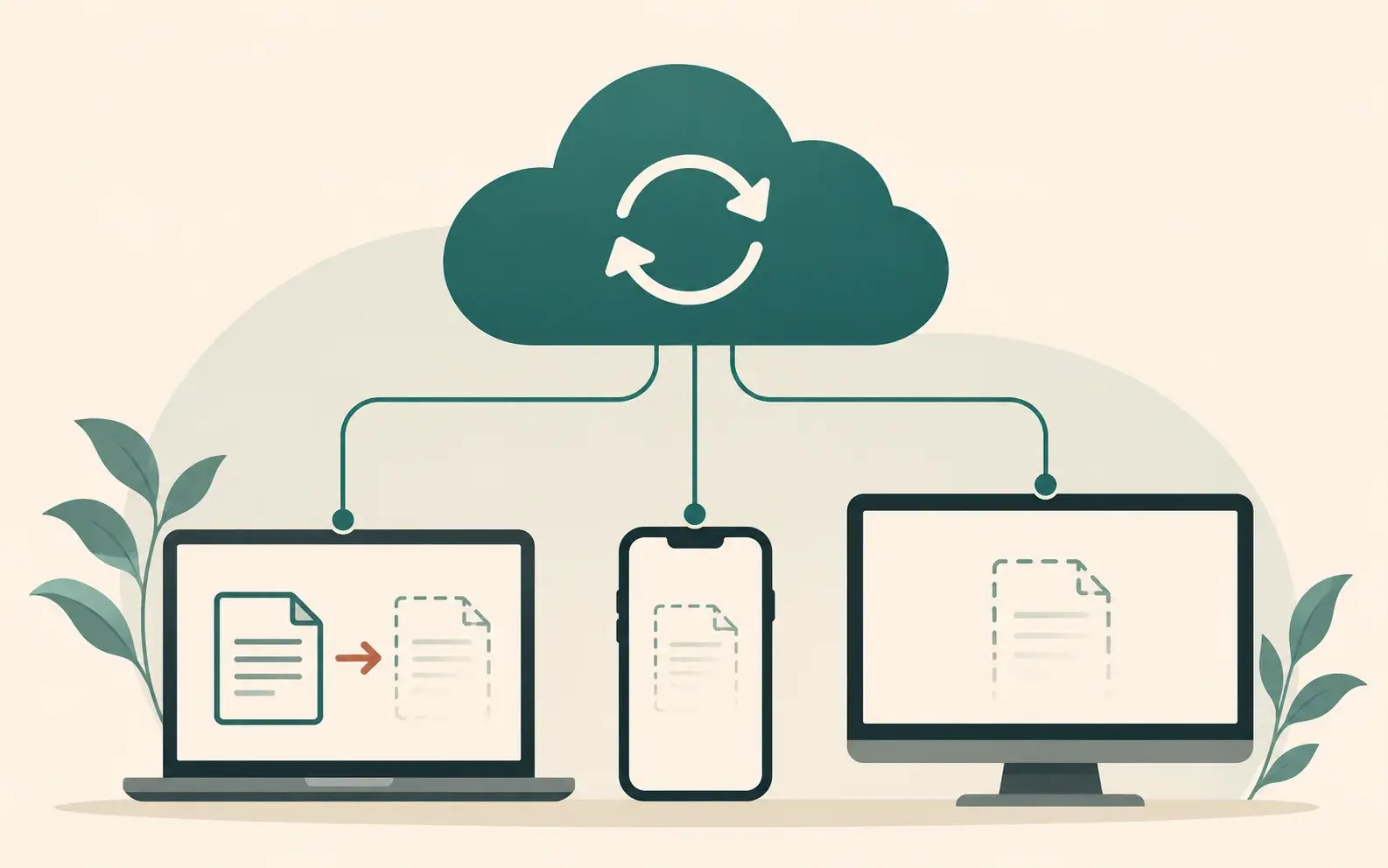
That is where cloud migrations become deceptive. A folder of PDFs and photos may transfer perfectly while a Google Sheet changes format, a shared document loses its collaborators, or a shortcut arrives without the file it used to open. And when a new cloud folder appears on your computer, some of its contents might be online-only placeholders, not a second local copy you can rely on offline.
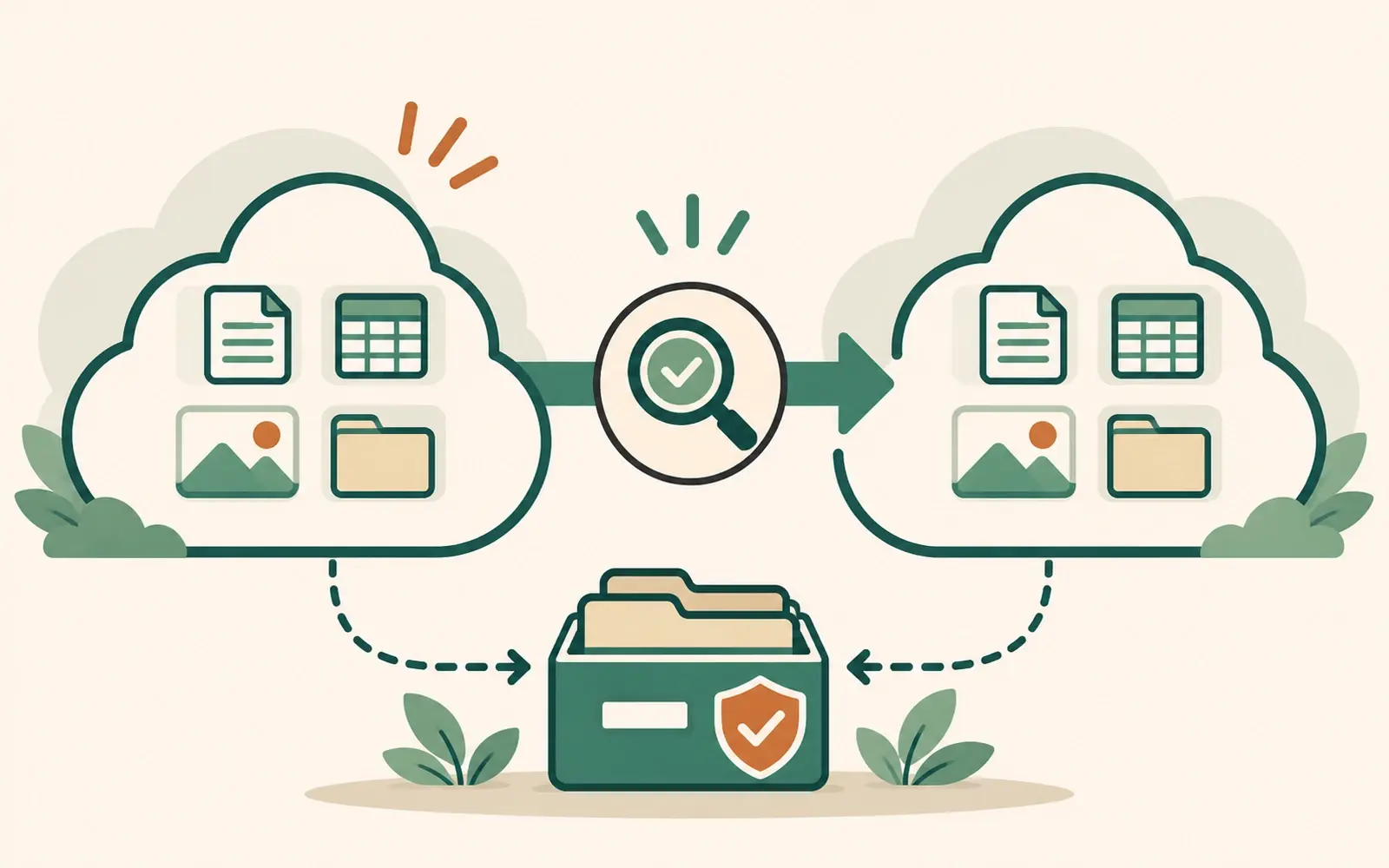
The safest approach is copy first, verify second, switch your daily work third, and remove the old copy only after you have a recovery plan. This works whether your destination is Microsoft OneDrive, Dropbox or another provider, although each service supports different transfer and conversion features.
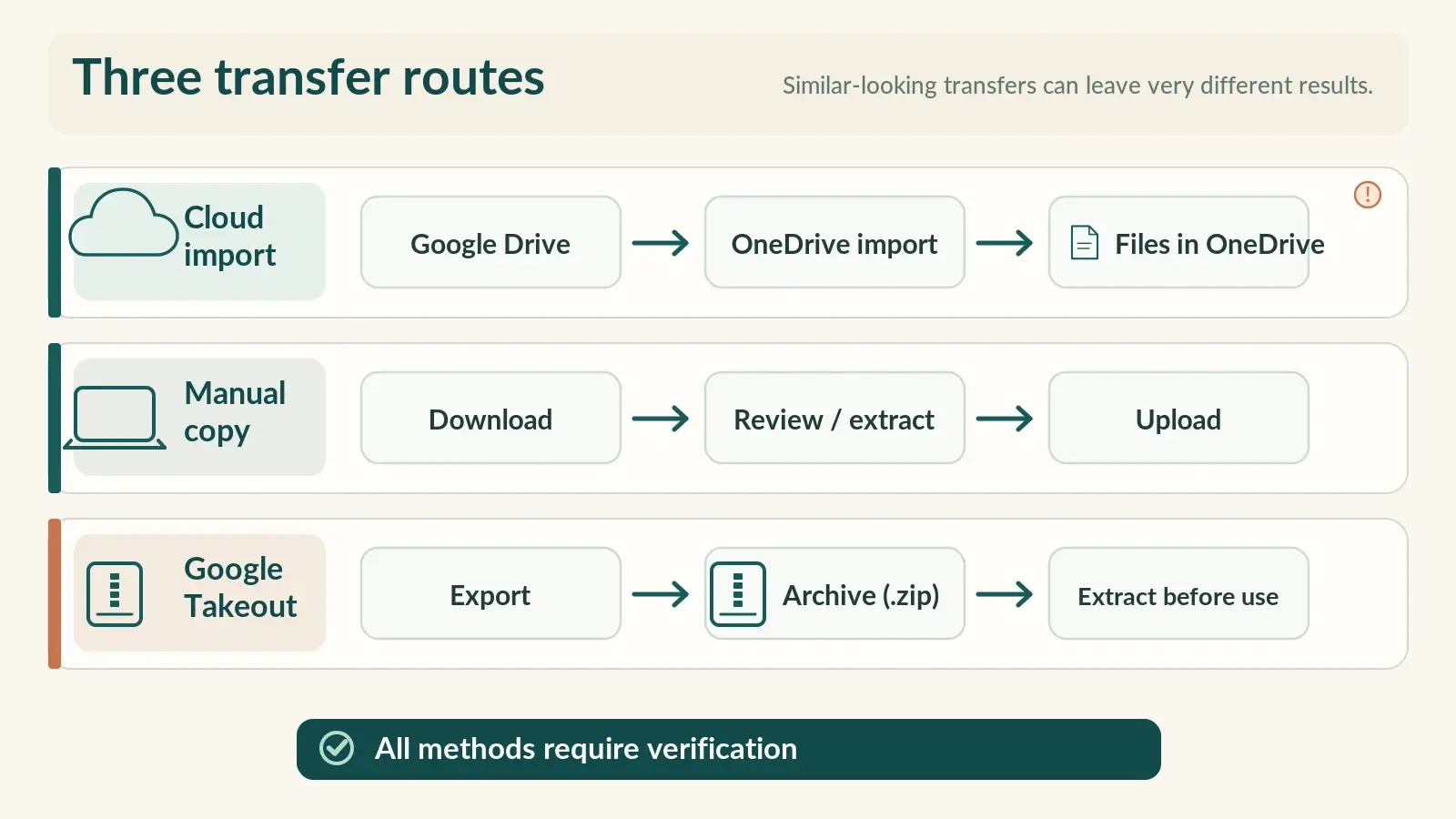
There are three practical approaches for personal Google Drive accounts: using OneDrive's built-in cloud import where available, downloading and uploading selected files yourself, or exporting an archive through Google Takeout. They are not interchangeable. In particular, exporting an archive into OneDrive does not automatically turn every document in that archive into an organized, editable OneDrive library.
What Does “Move Everything” Actually Mean?
A cloud drive contains more than file names and bytes. Before choosing a method, separate the things you want to preserve:
| What you are moving | Can a normal file copy preserve it? | What to check |
|---|---|---|
| PDFs, images, videos, ZIPs, and other ordinary files | Usually, if the service accepts their size and names | File count, readable content, complete uploads |
| Google Docs, Sheets and Slides | Not as identical native Google documents in a different ecosystem | Export format, formulas, layouts, links and editing behavior |
| Folder structure | Often, but not always exactly | Nested folders, special characters and path-length restrictions |
| Sharing permissions and links | Often not with a personal copy or import | Recreate access for the intended people; replace old links |
| Comments, suggestions and revision history | Do not assume they transfer intact | Preserve the originals or export/audit separately when essential |
| Files shared with you by someone else | Not necessarily part of your owned Drive export | Ownership, download permission and the original owner's consent |
| Shortcuts and Google-specific app objects | May be unsupported or behave differently | Check that the underlying resource, not just a reference, was copied |
Microsoft's documented OneDrive cloud-import feature, for example, converts Google Docs, Sheets and Slides to Office formats, but says original sharing properties are not copied. It also lists unsupported Google object types and limits on file size and file/path names. Google separately documents that a Drive data export may include file metadata and comments; that does not mean another provider recreates the same collaboration experience from those export records.
That distinction matters when a student needs a readable assignment, a freelancer needs a spreadsheet with working formulas, or a team needs an editable document and the right people to access it.
Step 1: Make a Source Inventory Before Touching Anything
Open Google Drive in a browser and inspect what is actually there. Start with My Drive, then review folders used by Drive for desktop, and separately look at Shared with me and any Shared drives you can access through a work or school account.
Record five things for the important folders: their names, approximate sizes, whether you own them, who collaborates on them, and whether they contain native Google files. For critical work, also record a few reference filenames so you can find them in the destination later.
Be careful about ownership. Shared with me contains items other people have made accessible to you; the owner can restrict copying or downloading. Google says viewers and commenters may be prevented from downloading, printing or copying files. A shortcut placed in My Drive is not proof that you own the underlying content.
Also check whether the files you care about are actually in Google Photos rather than Drive. Photos is a separate product and should be audited separately; selecting Google Drive alone does not automatically cover every photo in your Google Account.
For example, a student might find:
University/Assignments/— mostly PDF and DOCX files;Research/Experiment Results/— Google Sheets with formulas;Group Project/— a shortcut to a document owned by a classmate;Photos— a mix of local JPEGs and images stored only in Google Photos.
Treat those as different migration tasks. Trying to solve all four through one bulk export is likely to conceal the most important exceptions.
Step 2: Protect the Originals and Prepare the Destination
The first safety rule is simple: do not begin by deleting, moving or emptying the source Drive. Create a new destination folder such as Google-Drive-Migration and copy into it. Keep the source unchanged until the copied material has been checked.
Confirm that your new cloud account has enough available storage for the migration, not just an attractive advertised plan limit. A file that will not fit cannot be uploaded, and additional room may be needed while resolving duplicates or temporarily keeping different versions. Microsoft notes that OneDrive cannot accept new uploads once the account exceeds its storage allocation.
If you plan to download locally first, verify free disk space too. A 100 GB cloud collection can require substantial temporary space for downloaded archives, extracted files and the new sync client's staging activity. You can process smaller batches if you do not have room for everything at once.
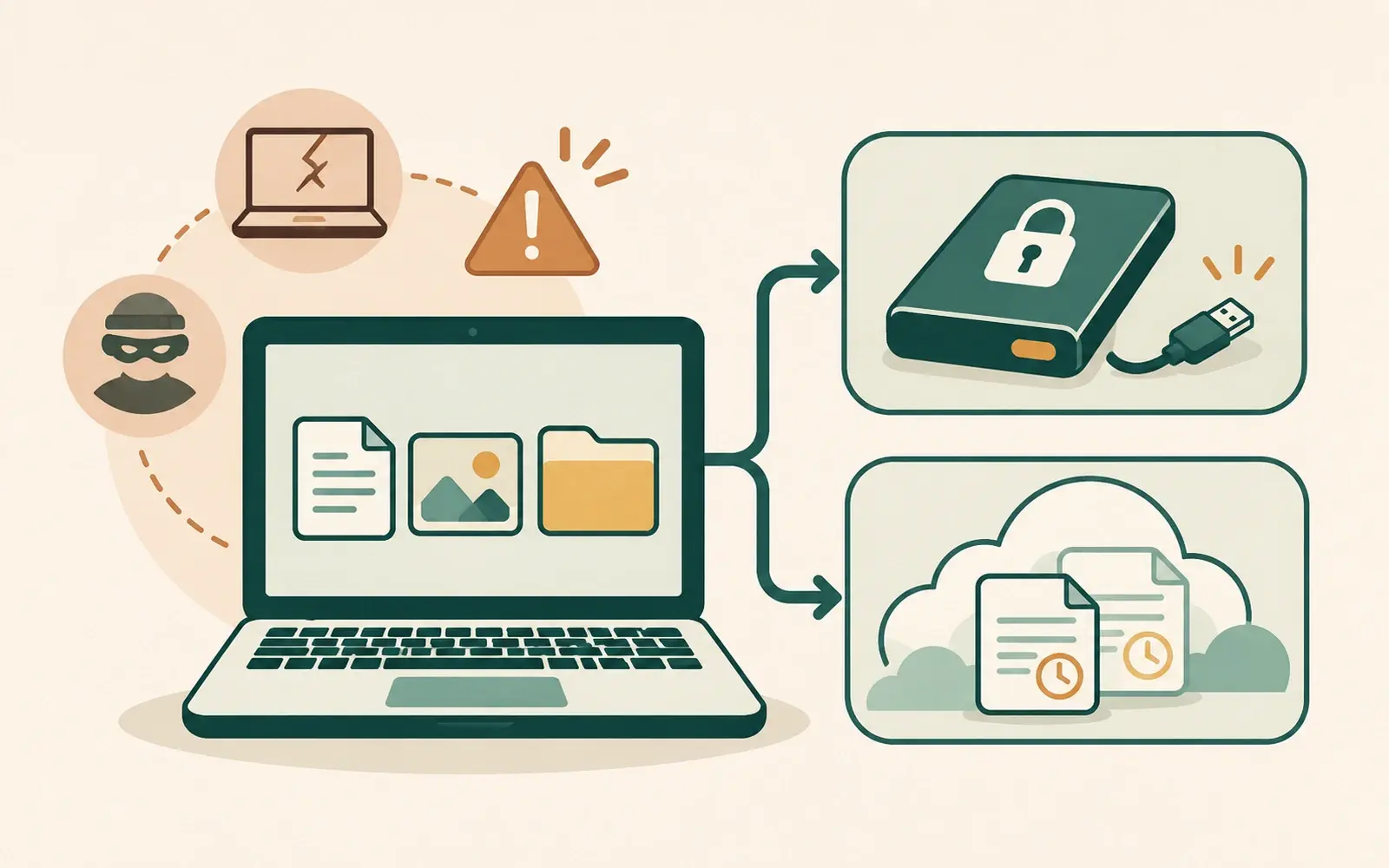
Secure both accounts with unique passwords and multifactor authentication where available. Keep a separate backup of irreplaceable material. Cloud-to-cloud migration is not a backup strategy by itself: a mistaken deletion or account-access problem can still affect your working copies.
Finally, decide when the source will stop changing. For an active shared project, note a cutover time and ask collaborators to avoid editing during the final verification. Otherwise, the first batch can already be outdated by the time the last batch finishes.
Method 1: Use OneDrive's Built-In Cloud Import, If Available
Microsoft documents a feature called Import cloud photos and files in the OneDrive website and mobile app. Its supported cloud-import workflow can copy Google Drive files and folders without deleting the originals. This is worth checking first for a personal migration because it avoids manually downloading and re-uploading everything.
In the supported interface, the path is:
- Sign in to OneDrive in a browser.
- Open Settings and look for Import cloud photos and files; on mobile, Microsoft documents this under the OneDrive app's profile/settings area.
- Connect the Google account through the official authorization flow and review the requested access.
- Start the import and allow it to complete.
- Open the Imports folder in OneDrive and read the generated TXT import report, especially the number of items that were not imported.
The feature's appearance may vary by account, app and rollout. If you do not see it, use the manual method below rather than assuming your account is misconfigured.
What the import does—and does not—copy
Microsoft documents conversion of native Google Docs to .docx, Sheets to .xlsx, and Slides to .pptx. It also says its import does not preserve the Google Drive file's sharing property. You must recreate sharing in OneDrive if it is still needed.
The documented import restrictions include files larger than 15 GB, zero-byte files, overly long file or folder names, and long combined paths. Google Drawings, Forms, Sites and Maps are also listed as unsupported for this import. Check the current Microsoft help page for details before relying on the exact limits, since cloud-service features can change.
A particularly important detail: when Microsoft's import is run again, it may copy newly created source files and overwrite destination files where the modified source is newer. Do not treat an incremental import as a harmless “add missing files only” button if you have already started editing the OneDrive versions.
This method is a copy of supported content, not a perfect recreation of an entire Google Drive account. Its own report is the starting point for finding omissions, not the final proof of a successful migration.
Method 2: Download From Google Drive and Upload to the New Service
For a small collection, selected folders or items that need deliberate inspection, a manual download-and-upload process is often the easiest to understand.
Download a manageable batch
In drive.google.com, select the ordinary files or folder you want to transfer and use Download. Google Drive can package multiple selected items into a ZIP archive. Save the download to a location outside any actively synchronized Drive or OneDrive folder, then extract it into a separate staging folder.
Do not drag items from one sync client to another while you are uncertain whether they are fully available offline. Google Drive for desktop can expose files in a streaming mode, while OneDrive Files On-Demand may display cloud-only placeholders. Seeing a file name in File Explorer or Finder does not necessarily mean its full contents exist on your device.
For large transfers, copy batches from a confirmed local staging directory and check them one by one. This reduces the chance of losing track of a partially completed upload.
Export native Google documents consciously
Google Docs, Sheets and Slides are not just ordinary Office files with unusual extensions. For documents that need to be edited outside Google, open them and use File → Download to choose a useful format, such as Word, Excel or PowerPoint. PDFs can serve as a readable reference, but do not replace an editable working copy when future editing is required.
Check conversions with real content, not just by opening an empty title page:
- Docs → Word: inspect page breaks, tables, images, comments and special formatting.
- Sheets → Excel: test formulas, named ranges, validation rules, charts and external data links; behavior can differ.
- Slides → PowerPoint: review fonts, positioning, animation and embedded media.
If an original document contains important collaborative history, keep a Google-native original or a separately documented archive. A converted file should not be assumed to include every prior revision, suggestion or permission.
Upload and wait for completion
On onedrive.com, use Add new / Upload to upload files or folders into the new migration folder. Microsoft recommends its OneDrive desktop app for large files or many files rather than relying solely on the browser uploader. Other cloud services generally offer web uploads or desktop sync clients, but their upload limits, naming rules and conflict handling differ.
For a desktop-app transfer, make sure the staging files are actually downloaded, copy rather than move them into the destination's sync folder, and wait until the destination client reports completion. Confirm the new files are accessible in the provider's web interface from a fresh session. That independently checks that the upload reached the cloud, rather than merely appearing on the local computer.
Never take a successful file copy on your own computer as proof that the destination cloud has received it.
Method 3: Use Google Takeout for a Larger Export or Personal Archive
Google Takeout lets you request an export of Google Account data, including selected Drive content. It is especially useful when you want a broad archive or a record of exported information rather than only a few working files.
A sensible workflow is to select the relevant Google Drive data, choose the available export format and archive options, request the export, then download and inspect every archive part. Google notes that large exports may be split into multiple archives and that some recent changes between requesting and creating an export may not be included.
Google also provides Add to OneDrive as a Takeout delivery destination. This sounds like a direct Google Drive-to-OneDrive migration, but there is an essential distinction:
Takeout sends an archive file to OneDrive. It does not automatically unpack that archive and rebuild a normal OneDrive folder structure with working permissions and converted documents.
You still need to inspect and extract the archive, identify editable document formats and selectively upload the usable files if your goal is to work in OneDrive rather than simply store the export ZIPs. Some export information may be stored as separate metadata files rather than re-created as live service features.
Use Takeout when you want a comprehensive personal export, an additional archive or a second check on what you own. Do not mistake an export-completed email for a passed migration audit.
Which Transfer Method Fits Your Situation?
| Situation | Useful starting method | Important limitation |
|---|---|---|
| A few folders of PDFs, photos and Office files | Manual download and upload | Requires local space, time and verification |
| A Google Drive account going into personal OneDrive, with import available | OneDrive cloud import | Unsupported file types, restrictions and loss of sharing properties |
| A broad account archive or offline historical record | Google Takeout | Archive is not an automatically usable OneDrive library |
| A business or school moving many users from Google Workspace to Microsoft 365 | Organization-admin migration workflow | Requires account and identity mapping, permissions planning and admin access |
| Transfer to another cloud provider | That provider's official import, or manual export/upload | Support for formats, permissions and history differs |
For organizations, Microsoft documents Migration Manager for Google Workspace content moving to OneDrive and SharePoint. It supports assessment, path and identity mapping, migration monitoring and reports; its behavior should not be confused with a simple personal import. The organization's administrator and data-governance rules must control any work or school migration.
The Things Most Likely to Go Missing
A transfer can appear to finish successfully and still leave gaps. These are the first places to look.
Files shared with you, but not owned by you
An original owner's access control may prevent the content from being downloaded or exported. A shortcut to a shared item is not the same as a copy of that item. Before migrating it, seek the owner's permission or ask the owner to provide an authorized copy where appropriate. Never try to bypass restrictions on organizational or confidential information.
Comments, edit history and shared links
A transferred .docx might contain the latest document text but not the same historical workflow. Share links point to the original service and are not guaranteed to work for the new file. Keep a list of collaboration-critical documents, recreate permissions deliberately, and send updated links only after confirming who should have access.
Google-specific files and conversion behavior
A Google Form or Site may not have a usable equivalent in OneDrive. Native Sheets may use formulas, linked data or behavior that require adjustment in Excel. Unsupported files need an explicit decision: preserve them in Google, export them in a different format, or rebuild them in a different application.
Empty files, naming restrictions and duplicates
OneDrive's documented import excludes zero-byte files and certain unusually long names and paths; Windows and OneDrive also restrict specific names and characters. An import tool may rename items to fit the target rules. Compare meaningful content, not just exact file counts.
Existing destination files introduce another risk. If a destination asks whether to Replace, Keep both or skip a conflicting file, do not choose indiscriminately. Import into a clearly named new folder first, inspect collisions, and avoid rerunning a tool that can overwrite newer destination edits.
How to Verify That Nothing Important Was Lost
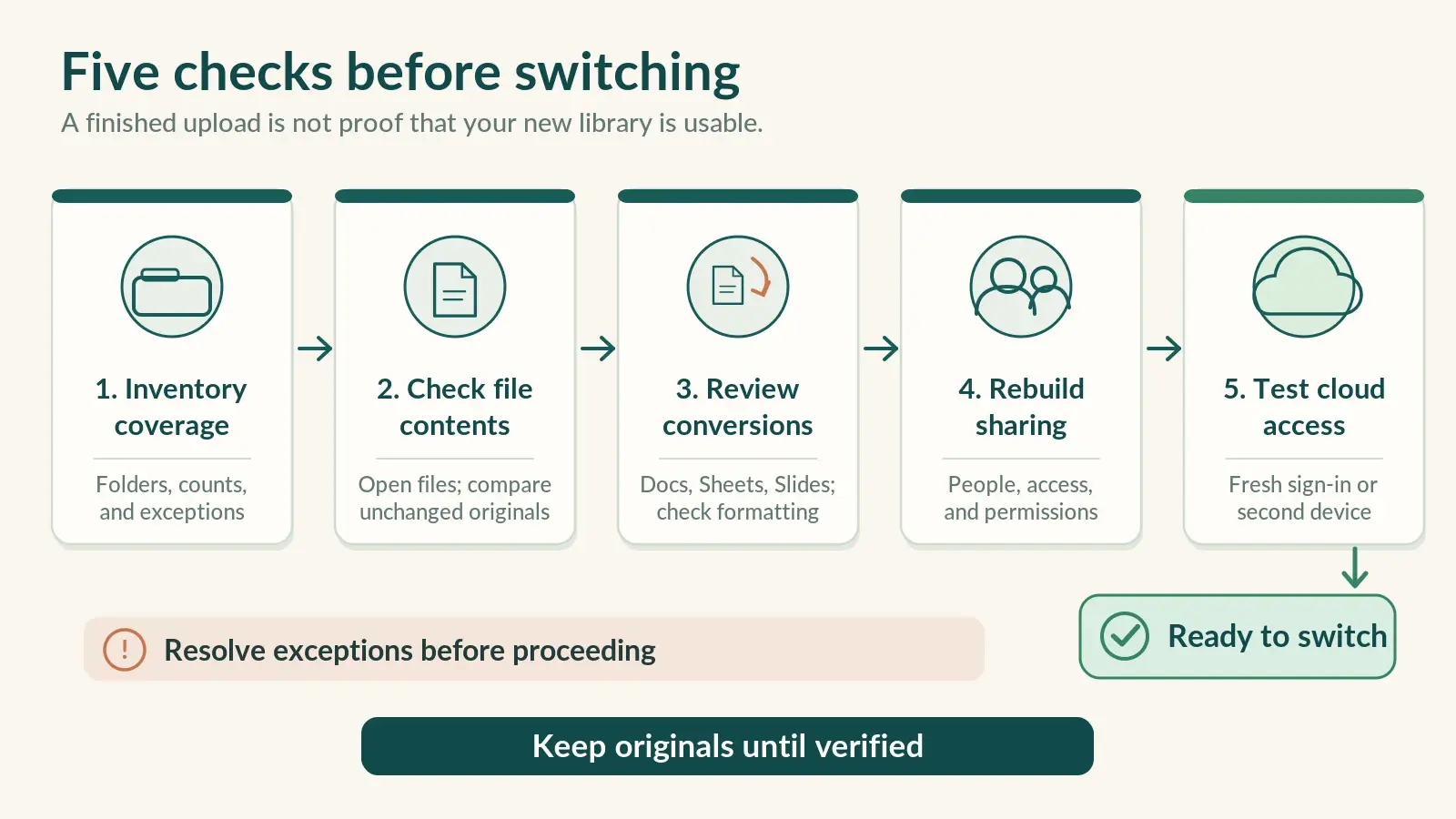
Verification should happen in three layers, each catching a different kind of failure.
Layer 1: Compare coverage
For every high-priority folder, compare the source and destination folder trees. Check expected files and subfolders, source and destination item counts where meaningful, the import/error report, any changed names, and the list of excluded or unsupported items. Counts can legitimately differ when native Google items become Office files, but unexplained differences must be investigated.
Layer 2: Compare file contents
Open representative files from every important category in the destination cloud. Do not inspect only easy PDFs. Test a large video, an Excel spreadsheet with formulas, a document with tables, a recent image and an unusually nested folder.
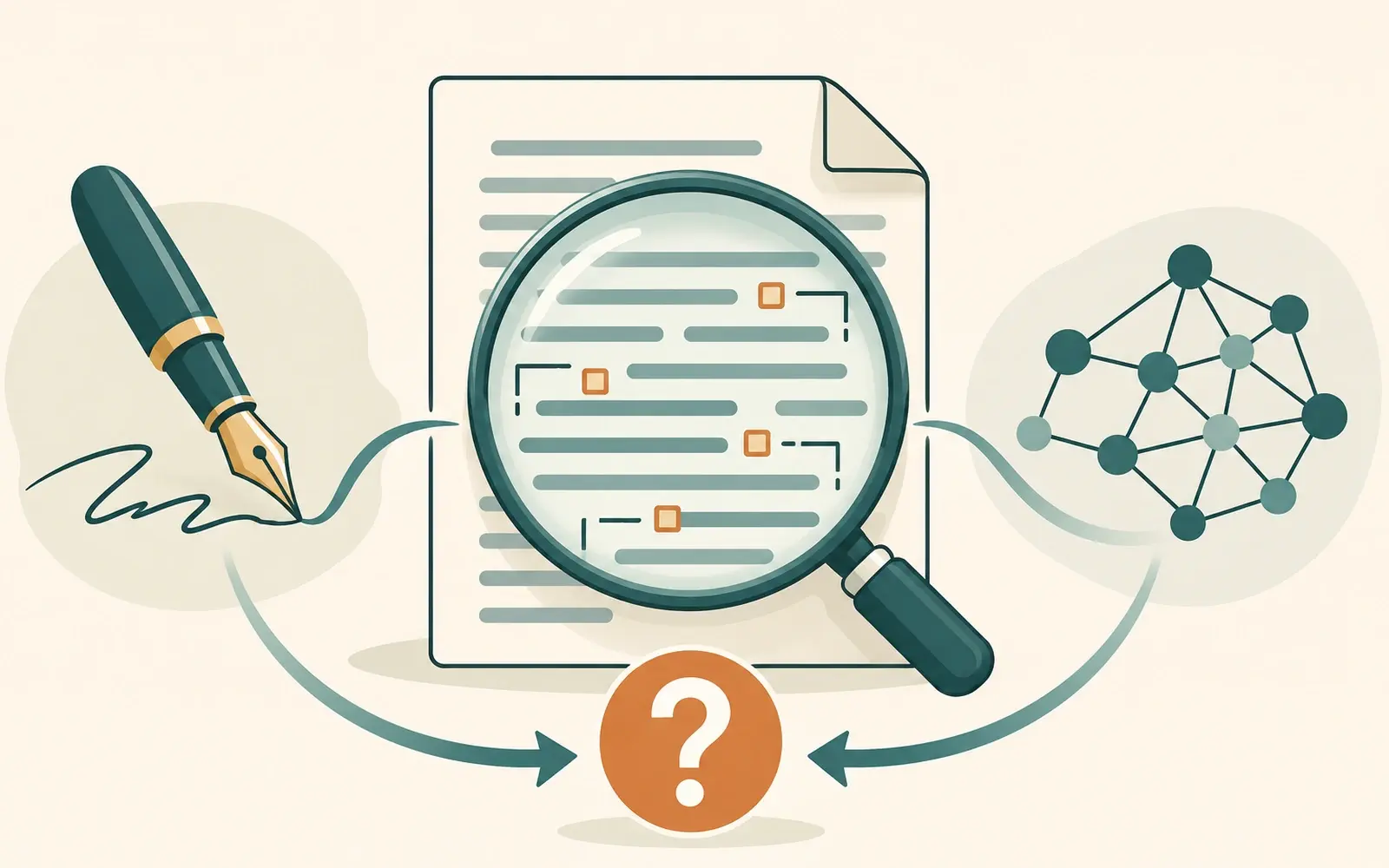
For ordinary files that have been copied without conversion, a cryptographic hash can provide a stronger check than filenames or sizes. For example, Windows PowerShell's Get-FileHash defaults to SHA-256. Comparing SHA-256 hashes of the same original bytes and a fully downloaded destination copy helps establish that those bytes match.
Hash comparison is not appropriate for files intentionally converted from Google Docs into Word or another format. Their contents may be semantically similar, but their underlying bytes are different. Inspect those documents functionally instead. A hash also does not demonstrate that collaborators, permissions or revision history survived.
Layer 3: Test real usage
Sign in to the destination from another device or private browser session. Confirm that the files exist in the destination account, open correctly, and—where needed—can be edited or downloaded. Test one intentionally shared file using a second authorized account, then review the permissions and ensure no unintended people gained access.
Only after these three layers pass can you responsibly say that the content you intended to migrate is available and usable. A green transfer progress bar alone is not enough.
A Worked Example: Moving a Student's 25 GB Drive
Imagine a student has approximately 25 GB of material:
- 14 GB of PDFs, photos and downloaded lecture videos;
- 6 GB of native Google Docs, Sheets and Slides;
- 5 GB of shared group-project material and miscellaneous files.
These numbers are only illustrative, not a tested benchmark or current product limit.
First, the student audits ownership and discovers that some group-project files are merely linked from other people's accounts. Those items go onto an exceptions list; the student should ask the owners for authorized copies rather than assuming an export will include them.
Next, the student verifies the available space in OneDrive and on the computer. They try a small sample of the native Google documents, check conversion quality, and select an import or manual process based on the account's available features. Ordinary files are copied in manageable batches.
The student then compares the imported folders, checks the OneDrive report if using cloud import, opens several converted assignments, and restores any exceptions individually. The original Google Drive is retained while the student begins using OneDrive for new documents.
Notice that 25 GB moved is not the success criterion. Success means the needed work is present, opens correctly, has the right access controls and can be recovered if something goes wrong.
The Final Cutover: Avoid Creating Two Conflicting Versions
Once the destination passes verification, choose a specific point when new work will begin in the new cloud service. Communicate this to collaborators. Update bookmarks, application save locations, shared links and relevant automatic workflows. If source documents remained active during the migration, check for edits made afterward and move that final difference using a deliberate second pass.
Be careful with tools that support incremental imports: Microsoft's documented OneDrive import can overwrite a destination item when a newer source version is detected. If people have edited both versions, manually reconcile them first. There is no safe automatic rule that can resolve every conflicting document.
If you use OneDrive Files On-Demand, remember that a cloud icon can mean a file is online-only. If you need guaranteed offline access, explicitly mark critical files Always keep on this device and verify that they finish downloading. This changes local availability; it does not make OneDrive an independent backup system.
Then retain the original Drive content for a sensible transition period, especially if there are Google-native documents or shared links. The appropriate period depends on how often your files are used and how quickly omissions could be discovered—not on a universal number of days.
Do not delete the Google source merely to make the process feel finished. First confirm that a separately recoverable backup exists, then remove old data only when you are confident no important content or collaboration depends on it.
For background on why a synchronized folder can propagate deletions, see Why Can Deleted Files Sometimes Be Recovered? for related storage-recovery concepts. If your main question is which provider to use, the site's maintained Best Cloud Storage Services for Personal Use is a separate provider-selection resource.
What to Do If a Transfer Appears Incomplete
Do not restart the whole migration immediately. Locate the failed batch or omitted file and determine whether the issue is access, space, size, format, name, connection or conflict handling.
For a OneDrive cloud import, check the TXT report in Imports, noting the files and folders that failed. For a manual transfer, compare the staging folder against the web destination and inspect the desktop client's errors. Check storage quota, long paths and restricted characters; Microsoft documents these as causes of OneDrive upload failures. Reattempt the specific items after resolving the cause.
If the source is a native Google file that was converted, inspect the export format and recreate problematic content where necessary. If a shared document is absent, verify who owns it and whether you have permission to copy it. If the source contains changes made after the first export, perform a controlled final pass rather than assuming the earlier archive already contains them.
A migration that reports failures is not a failure of the entire project—provided the failures are visible, tracked and resolved before the source is retired.
Conclusion: A Successful Migration Is a Verified Copy, Not a Completed Upload
Moving from Google Drive to OneDrive is straightforward for many ordinary files, but moving all the value attached to those files takes more care. Native document formats, shared access, shortcuts, history, online-only placeholders and unsupported objects can all change what arrives at the destination.
Pick the method that fits your account and file types. Keep the source untouched while copying. Read the transfer report, test important files, restore permissions intentionally, and establish a clear cutover point. Preserve a separate recovery copy before removing anything.
The strongest final test is practical: could you open, edit, share and recover the files you need from the new service tomorrow if you could no longer use the old one? If the answer has been demonstrated—not assumed—then the migration is ready.
Related reading: the difference between sync and a recoverable backup.
Sources and Further Reading
- Microsoft Support — Import other cloud files using OneDrive: supported Google Drive import, format conversion, exclusions, reports and sharing limitations.
- Microsoft Support — Upload and save files and folders to OneDrive: manual and desktop upload methods.
- Microsoft Support — Fix problems uploading files on the OneDrive website: quota, path and filename issues.
- Microsoft Support — Sync your computer's files and folders with OneDrive: local versus cloud availability and sync behavior.
- Google Account Help — How to download your Google data: Takeout archive creation and delivery to cloud destinations.
- Google Drive Help — Export your data from Google Docs, Sheets, Slides and Drive: export coverage, metadata and supported product content.
- Google Drive Help — Download a file: browser downloads and owner restrictions.
- Google Drive Help — Find files shared with you: access to shared files and shortcuts.
- Microsoft Learn — Migrate Google Workspace to Microsoft 365 with Migration Manager: organization-managed migration, mapping and reporting.
- Microsoft Learn — Get-FileHash: SHA-256 verification of byte-identical files.