Cloud Backup vs Cloud Sync: Why Deleting a File Can Remove It Everywhere
Cloud sync can remove a deleted file from every connected device. Learn how it differs from backup, how recovery works, and how to protect important files.
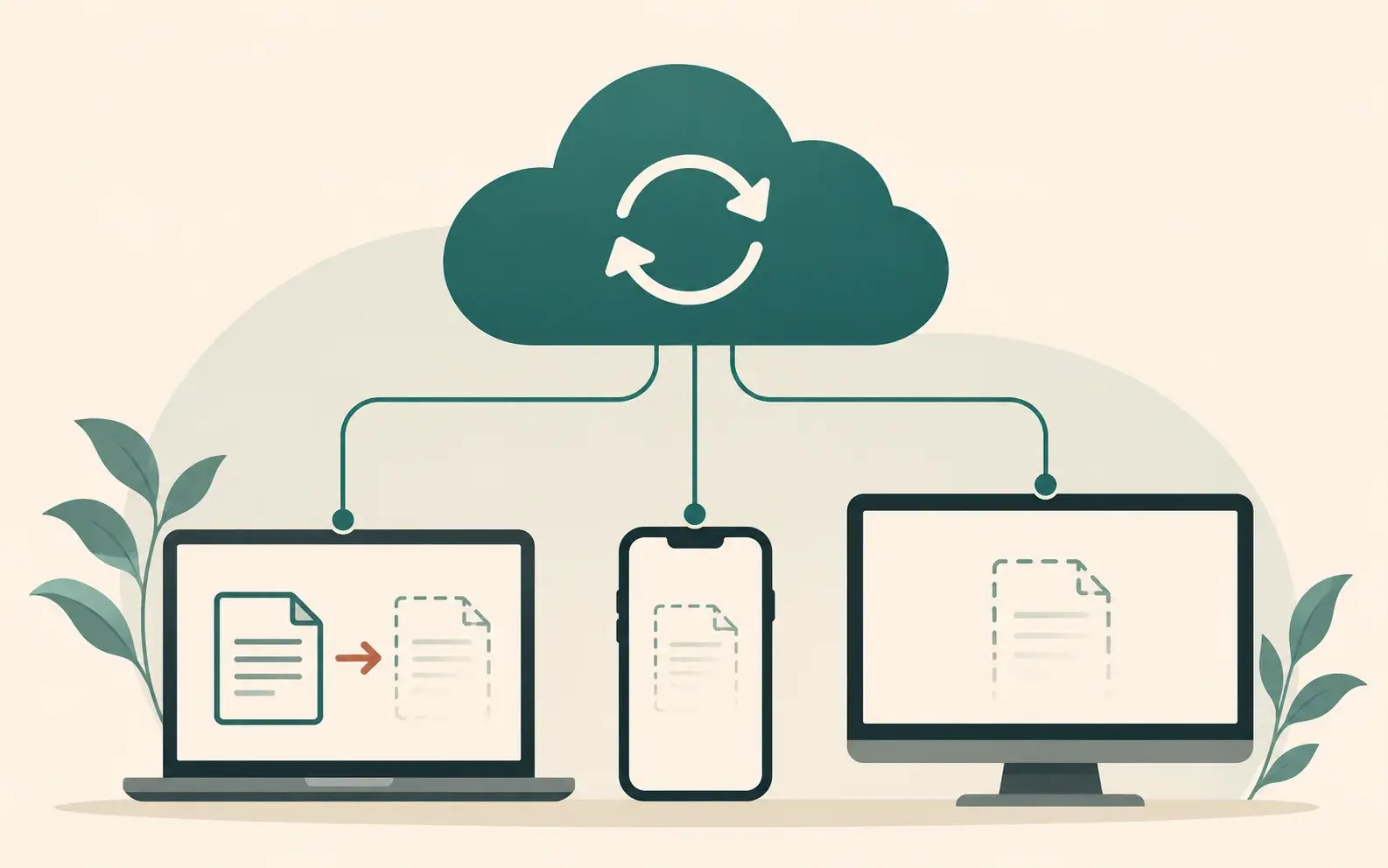
You save an important document in a cloud folder on your laptop. Minutes later, it appears on your phone and another computer. It feels as though you now have three safe copies.
Then you delete the document from the laptop to clear some space. When you check your phone, it has disappeared there too. The cloud website no longer shows it in your normal files.
Nothing malfunctioned. The service may have done exactly what it was designed to do: synchronize the deletion.
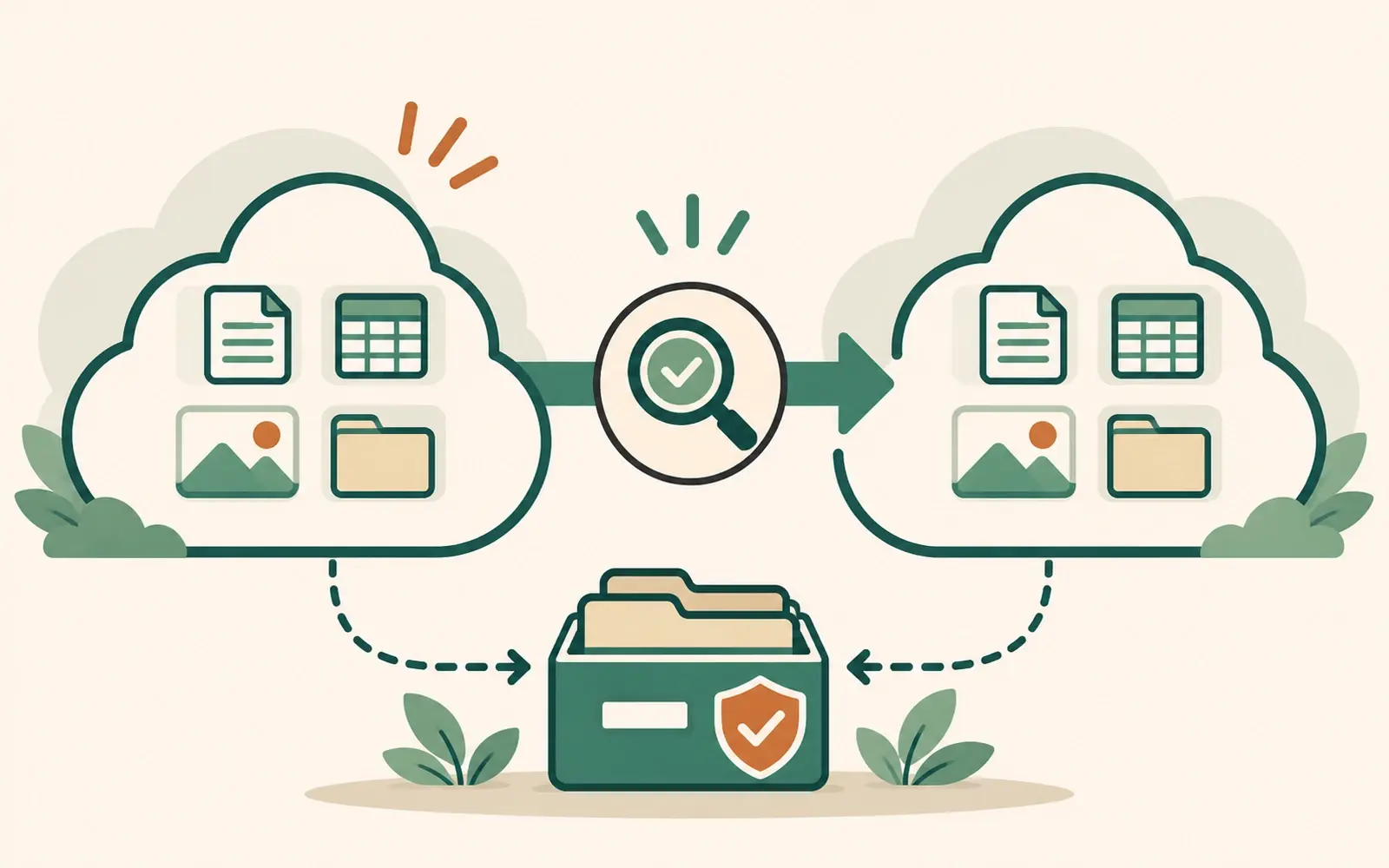
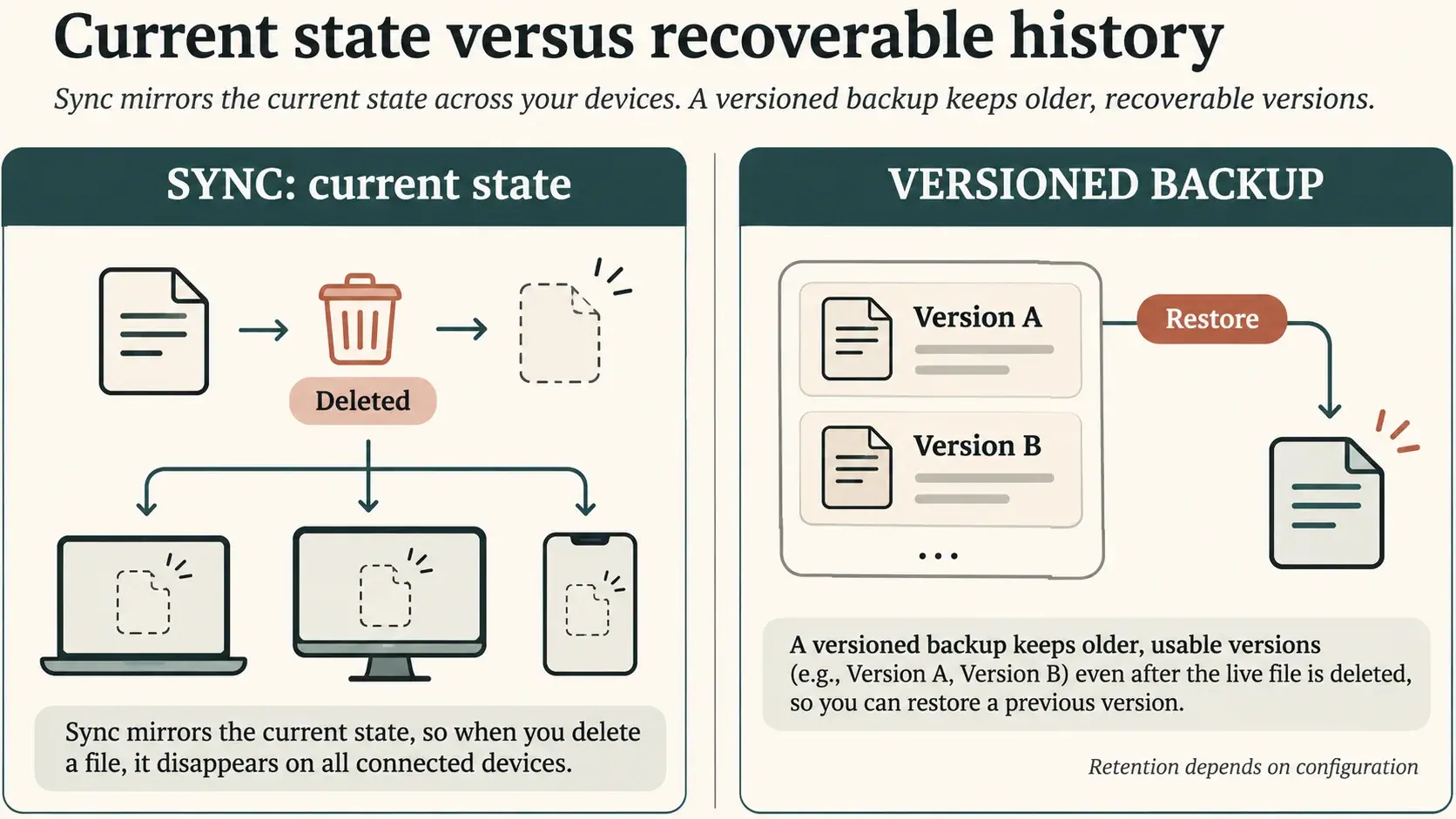
That is the distinction between cloud sync and cloud backup. Sync tries to keep connected locations consistent. Backup is meant to give you a recoverable copy from an earlier state. A cloud service can offer both, but storing a file online—or seeing it on several devices—does not by itself guarantee an independent backup.
Cloud Sync Keeps Locations Consistent, Not Independent
Imagine one project folder connected to a laptop, desktop and cloud storage account. At first, all three show the same file:
Laptop          Cloud account          Desktop
report.pdf   ⇄   report.pdf    ⇄     report.pdf
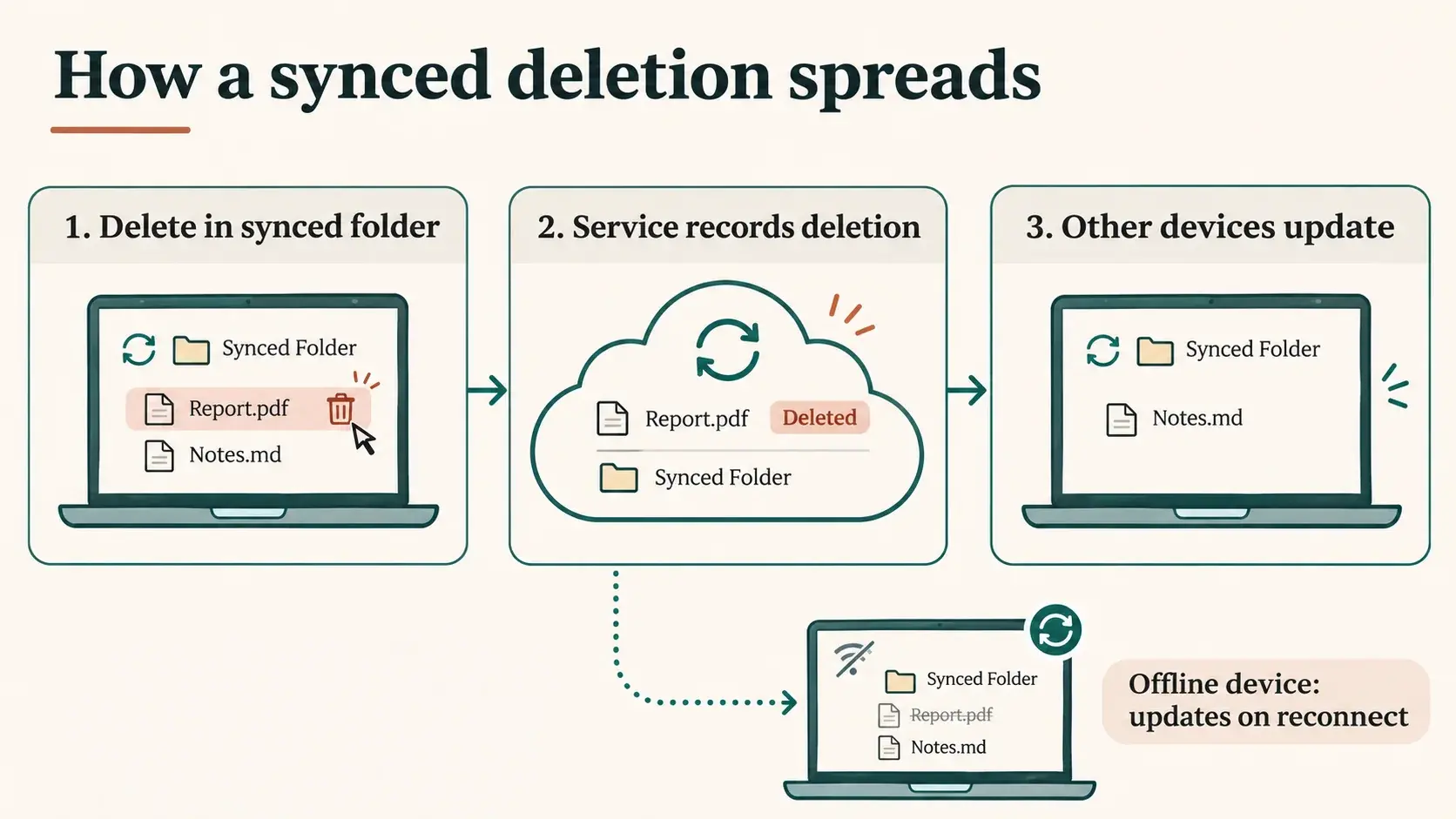
You edit report.pdf on the laptop. A sync client detects the change, uploads it, and the other device receives the updated file. That is convenient: you do not have to remember which computer has the latest version.
Now replace edit with delete.
The sync client notices that the file has been removed from a location it manages. It reports that change to the cloud service. The service updates the shared file state, and other connected devices eventually reflect the deletion. Depending on the product, the file may enter a cloud trash or recycle bin rather than being destroyed immediately.
Sync treats deletion as a change to distribute, not necessarily as a mistake to prevent. Microsoft explicitly documents that deleting a synced OneDrive file can remove it from every device and the cloud; Google and Apple document the same fundamental behavior for their respective synced file services. Microsoft's explanation · Google Drive's deletion guidance · Apple's iCloud Drive guidance
This does not mean every cloud app deletes everything in the same way. The folder being managed, sync configuration, ownership, permissions and particular action all matter. The essential question is whether your action changes the shared file or only the local copy.
What Cloud Backup Is Supposed to Preserve
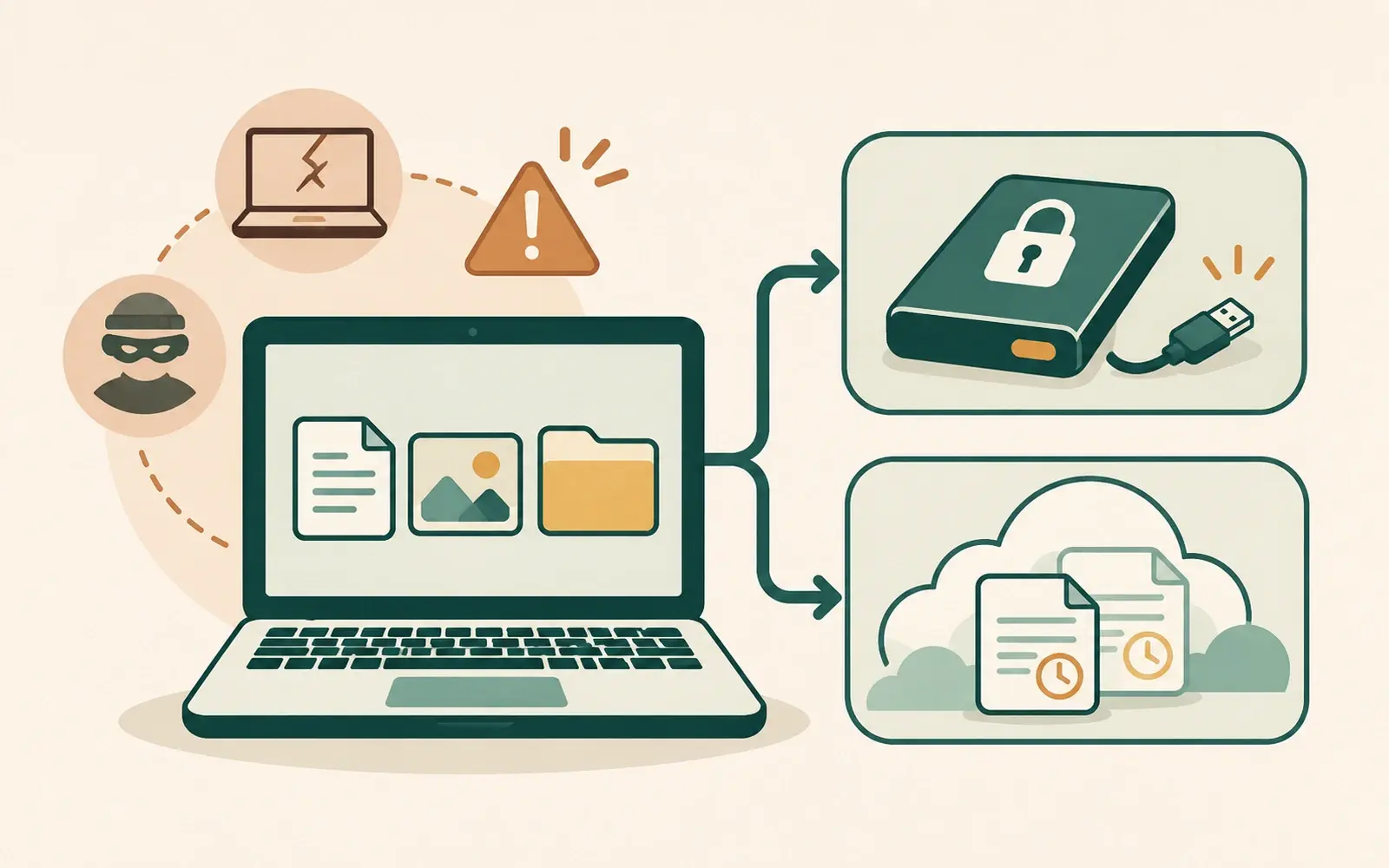
A useful backup lets you recover data after something has gone wrong with the working copy. That might mean accidental deletion, corruption, a failed drive, ransomware, or a computer that no longer starts.
Consider a separate backup system that records versions over time:
Monday:     report.pdf — version A
Tuesday:    report.pdf — version B
Wednesday: report.pdf — deleted from working folder

Backup history: Monday and Tuesday versions still recoverable
The important property is not that the backup lives on a different server. It is that a later harmful change does not immediately destroy every usable earlier copy.
A backup could be an external drive disconnected after a completed copy, a versioned backup repository, or a cloud backup service with appropriate retention and recovery controls. Conversely, a second folder that simply mirrors every change—including deletions—may offer little protection against mistakes in the original folder.
There is a nuance worth knowing: even a product marketed as “Backup” may track source deletions. For example, Dropbox says its Dropbox Backup service can reflect deletions between a device and its backup, while also offering recovery of deleted files for a plan-dependent period. Its backup feature is designed for recovery rather than collaboration, but the name alone does not promise that deleted files remain forever. Dropbox Backup FAQ
What makes a backup dependable is the combination of historical versions, retention, separation from the working data, and a restoration process that actually works.
Cloud Backup vs Cloud Sync: The Difference at a Glance
| Question | Cloud sync | Properly configured backup |
|---|---|---|
| Main goal | Keep current files and changes available across locations | Recover an earlier usable state after loss or damage |
| What happens after an edit? | Usually updates the shared current file | Can preserve an earlier version as well as a newer one |
| What happens after a deletion? | Often propagates the deletion | Should retain a recoverable older copy for a defined period |
| Is it useful across devices? | Yes; access and collaboration are central benefits | Sometimes, but everyday editing is not its main purpose |
| Is there an independent recovery point? | Not guaranteed; trash/history may help | Should be deliberately provided and tested |
| Does one provider account control everything? | Often | Depends on architecture, access controls and storage separation |
This table describes the purpose of each system, not an unconditional rule about every product. Some sync services provide excellent version history and recovery tools. Some poorly configured backup jobs overwrite old data or delete missing source files, leaving too little history to restore.
Why Three Visible Copies May Still Be One Point of Failure
Suppose you see a spreadsheet on your laptop, phone and desktop. It is tempting to count that as three backups.
But if all three are views of the same synchronized account, they may all depend on a single shared state:
           One synchronized account
             /       |       \
          Laptop    Phone    Desktop
This creates a logical single point of failure. An accidental deletion, unwanted overwrite or malicious action accepted by the sync service can affect each connected location. Multiple physical devices do not necessarily mean multiple independently recoverable versions.
The same issue appears with files stored as online-only placeholders. On OneDrive, for example, an online-only file can appear in File Explorer without its full contents being stored locally. Deleting that placeholder is not equivalent to clearing a temporary download: Microsoft says it removes the file from OneDrive and other devices. The separate Free up space action instead removes the local downloaded content while leaving the online file available. Microsoft: Files On-Demand
And disconnecting from the internet does not turn a synced folder into a reliable archive. If you delete a synced file while offline, the change may be queued and transmitted when the client reconnects. Do not assume an offline device will preserve a file permanently just because it has not synchronized yet.
What Happens in Google Drive, OneDrive, iCloud Drive and Dropbox?
The broad idea is similar, but each provider implements recovery and storage management differently. These details were checked against official support documentation in November 2026; plan features and retention policies can change.
Google Drive: streaming and mirroring are still synchronization
Google Drive for desktop offers streaming and mirroring. With streaming, files primarily live in the cloud and are fetched or cached as needed. With mirroring, the files are also stored locally. That difference changes disk usage and offline access, not the fundamental meaning of deleting a synchronized file.
Google says that when files are streamed or mirrored between Drive and a computer, files sent to Trash are sent to Trash across the connected locations. Items in Google Drive Trash are generally deleted permanently after 30 days, unless removed sooner or affected by other account rules. Google: delete files in Drive · Google: stream and mirror
A local copy in a mirrored folder is not automatically an isolated backup of the cloud copy.
Microsoft OneDrive: deletion differs from freeing space
OneDrive's Files On-Demand makes cloud files visible inside Windows File Explorer, even when they are not fully downloaded. If you delete a synced file there, the deletion can propagate across devices. If you only want to save disk space, Free up space and the supported folder-selection controls are the relevant tools, not ordinary deletion.
Microsoft says deleted items in personal OneDrive generally remain in its online recycle bin for up to 30 days. Work or school OneDrive/SharePoint retention can extend up to 93 days, subject to administrative settings and other conditions. Some Microsoft 365 subscriptions also provide wider OneDrive restore capabilities for recent changes. These are recovery safeguards, not a substitute for an independent backup. Microsoft: synced files and retention · Microsoft: restore OneDrive
Apple iCloud Drive: shared Desktop and Documents can be surprising
If iCloud Drive syncs files across your Apple devices, deleting an item from iCloud Drive can remove it everywhere signed in to the same Apple Account. This is especially easy to overlook when a Mac's Desktop and Documents folders are stored in iCloud Drive: a familiar local-looking folder is also part of the synced system.
Apple says deleted iCloud Drive files can normally be recovered for 30 days, unless permanently removed earlier. For some files, Remove Download frees local space without deleting the item from iCloud. Apple: iCloud Drive · Apple: Desktop and Documents
An iCloud device backup is a different feature from iCloud Drive file synchronization. Do not assume one has the same contents, update behavior or restore options as the other.
Dropbox: sync and Dropbox Backup serve different jobs
Dropbox's regular synced folders are designed for accessing and editing files across devices; changes are synchronized across those locations. Dropbox separately offers a Dropbox Backup feature focused on restoring files from devices rather than editing and sharing backup contents.
But even Dropbox Backup is not an indefinitely frozen archive: its documentation says deletions can be reflected in backup content, while deleted-file recovery remains available for a period that depends on the plan and feature. Regular Dropbox deleted-file recovery windows also vary by subscription. Check the exact account's recovery settings instead of treating a quoted number of days as universal. Dropbox: sync overview · Dropbox: Backup FAQ · Dropbox: recovery
Deleting, Removing a Download and Unsyncing Are Not the Same Action
Three actions that look similar on a screen can have very different results.
Delete a synced file: You are typically asking to remove the shared file. That change may appear in every connected location, with a recovery window if the service offers one.
Remove the local download or make the file online-only: You are asking to reclaim device storage while retaining the cloud file. This requires the provider's specific supported command, such as OneDrive's Free up space or iCloud's Remove Download where available.
Stop syncing a folder or device: You are changing which content the client keeps locally or whether it communicates with the cloud. Depending on the product, files may disappear from the local file browser while remaining online. It is not safe to assume that manually deleting the underlying folder has the same effect as using the client's settings.
OneDrive explicitly notes that unsyncing a folder can remove its entries from File Explorer while leaving them in the cloud. Google also warns users to take care when switching between Drive for desktop mirroring and streaming modes or removing formerly mirrored folders. Microsoft: synced folders · Google: streaming and mirroring
The safest habit is to identify the exact operation before trying to free storage, uninstall a sync client or move an entire folder.
Version History and Trash Help—But They Have Limits
Most mainstream sync services provide a trash, recycle bin, recently deleted area or version history. These features make synchronization more forgiving.
They solve different problems:
- Trash or Recently Deleted is primarily for files that were removed.
- Version history helps when a file still exists but its contents were overwritten or corrupted.
- Account-wide restore, where provided, can sometimes roll back a large set of recent changes.
For example, you may still see thesis.docx, but the content has been replaced with the wrong draft. Looking only in Trash will not necessarily help. You need a previous version, a separate backup or both.
Recovery windows are finite; they may depend on account type, administrator policies, subscription, and whether somebody permanently empties the trash. A provider account that can delete the original file may also have permission to erase its recovery copies. So it is risky to treat a cloud recycle bin as the only protection for irreplaceable data.
What If Sync Spreads a Mistake or Ransomware?
Synchronization does not care whether a change was sensible. If a damaged or encrypted file replaces a healthy file in a synced folder, the changed version may be distributed just as a normal edit would be. A compromised account can also expose files to unauthorized deletion or manipulation.
Some services have ransomware detection, mass-deletion warnings and restore tools. Those features can improve recovery, but they are not universal guarantees. Microsoft, for example, documents version history and mass-deletion recovery protections for OneDrive. Microsoft: how OneDrive safeguards data
This is why cybersecurity guidance recommends keeping recoverable backups separate from everyday access. A backup drive that remains continuously attached and writable by an infected computer can be vulnerable alongside the original files. An offline or otherwise access-isolated copy can survive incidents affecting the working devices. The US Cybersecurity and Infrastructure Security Agency recommends offline backups and testing recovery procedures as part of ransomware preparation. CISA: StopRansomware Guide
How to Protect Important Files Without Giving Up Sync
You do not need to stop using sync. It is one of the easiest ways to work across devices. The goal is to pair convenience with independent recoverability.
1. Use sync for current work and separate backups for recovery
Keep active documents in a synchronized folder if that makes everyday work easier. Then have a second mechanism that preserves restorable copies outside the same shared current-file state: for example, scheduled versioned backup to another destination or a periodically disconnected external drive.
A widely used starting point is the 3-2-1 backup rule: three copies including the working copy, on two kinds of storage, with one copy offsite. Treat this as a planning principle, not a guarantee—an offline or otherwise protected copy and a tested restore are especially valuable. US-CERT/CISA: Data Backup Options
2. Verify that older versions really survive changes and deletion
In the backup system, check whether deletion immediately removes the destination copy, whether earlier versions are retained, for how long, and whether the same account can erase everything. A continuously running backup can be useful if it retains history; a so-called backup that simply mirrors the latest state may not meet your needs.
3. Learn the storage-saving command before you need it
When you want to clear space on your laptop or phone, do not reflexively select Delete inside a managed cloud folder. Find the provider's online-only, remove download, free up space or selective sync option, and confirm what happens to the online copy.
Photo services deserve the same attention. Google Photos backup and iCloud Photos have their own deletion, local-removal and recovery rules; do not apply the file-folder instructions from Google Drive or iCloud Drive to photo libraries without checking the relevant service's documentation. Google Photos: deletion controls · Apple: iCloud storage and Photos
4. Test a restore using a nonessential file
Create a small test document, let the backup finish, edit it and then delete the working copy. Try restoring an older version to a separate location. Confirm the file opens correctly. This small test reveals more than a reassuring green cloud icon: it demonstrates that a recovery point exists and that you can actually use it.
If Your File Has Already Disappeared, Do This First
Do not empty any trash or recycle bin while investigating. Avoid making further large changes in the affected synced folders.
- Check the provider's web interface, using the correct account, and search the ordinary files as well as Trash, Recycle Bin or Recently Deleted. A file may have been moved rather than deleted.
- Check version history if the file still exists but contains the wrong data. Where available, review recent account activity to understand the change.
- Look at local Recycle Bin or Trash on the device where the deletion happened. A downloaded synced file may have a local recoverable copy as well.
- If many files are disappearing or corruption is still spreading, pause or disconnect affected sync clients while you identify the cause. Record what happened before changing settings; do not use random folder deletion as a troubleshooting step.
- Recover to a separate, safe location when practical, confirm the recovered content, then deliberately restore it to the shared folder after the cause is addressed. If no normal recovery options remain, check independent backups or contact the provider/admin promptly.
If another device is offline and might still hold a valuable copy, keep it disconnected until you have safely copied that file outside the synced folder. Reconnecting prematurely can allow pending sync changes to remove it. Simply opening or restoring the file inside an active synced folder can trigger more synchronization, so take care to avoid conflicting changes.
The exact restoration steps differ by provider, account type and device. The relevant official links are in the sources below.
The Real Question Is Whether You Can Go Back
Cloud sync gives you the latest shared state. Backup should give you a dependable way back to an earlier usable state.
A file appearing on four devices does not prove you have four independent backups. A service storing thousands of copies on its own servers does not necessarily give you access to yesterday's version. And a button labeled Backup does not guarantee that deleted files are kept indefinitely.
Before trusting a setup with something you cannot recreate, ask a more useful question than “Is it in the cloud?”
“If I delete or damage this file today, can I still recover the correct version next month—and have I tested that?”
For more on the difference between logical deletion and physical storage recovery, read Why Can Deleted Files Sometimes Be Recovered?. If you are deciding which provider fits your devices, see our cloud storage service comparison.
Related reading: build a backup system you can restore from.
Sources and Further Reading
- Google Drive Help — Delete files in Google Drive
- Google Drive Help — Stream and mirror files with Drive for desktop
- Microsoft Support — Work with synced files in File Explorer
- Microsoft Support — Restore deleted OneDrive files
- Apple Support — Keep files up to date with iCloud Drive
- Apple Support — Add Desktop and Documents files to iCloud Drive
- Dropbox Help — Syncing files
- Dropbox Help — Dropbox Backup FAQ
- Dropbox Help — Recover deleted files
- US-CERT/CISA — Data Backup Options and the 3-2-1 rule
- CISA — StopRansomware Guide