How to Build a Backup System That Survives Device Failure, Theft and Ransomware
Learn how to protect your files with offline and off-site backups, version history, encryption and restore tests—even if a device fails or ransomware strikes.
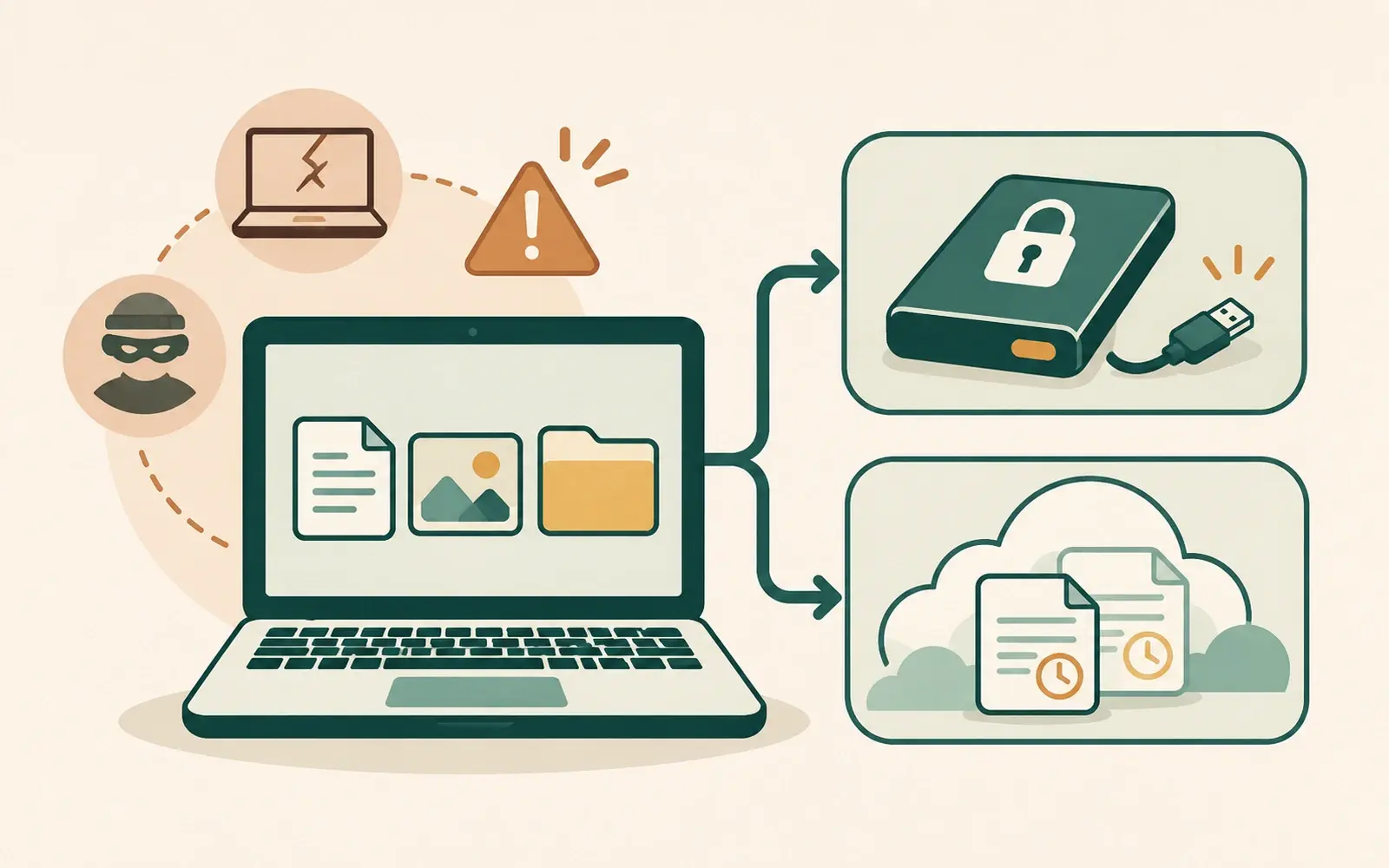
Imagine losing access to your laptop tonight.
If its storage fails, you need another copy of your files. If the laptop is stolen, that copy needs to be somewhere else. If ransomware scrambles your documents, you need a copy from before the damage—and one the attacker could not easily scramble or erase as well.
Those are three different problems. A single external drive, a cloud-sync folder or an automated backup notification might solve one while leaving you exposed to another.
A dependable backup system is therefore not simply a place where files are copied. It is a way to recover usable data after the original device, its files or even its accounts can no longer be trusted.
The practical goal is straightforward: keep multiple recoverable copies, separate their failure risks, preserve earlier versions, secure access to them and regularly prove you can restore them. Here is how to build that system without needing enterprise infrastructure.
First, Understand What You Are Protecting Against
A backup can be excellent against a failed SSD but poor against ransomware. Another can survive malware yet disappear along with a stolen bag.
| What goes wrong | What you lose access to | What the backup must do |
|---|---|---|
| Device or drive failure | The working copy on the damaged device | Provide a readable copy on another device or storage location |
| Theft or physical destruction | The original device and potentially nearby storage | Keep a copy in a separate physical location; protect confidential data with encryption |
| Accidental deletion or overwriting | The correct earlier version of a file | Retain recoverable history rather than only the latest state |
| Ransomware or malicious account access | Files and possibly any reachable backups | Keep at least one copy that the compromised system or account cannot readily change or delete |
| A bad backup job | The backup you assumed was available | Detect failures and prove restoration works |
These are not hypothetical distinctions invented by backup vendors. The US Cybersecurity and Infrastructure Security Agency (CISA) recommends maintaining offline, encrypted backups of critical data and testing their availability and integrity. The US National Institute of Standards and Technology (NIST) similarly treats recovering trustworthy data—not merely possessing backup files—as the objective of ransomware recovery.
A backup design should cover the threats that actually matter to you. A student might prioritize notes, projects and photographs. A freelancer may need client deliverables, invoices and password-manager recovery information. A small business may also need its customer database, software configuration and a documented way to restart operations.
Cloud Sync, File Copies and Backups Are Not the Same Thing
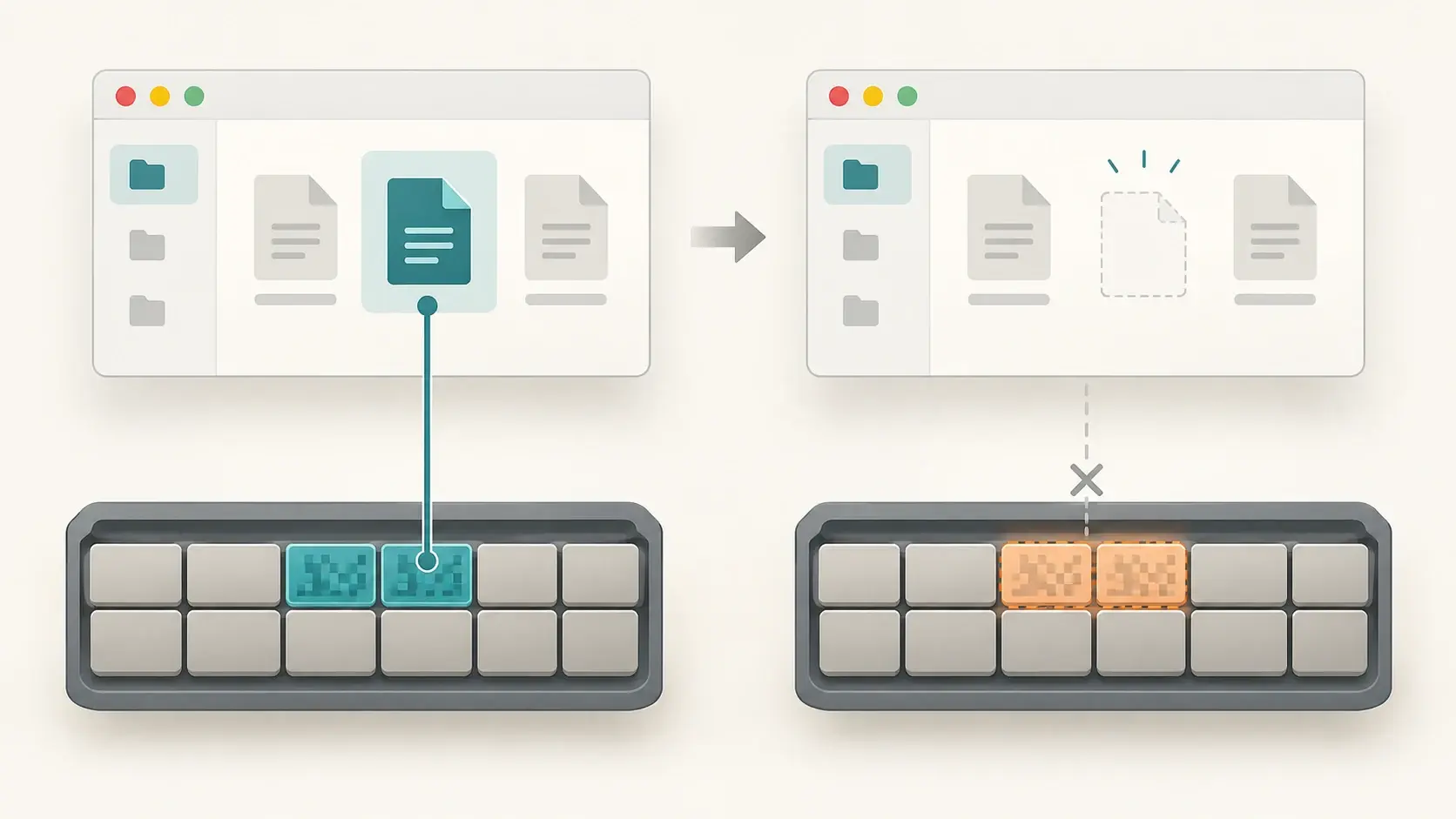
Suppose a folder is synchronized between your laptop and a cloud service.
You modify project-report.docx on the laptop. The updated document appears on your phone. That is useful: synchronization keeps your active files consistent across locations.
Now delete the document in that synchronized folder. Depending on the service, the deletion can be sent to the cloud and other devices. Microsoft explicitly documents that adding, changing or deleting a file in a OneDrive folder causes the corresponding change online.
Three synchronized locations may still represent one changing state, not three independent recovery points.
Some services offer a recycle bin, file history or restore feature. Those can be valuable recovery mechanisms, but they depend on retention periods, account access and product rules. They should not be confused with an independent backup whose older copies remain protected when the live files change.
A manual copy is different again. Copying a folder to an external drive produces a second copy at that moment. But if you overwrite that same folder every week, you may replace your last good copy with corrupted or encrypted files. If you leave the drive plugged into the compromised computer, it may be exposed to the same attack.
The question that matters is not “Where else can I see the file?” It is “Can I still retrieve a known-good version after the original is deleted, corrupted, stolen or attacked?”
For the separate question of how deleted local files can sometimes be recovered, see Why Can Deleted Files Sometimes Be Recovered?. Traditional file recovery is not a substitute for a prepared backup.
Build Around Three Copies—and Separate Their Risks
A useful starting point is the 3-2-1 backup rule:
- 3 copies of important data: the working original plus two backups.
- 2 different storage media or storage mechanisms: so one storage failure does not endanger every copy in the same way.
- 1 copy off-site: away from the place where the main device is normally kept.
This rule appears in longstanding US-CERT guidance. It is a memory aid, not a guarantee: what matters is actual separation of failure risks.
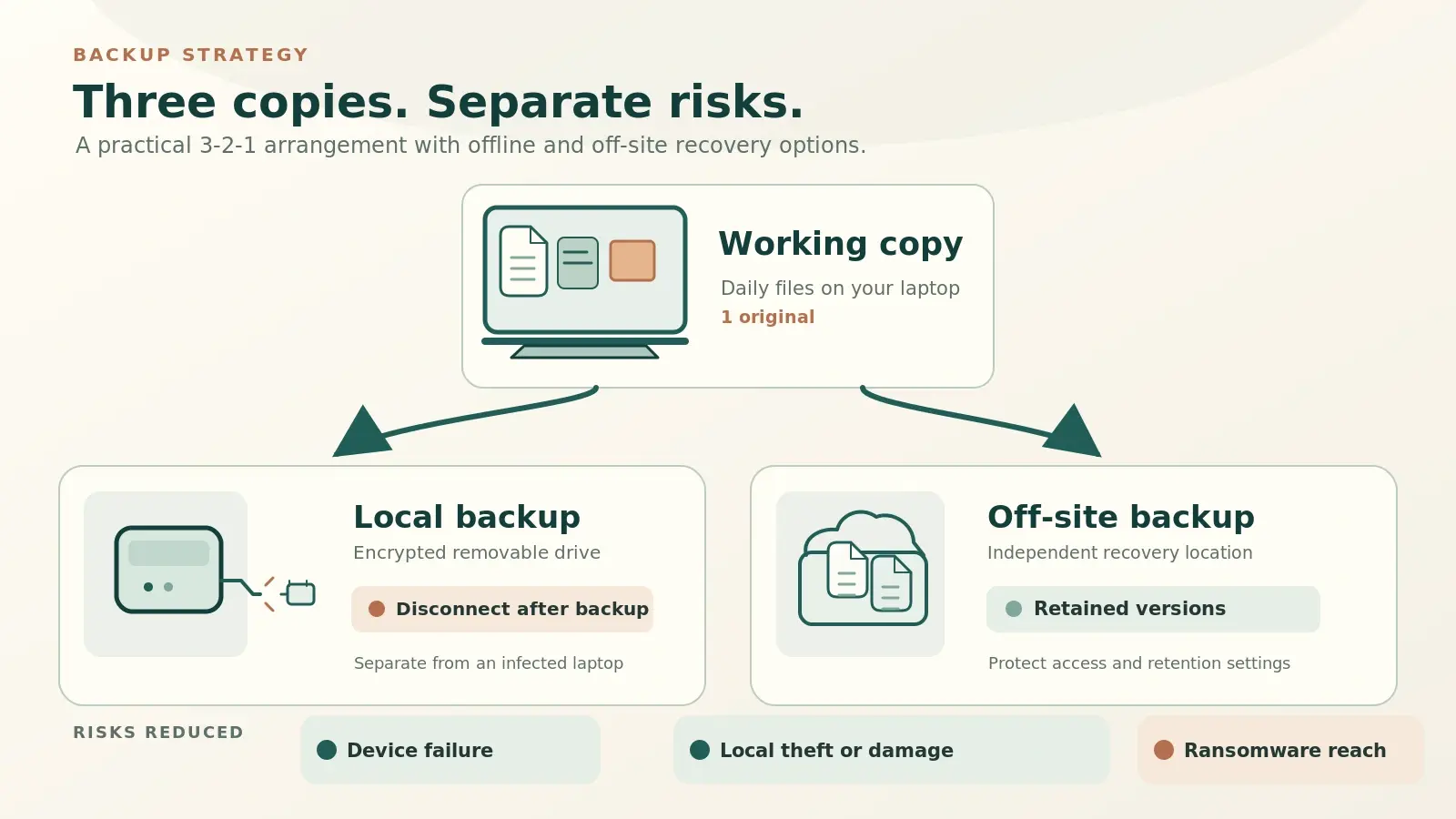
Consider one person who works on a laptop:
| Copy | Example location | What it contributes |
|---|---|---|
| Working copy | Laptop's internal storage | Everyday access and editing |
| Backup A | Encrypted removable drive, disconnected after a completed backup | A recovery copy that is not continuously reachable from the laptop |
| Backup B | Separate off-site backup with retained versions and appropriately protected access | Recovery if the laptop and local backup are lost together |
This arrangement addresses several problems at once. A dead laptop does not destroy both backups. A theft at home does not necessarily affect the off-site copy. Malware on the laptop cannot directly rewrite a removable drive while it is disconnected.
But physical separation and cyber separation are not identical. Two cloud services accessed by the same compromised administrator account might both be vulnerable. An off-site network drive permanently mounted with write access might still be reachable by ransomware. A removable drive stored in the same laptop bag does little to protect against theft.
A stronger version of 3-2-1 therefore adds an explicit offline or suitably immutable recovery copy. “Immutable” means retained versions cannot be changed or deleted during a configured protection period under the applicable access controls. It does not mean the service is immune to every failure or that files are kept forever.
For most individuals, a disconnected encrypted drive plus a properly configured off-site versioned backup is more realistic than complex enterprise storage. The important thing is to verify that these copies are genuinely independent.
Decide What Must Be Recoverable Before Choosing Storage
Start with a short inventory. You cannot protect a folder that your backup system never includes.
Most people will discover important material spread across several places: Documents, Desktop, Pictures, Downloads, external disks, phone galleries, messaging apps, email attachments, browser exports and application-specific project directories.
A practical classification makes the plan manageable:
| Priority | Examples | Reason |
|---|---|---|
| Irreplaceable | Family photos, original videos, unpublished work, personal records, unique scans | Cannot easily be recreated |
| Difficult to recreate | Research notes, code projects, spreadsheets, business records, design files | Rebuilding costs substantial time |
| Replaceable but inconvenient | Application settings, installers, templates, device configuration | Recovery is faster when copies exist |
| Easily replaceable | Downloadable movies, software installation packages available from trusted sources | Lower backup priority when space is limited |
Also consider access information needed for restoration, such as backup encryption passwords, device recovery keys and account-recovery procedures. Store these securely in an independently accessible place; do not leave the only recovery key on the device you might lose.
Do not assume a phone's “backed up” message covers everything. Google warns that not every Android app can restore all settings and data. Apple explains that an iPhone's iCloud Backup contains information not already synchronized to iCloud; synchronized photos and other data may require their own separate recovery plan.
The first backup job should include a known list of locations, not merely whatever a program selects by default.
Choose What Kind of Backup You Need
Different backup methods solve different recovery problems. A robust personal setup may use more than one.
File-level, versioned backup: usually the first priority
A file-level backup preserves selected documents, photographs and folders. Versioned backup additionally keeps earlier recoverable states of files, subject to a defined retention policy.
This is especially useful when you discover that a spreadsheet was damaged several days ago, or a folder was accidentally deleted last week.
Look for a system that can answer three questions:
- Which exact folders are included?
- How many earlier versions or recovery points remain accessible, and for how long?
- Can you restore to a different folder without overwriting the current files?
A file-level backup may not reinstall your operating system, applications or every configuration. That is acceptable if your principal goal is to save your data.
System-image backup: useful when rebuilding would be expensive
A system image captures a broader state of a computer or disk and can reduce the work involved in restoring an entire environment. Depending on the product, it may include the operating system, applications, partitions and settings.
An image is not automatically portable to different hardware, and recovering it may depend on drivers, boot media, encryption keys and compatibility. The recovery environment needs testing too.
For a typical home laptop, begin with dependable file backups. Add system imaging if restoring all applications and settings would be particularly time-consuming.
Cloud backup: off-site protection with operational questions
A dedicated cloud-backup service can protect against loss of local equipment, but only if it actually retains recoverable history, protects its management controls and permits restoration when your original device is unavailable.
Check whether the service lets you recover deleted files after a defined period, whether an administrator can delete historical copies, how data is encrypted, and what happens when you stop paying or the account is locked. “Stored in the cloud” alone does not establish these properties.
For readers comparing storage products rather than backup mechanisms, the site's maintained Best Cloud Storage Services for Personal Use Guide covers the service-selection question. Cloud storage and dedicated backup capabilities still need to be evaluated separately.
Decide How Often to Back Up—and How Far Back to Keep History
There are two time-related questions people often overlook.
Recovery point objective (RPO) asks how much recent work you can afford to lose. Recovery time objective (RTO) asks how quickly you need to resume using the files or system. NIST defines these as distinct recovery measures.
Imagine you edit a client document daily.
- If the last successful backup was yesterday at 8 p.m. and the laptop fails today at 7 p.m., you could lose nearly a day's changes.
- If you back up only every Sunday, you could lose almost a week.
- Even if your backup is current, downloading hundreds of gigabytes over a slow connection can make the restore take hours or days.
A once-daily successful backup can limit the age of lost work to roughly 24 hours in a simple schedule, but only if the necessary files were included, the process completed and the copy remains usable. It is not a guarantee.
A reasonable starting schedule for an individual might be continuous or frequent versioned backups for active work, a daily off-site backup and periodic disconnected-drive backups. A small business may need far shorter recovery windows. Choose the frequency based on the cost of losing work, not on a universal promise.
Then decide retention, which is different from frequency.
If ransomware quietly encrypts or corrupts files and you do not notice for ten days, a backup system that retains only the newest one or two versions might have already discarded the last healthy copy.
An illustrative policy could retain daily recovery points for several weeks plus less frequent older snapshots. But the right durations depend on storage limits, legal requirements, how long corruption might go unnoticed and whether the system automatically prunes history.
The policy should say both how often backups run and how long older versions survive.
Put at Least One Copy Outside the Ransomware's Reach
Ransomware can encrypt files that an infected account or computer is allowed to modify. Attackers may also target accessible backup drives, shared folders, backup consoles and credentials.
That is why a normal always-connected backup drive can fail at the exact moment you need it.
Two defenses are especially useful.
Disconnected backups
After a backup completes, safely eject the removable drive and physically disconnect it. Put it in a secure location. An attacker controlling the computer generally cannot rewrite that disconnected drive over the network.
The trade-off is operational: you must reconnect it on schedule, confirm the job completed and disconnect it again. A never-connected drive is safely isolated but becomes useless as a recent backup if you forget to update it.
If the budget allows, rotating two encrypted drives can help preserve an older unaffected copy while another is being updated.
Immutable or access-separated backups
Some specialized storage systems support time-limited retention locks. For example, Amazon S3 Object Lock can protect specific object versions. Its governance mode allows users with special bypass permissions to override protection; its compliance mode imposes stricter retention restrictions. This is an example of the technology, not a recommendation that every home user must configure S3.
You also need to consider the account that controls backups. Use multifactor authentication where available, avoid unnecessarily granting deletion rights to routine backup software, and separate backup-management credentials from normal daily-use accounts when feasible.
Remember the limitation: a backup is primarily a recovery control, not a complete defense against theft of confidential data. An attacker might copy information before encrypting files. Good backups do not undo disclosure or replace malware prevention, software updates, access controls and incident response.
Encrypt Backups Without Losing the Keys
Encryption matters most when someone can physically take your storage device or intercept access to sensitive information.
A stolen encrypted external drive should not expose readable files simply because the drive is plugged into another computer. But the encryption password or recovery key must remain accessible to you after the original laptop has been lost.
For Windows, Microsoft documents how to back up a BitLocker recovery key. For macOS, Apple's Time Machine setup allows you to enable encrypted backups and notes that the password is needed to restore them.
Protecting keys therefore involves two separate goals:
- Confidentiality: attackers should not be able to read the backup.
- Recoverability: authorized users must still be able to unlock it after losing their normal device, phone or account session.
A password manager, securely held recovery information and a carefully stored emergency record can help, but do not create a situation where the password manager and its only recovery method both depend on the lost computer.
Before trusting encryption, perform a restoration on a different device or user session where practical and confirm you can unlock the backup.
A Practical Setup for Windows, Mac and Phones
You do not have to begin by purchasing complicated software. Use the built-in tools you already have, understand their limits and add an independent copy.
Windows: start with File History, then add separation
Microsoft's File History supports versioned copies of personal files to an external drive or network location. In Windows 11, Microsoft documents setup through Control Panel → System and Security → Save backup copies of your files with File History.
File History protects selected libraries and supported folders; it is not a complete system-image backup. Verify that important folders are included, especially anything stored outside the usual libraries.
After confirming a successful local backup and test restoration, add an appropriately protected off-site copy. If the File History drive must remain attached to run automatically, plan a separate disconnected or otherwise isolated recovery copy rather than claiming the connected drive is ransomware-proof.
Microsoft also offers Windows Backup and OneDrive-based folder synchronization, but these serve different purposes. Check what data each feature actually preserves rather than treating their “Backup” labels as interchangeable.
Mac: Time Machine plus an independent off-site copy
Time Machine is a practical starting point for a Mac. Apple's instructions cover selecting a dedicated external drive under System Settings → General → Time Machine, enabling encryption, allowing the initial backup to finish and restoring files later.
Time Machine keeps historical backups according to its retention rules, deleting older ones as space runs low. An external Time Machine disk is still a physical object that can be lost or stolen alongside the Mac.
Add an off-site recovery copy, and keep at least one protected copy outside the reach of an infected or compromised Mac. Test a file restore before assuming the system is working.
Android and iPhone: confirm the data types, not just the green checkmark
Phone backup features can help recover device settings and app information, but coverage varies. Check photographs, videos, messages, downloads, authenticator/account recovery information and app-specific exports separately.
Google notes that not all Android apps fully support backup and restoration. Apple says information already synced with iCloud is not simply duplicated inside iCloud device backups. Therefore, a phone-to-phone migration backup and an independent archive of irreplaceable photos are different safeguards.
For valuable mobile photographs, consider an additional tested export to a computer or separate backup destination, not just one continuously synchronized photo library.
Prove That You Can Restore, Not Just That You Can Back Up
A message saying “Backup completed” proves less than most people think. It may mean a job ran, not that the right folders were included, historical versions are readable, encryption credentials are accessible or the full restore will succeed.
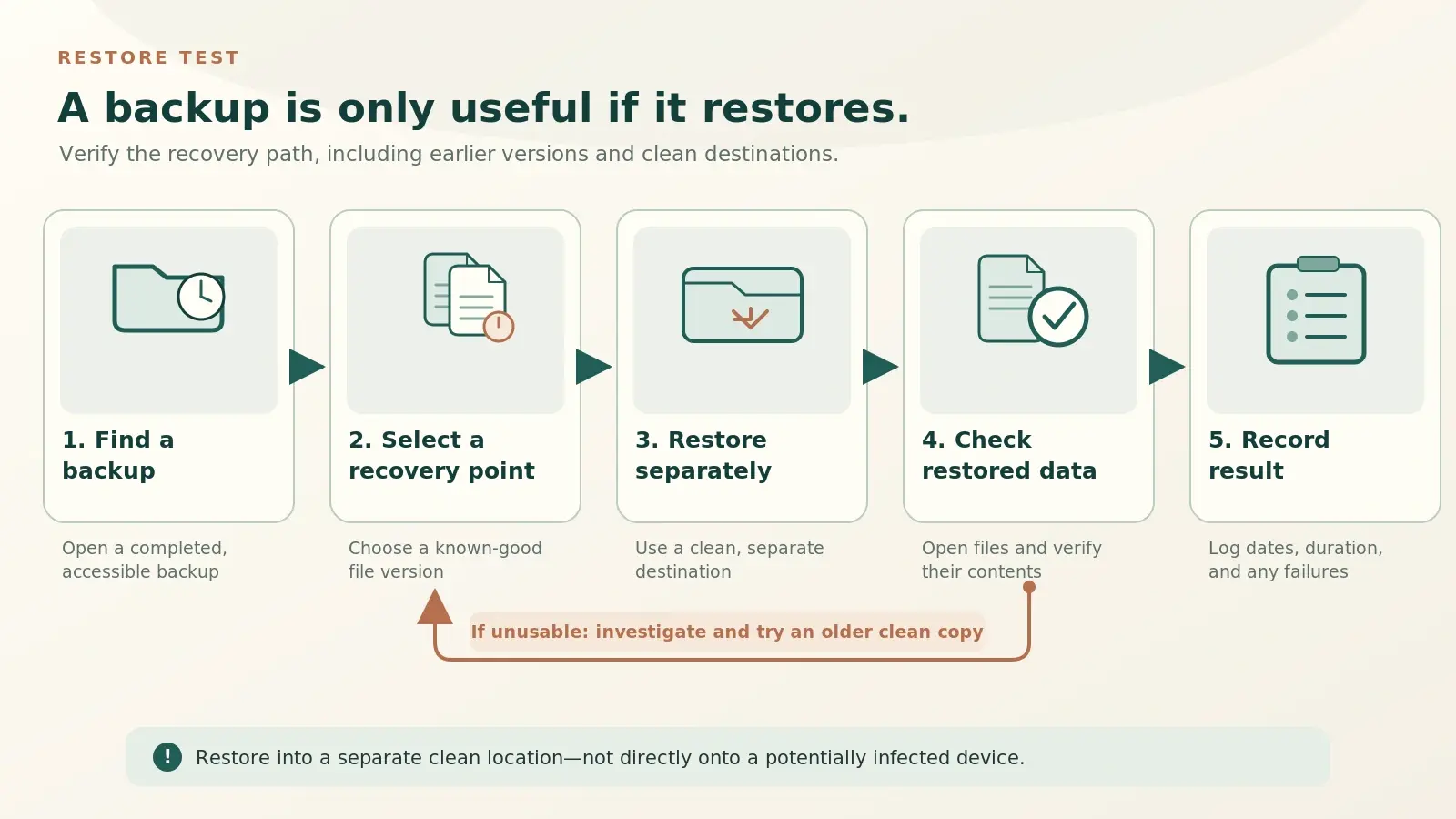
A useful restore test is small, deliberate and repeatable.
- Choose a test file that you can safely duplicate, such as a document and a photograph from a protected folder.
- Verify recent coverage: confirm the backup includes these files and note the latest successful recovery point.
- Restore to a separate location: avoid accidentally overwriting current work.
- Open and inspect the restored files: ensure the contents, attachments and relevant structure are usable.
- Test older history: recover a previous version, not merely the most recent copy.
- Test the independence assumption: ask whether you could obtain the copy if your main computer and its logged-in accounts were unavailable.
- Record the result: date, source, destination, recovery-point age, restore duration and any failed steps.
For highly valuable data or a business, periodically perform a more realistic recovery exercise using a clean machine or isolated environment. A file restore is not the same as proving an entire computer, database or application can restart.
NIST's guidance stresses maintaining and testing backups. In a ransomware scenario, the chosen recovery point must also be known to be trustworthy: restoring an already-compromised image can recreate the original problem.
Walk Through Three Failures Before They Happen
The strongest quick check is to imagine that one of your safeguards is unavailable.
Scenario 1: Your laptop's SSD fails
Your external backup contains the documents, and your off-site backup is reachable using separately retained credentials. You can retrieve data onto a replacement device.
Potential gap: you never backed up an unusual project folder, or your encryption password was saved only on the failed laptop.
Scenario 2: Your laptop and its backup drive are stolen together
The off-site copy becomes essential. Encryption helps protect private information stored on the stolen laptop and drive.
Potential gap: every backup was kept in the same drawer, bag or office; or the only account-recovery method was a phone stolen at the same time.
Scenario 3: Ransomware encrypts your working folder
A synchronized cloud folder may now receive encrypted files as ordinary updates. Your latest connected copy may also be affected.
A safely disconnected or access-protected backup with retained, known-good versions provides a recovery path.
Potential gap: you have no older snapshot, backup deletion rights were compromised, or you reconnect the clean backup directly to the infected computer before containing the incident.
If ransomware is suspected, do not casually attach your protected backup drive to the affected machine. Isolate the compromised device from networks as appropriate, preserve important evidence when relevant and seek qualified assistance for organizational or sensitive systems. Restore only after establishing a trustworthy environment and selecting a clean recovery point.
A Sensible First-Week Backup Plan
You can build the foundations in stages rather than purchasing every feature at once.
| When | Action | What you should be able to verify |
|---|---|---|
| Day 1 | List irreplaceable files, devices and important app data | A clear inventory of what must survive |
| Day 2 | Enable a suitable versioned local backup | A successful job and a recoverable earlier file version |
| Day 3 | Add an off-site backup with its own recovery path | Data remains available if the home device and local drive disappear |
| Day 4 | Encrypt storage and secure backup/account recovery information | You can unlock and access backups without relying only on the original device |
| Day 5 | Establish a disconnected or properly protected recovery copy | Ransomware on the working device cannot readily alter every historical copy |
| Day 6 | Restore several files to a separate folder | Documents and photographs open correctly |
| Day 7 | Review schedules, retention, capacity and alerts | You know when backups fail and when old history expires |
These days are an illustrative setup sequence, not a requirement to wait a week. What matters is completing the checks.
Afterward, make backup reviews part of routine maintenance. Check failures, free capacity and successful restore exercises periodically. A system that silently stops working is not dependable.
The Three Mistakes Most Likely to Defeat an Otherwise Good Setup
Mistake 1: Keeping every copy under one point of control. Two cloud folders, a permanently attached disk and your laptop can all be affected by one compromised account or device. Diversify physical locations and access paths.
Mistake 2: Keeping copies without useful history. If corruption spreads into every copy and older versions expire, the presence of three identical damaged files offers little comfort. Keep older recoverable versions for long enough to detect problems.
Mistake 3: Never testing restoration. A backup that cannot be decrypted, located or restored after device failure is only an assumption. Test the recovery process, not just the creation of backup files.
Conclusion: Backups Are a Recovery System, Not a Storage Purchase
A reliable backup system does not require a particular brand of drive or a complicated cloud subscription. It requires a design that survives the failure you are worried about.
For most people, that means a working copy, a versioned local backup, an independent off-site backup and at least one copy protected from ordinary device-level or account-level attacks. Add encryption, retention rules and actual restore tests.
The most useful final question is not “Do I have a backup?” It is: “If my device disappeared or my files were encrypted today, which specific clean copy could I restore, how would I access it, and have I proved that it works?”
Related reading: see how deletion propagates through a synced folder.
Sources and Further Reading
- CISA — #StopRansomware Guide: offline and encrypted backups, backup protection and restoration exercises.
- NIST — Data Integrity: Recovering from Ransomware and Other Destructive Events (SP 1800-11): trustworthy recovery from data corruption and attacks.
- NIST — Protecting Data from Ransomware and Other Data Loss Events: planning, maintenance and backup-test principles.
- NIST — Recovery Point Objective and Recovery Time Objective: the two recovery measures.
- Microsoft — Backup and Restore with File History: Windows file backup and restore.
- Microsoft — Sync Files and Folders with OneDrive: why synchronized changes can include deletion.
- Microsoft — Back Up Your BitLocker Recovery Key: retaining device-encryption recovery access.
- Apple — Back Up Your Mac with Time Machine: local Mac backup, encryption and recovery.
- Apple — What Does iCloud Back Up? and Google — Back Up or Restore Android Data: mobile backup scope and exclusions.
- AWS — S3 Object Lock: technical example of version-level retention controls.