
Spreadsheet Concepts and MS Excel Basics
Spreadsheet Concepts and MS Excel Basics. Foundational Computer Awareness explanations, examples and explained practice questions for banking and recruitment exam preparation.
By Akhilesh Saini
What you will learn
- How workbooks, worksheets, rows, columns, cells and ranges fit together.
- How numeric and text entries differ and why cell formatting is not the same as cell value.
- What sorting, filtering, charts and basic table operations do.
- How spreadsheets can support simple office or banking examples.
Why this topic matters
Many recruitment-exam questions are built around labels such as B4, A1:C5, active cell, worksheet and workbook. You may also be asked which feature organises a table or which operation displays only rows meeting a condition.
The spreadsheet grid
A spreadsheet organises information into a grid and supports calculations, analysis and presentation. Microsoft Excel, LibreOffice Calc and online spreadsheet editors are examples. The saved spreadsheet file is commonly called a workbook, and a workbook may contain multiple worksheets.
In a worksheet:
- Columns run vertically and are generally identified by letters in Excel's A1-reference style: A, B, C, ... AA.
- Rows run horizontally and are generally identified by numbers: 1, 2, 3, ... .
- A cell is where one row and column meet:
B4means column B, row 4. - The active cell is the selected cell where input or editing is focused.
- A range is a selection of cells:
A1:C3normally means the rectangular block from A1 through C3, including both endpoints.
| A | B | C | |
|---|---|---|---|
| 1 | Employee | Days present | Allowance (₹) |
| 2 | Asha | 18 | 900 |
| 3 | Ravi | 20 | 1000 |
| 4 | Meera | 19 | 950 |
The cell B3 contains 20, while the range B2:B4 holds three values: 18, 20 and 19. A1:C4 spans 3 columns × 4 rows = 12 cells.
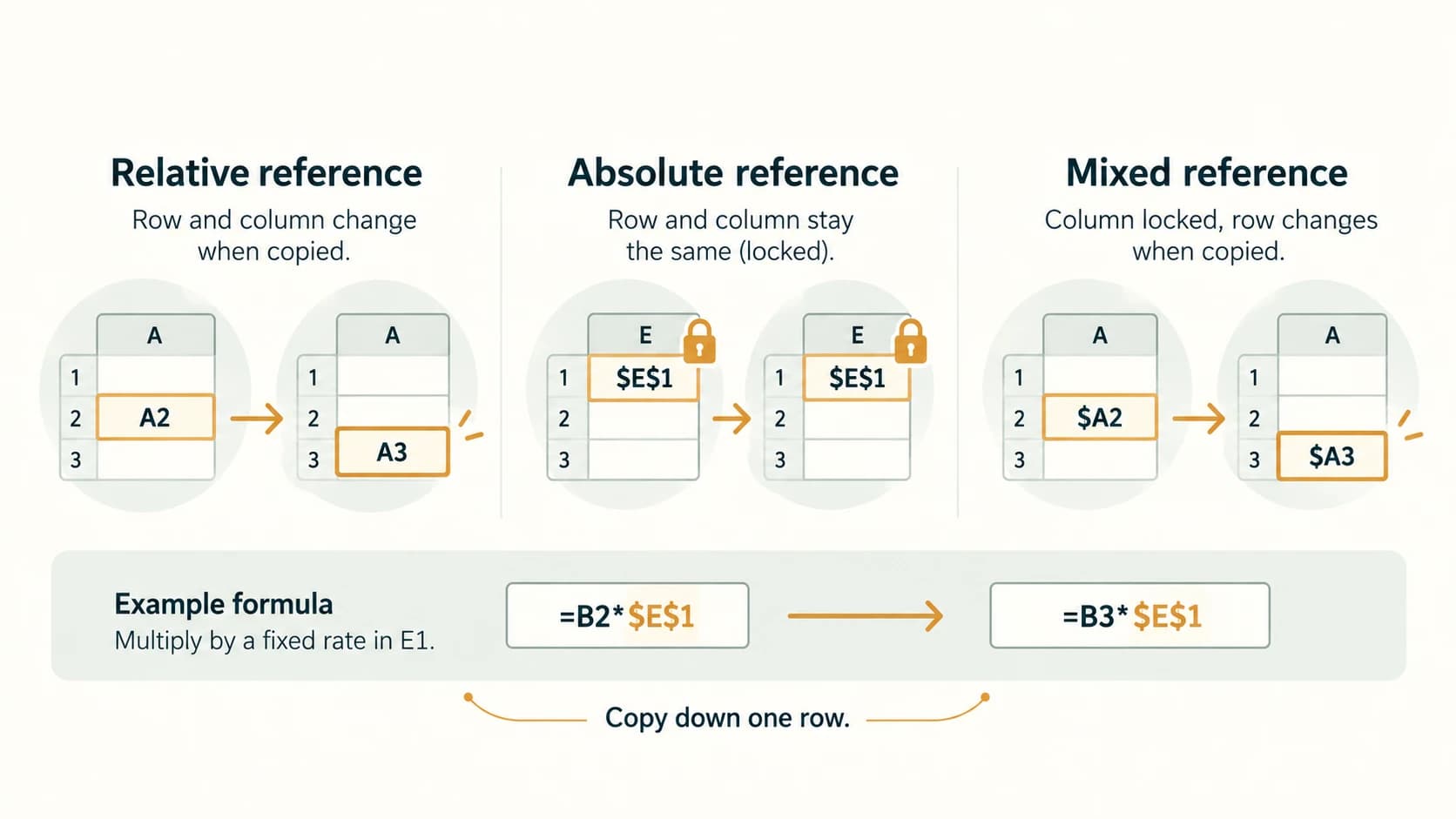
Values, labels, formulas and formatting
Cells may contain text, numbers, dates or formulas. A value like 00129 may need to remain text to preserve an identifier's leading zeros. Number formatting (currency, percentage, decimal places) changes how a value is displayed, but does not necessarily change the underlying value.
A formula calculates a result. In most Excel contexts it begins with =. The formula bar lets you view or edit the cell contents. The Name Box commonly identifies a selected cell or named range; the formula bar is not the same thing as the name box.
For example, if C2 stores numeric 900, a currency format may display ₹900.00. The stored number is still nine hundred; the rupee sign is part of the display format, not a second arithmetic value.
Important caution: Dates may be stored internally as serial values with date formatting. This can explain why date display and date calculations behave differently from plain text. Exam learners need not memorise exact serial-date systems at this stage.
Everyday spreadsheet operations
| Feature | Function | Simple example |
|---|---|---|
| Sort | Rearranges rows according to chosen values | Names A–Z; amounts high–low |
| Filter | Shows rows matching conditions while retaining other rows in the data | Show only departments marked “Accounts” |
| Fill handle / autofill | Copies values, formulas or recognised patterns | Extend a simple sequence |
| Find / Replace | Locates or changes matching entries | Replace one branch label |
| Freeze panes | Keeps designated rows/columns visible while scrolling | Keep headings visible |
| Chart | Visual representation of data | Column chart of monthly totals |
| Conditional formatting | Displays cells differently under stated rules | Highlight values above a threshold |
| Data validation | Helps restrict or guide acceptable entries | Allow a dropdown of authorised labels |
A chart does not verify the underlying data. A filter generally changes what is visible, not which records are actually present. Sorting one column without keeping the related rows together can corrupt a table's meaning; preserve whole records.
Simple banking-office worked example
Suppose a worksheet lists three simulated cash-counter totals: ₹1200, ₹800 and ₹450. The rows record individual amounts. A separate cell could calculate the total with a formula. Excel can also chart these amounts, but the chart is only a visual summary of the underlying table.
Spreadsheets are valuable for small and medium-sized organised calculations, yet do not automatically replace a controlled transactional banking database. Access control, validation, audit and authorised systems remain important.
A few practical good habits
Keep clear column headings, avoid merged cells in data tables where possible, preserve original values, and distinguish missing information from zero. Before sharing a sheet, check that totals and filters are correct and remove information that should not be disclosed. A worksheet that looks neat may still contain invalid entries or incorrect formulas.
Important terms
| Term | Plain meaning |
|---|---|
| Workbook | Spreadsheet document that can contain several sheets |
| Worksheet | One tabular grid within a workbook |
| Cell address | Intersection of column and row, e.g. C7 |
| Range | Block or selection of cells, e.g. B2:D5 |
| Active cell | Cell currently selected for input or editing |
| Formula bar | Area displaying/editing the current cell's contents |
| Chart | Visual display of selected data |
| Sort / filter | Rearrange rows / show matching rows |
Common confusions and exam traps
- Workbook ≠ worksheet: a workbook can hold multiple worksheets.
- Rows ≠ columns: rows are numbered horizontally; columns are lettered vertically in Excel's usual display.
- Format ≠ value: showing a currency symbol does not create an additional numeric amount.
- Filter ≠ delete: hidden-from-view rows may still exist.
- Sort ≠ calculate: sorting changes order, not arithmetic totals.
- CSV ≠ full workbook: CSV can carry tabular text but does not preserve all workbook sheets, formulas or styles.
Objective-exam facts to remember
| Exam prompt | Answer |
|---|---|
| Spreadsheet file holding sheets | Workbook |
| Single tab/grid in file | Worksheet |
| Column D and row 9 | D9 |
| Group of cells from A1 through B3 | A1:B3 |
| Display only rows meeting criteria | Filter |
| Arrange records in ascending order | Sort |
| Represent numbers visually | Chart |
| Keep header visible during scrolling | Freeze panes |
Quick revision
Memorise the relationship workbook → worksheet → cells. Read cell addresses as column letter + row number. A range includes its boundaries; sorting rearranges, filtering temporarily limits visible records, and formatting changes presentation rather than necessarily changing underlying values.
Practice questions — CA-05-02
1. What is a workbook in Excel terminology?
A. One number in a grid
B. The saved file that can contain worksheets
C. A graphical chart only
D. The active cell alone
2. Which description of a worksheet is correct?
A. A tabular grid within a workbook
B. A paper-only report
C. A keyboard shortcut
D. A video clip
3. What does the cell reference D7 identify?
A. Row D and column 7
B. Columns D through 7
C. Column D and row 7
D. The seventh worksheet
4. How many cells belong to range A1:B3?
A. 3
B. 4
C. 5
D. 6
5. Which feature displays only rows meeting a chosen condition without necessarily deleting other rows?
A. Sorting
B. Filtering
C. Spelling check
D. Slide transition
6. What does sorting a complete table by amount normally do?
A. Changes order of records
B. Sums the amounts
C. Removes all formatting
D. Calculates a monthly average
7. Which feature helps keep column headings visible while scrolling down a long worksheet?
A. Track Changes
B. Slide Show
C. Freeze Panes
D. Mail Merge
8. A cell contains 900, then a currency format displays ₹900.00. What is normally true?
A. The stored value doubled
B. Currency formatting changed display, not necessarily value
C. The cell is now text only
D. The workbook became a PDF
9. Where would the contents of a selected Excel cell usually be visible for editing?
A. Slide Master
B. Ribbon title bar only
C. Printer tray
D. Formula bar
10. Which feature visually represents numerical data such as monthly totals?
A. Chart
B. File extension
C. Section break
D. Device driver
11. A code 00129 must keep its leading zeroes exactly. What data treatment is usually safest?
A. Use integer 129
B. Store as text or an appropriately managed identifier
C. Always convert to percentage
D. Sort descending
12. What happens when you save a multi-sheet workbook as a simple CSV?
A. All formulas, tabs and charts remain identical
B. CSV automatically adds password protection
C. Some workbook features and additional sheets are not retained
D. The file becomes a slide show
Answers and explanations — CA-05-02
1. B — The saved file that can contain worksheets. A workbook is the spreadsheet document; it may contain multiple worksheets.
2. A — A tabular grid within a workbook. A worksheet is the row-and-column grid used for storing and analysing data.
3. C — Column D and row 7. In A1-style references, letters identify columns and numbers identify rows.
4. D — 6. The rectangle has 2 columns and 3 rows, so 2 × 3 = 6 cells.
5. B — Filtering. A filter controls which records are visible; rows outside the condition remain in the underlying data.
6. A — Changes order of records. Sorting rearranges rows according to the chosen key; it does not calculate totals.
7. C — Freeze Panes. Freeze Panes can keep selected rows or columns visible as the rest of the sheet moves.
8. B — Currency formatting changed display, not necessarily value. Number formats usually change the appearance of the value rather than the stored amount.
9. D — Formula bar. The formula bar shows or enables editing of the selected cell's contents.
10. A — Chart. A chart makes patterns in selected data easier to see, but does not validate the numbers.
11. B — Store as text or an appropriately managed identifier. Identifiers that look numeric may require text representation so leading zeros are preserved.
12. C — Some workbook features and additional sheets are not retained. CSV stores delimited tabular text rather than the complete workbook structure.