
Word Processing Concepts and MS Word Basics
Word Processing Concepts and MS Word Basics. Foundational Computer Awareness explanations, examples and explained practice questions for banking and recruitment exam preparation.
By Akhilesh Saini
What you will learn
- What word processing software is designed to do.
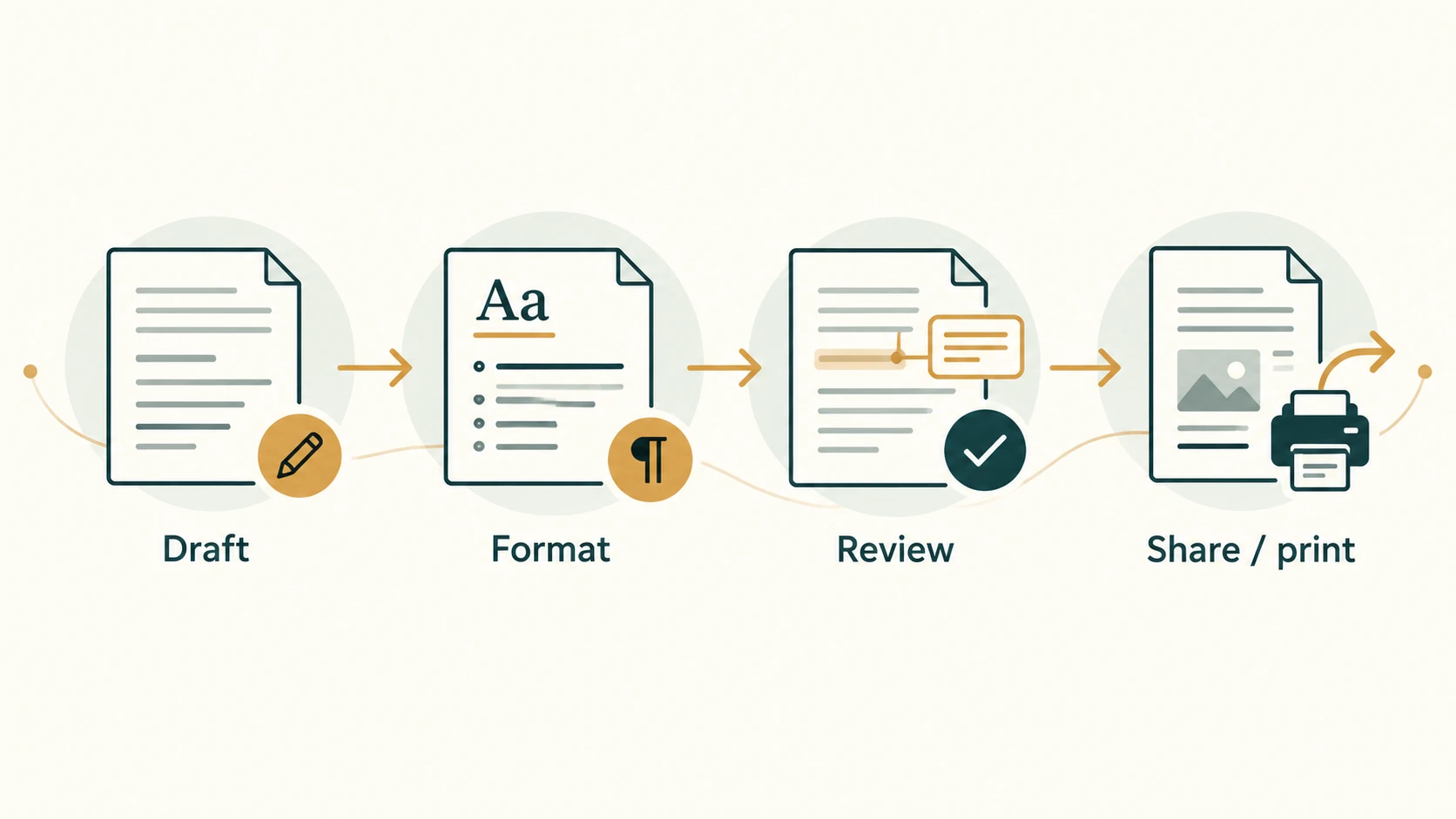
- Basic editing, character formatting, paragraph formatting and page layout.
- Styles, tables, headers and footers, spell-checking and review features.
- The meaning of mail merge and how it differs from ordinary copying.
Why this topic matters
A bank office may use a word processor to prepare circulars, reports, letters and notices. In exams, word processing is often confused with spreadsheets or plain-text editors. Questions may also ask what mail merge, Track Changes, Find and Replace or a header does.
What is a word processor?
A word processor is application software for creating, editing, formatting, storing and printing text-based documents. Microsoft Word is one example; LibreOffice Writer and browser-based word processors perform similar core tasks. A word processor handles more than the characters you type: it can organise headings, paragraphs, lists, tables and pages.
A plain-text editor mainly handles text characters without rich presentation formatting. In contrast, a word-processing document can preserve fonts, bold text, paragraph spacing, page margins, images, tables and other layout information. A PDF often preserves the appearance of a document for sharing, but is not ordinarily the source used for extensive Word-style editing.
Understand the workspace
| Part or concept | What it means | Typical use |
|---|---|---|
| Document | The file being edited | Notice, report or letter |
| Ribbon / tabs | Grouped commands in many Word versions | Home, Insert, Layout, Review |
| Insertion point / cursor | Where typed text will appear | Add a sentence |
| Selection | Highlighted text or object | Make a phrase bold |
| Status information | Information about the document | Page or word count |
| Quick access / toolbar | Shortcut controls | Save, undo |
| Navigation / Find | Locate text or headings | Find a customer-service term |
Concept to understand: The cursor's location, the currently selected text and the selected command together determine what changes. Formatting a selection affects that selection; formatting with no selection may affect new text typed at the cursor.
Editing and formatting are different
Editing changes content: inserting, deleting, moving or replacing words. Formatting changes the presentation of content, such as boldface or line spacing. Common operations include:
- Cut / Copy / Paste: move or duplicate selected content using the clipboard. Cut normally removes the selection from its original position; copy does not.
- Undo / Redo: reverse a recent edit or restore an undone edit when supported.
- Find / Replace: locate a term; Replace can substitute matching text after the user confirms the intended scope.
- Spelling and grammar assistance: suggest corrections; suggestions can be wrong, particularly for names and specialised words.
- Bold, italic, underline, font and size: character-level appearance.
- Alignment, indentation, line spacing, bullets and numbering: paragraph-level appearance.
A paragraph typically ends where the paragraph mark is inserted (commonly by pressing Enter). A manual line break starts a new line without necessarily starting a new paragraph; in desktop Word on Windows, Shift+Enter is a familiar way to insert it. A page break begins content on a later page; it is not the same as repeatedly pressing Enter until a new page happens to appear.
Styles and document structure
A style is a named collection of formatting settings. For example, applying a Heading 1 style makes a heading consistent with other Heading 1 headings. Styles are better than manually resizing and bolding every heading because they improve consistency and can support navigation and automatic tables of contents.
A table organises text and numbers into rows and columns inside the document. Word can contain tables, but Excel is generally the more appropriate tool for formulas and extensive numerical analysis.
A header is a recurring region near the top of a page; a footer is near the bottom. They may contain a report title, confidentiality marking or page number. They are not identical to the top or bottom page margin, which describes reserved space around page content.
Page layout and review
Page setup can include paper size, orientation, margins and paragraph/page breaks. Portrait is taller than it is wide; landscape is wider than it is tall. A section break can allow different formatting in different parts of a document—for example, changing a wide table's section to landscape while keeping surrounding pages portrait.
Comments let reviewers leave notes. Track Changes records edits for review so that a document owner can accept or reject them. It is not simply a spelling checker or a history of every action ever performed by the computer. Word count measures document words; it does not verify the quality or correctness of the writing.
Mail merge: one template, many personalised outputs
Mail merge combines a main document (common wording and layout) with a data source (recipient-specific details). It produces multiple personalised outputs—for example, letters that have identical body text but different recipient names and addresses.
<small>Worked illustration:</small> A bank wants to send a workshop invitation to three employees. The letter contains the common sentence “You are invited to the training session.” A small worksheet holds the fields Name and Department. Word inserts each recipient's fields into a personalised letter. The recipients' actual details must be correctly authorised and protected.
Mail merge can also assist with labels and envelopes depending on the application. It does not itself guarantee delivery of a message or correctness of the recipient list.
Important terms
| Term | Meaning |
|---|---|
| Word processor | Software for writing and formatting documents |
| Document | Saved collection of document content and formatting |
| Clipboard | Temporary area used by cut/copy/paste operations |
| Style | Reusable set of text or paragraph formatting rules |
| Header / footer | Repeating regions at the top / bottom of pages |
| Mail merge | Template plus data source yielding personalised documents |
| Track Changes | Review feature for recording proposed edits |
| Page break | Explicit instruction to start a new page |
| Section break | Divider allowing different layout settings by section |
Common confusions and exam traps
- Word is not a spreadsheet: Word can display a table, but Excel is intended for workbook-based calculations.
- Mail merge is not ordinary find-and-replace: it inserts fields from a structured recipient list into repeated documents.
- Header ≠ heading: a heading labels a content section; a header is a page-region feature.
- Page break ≠ section break: a section can have different layout settings.
- Save ≠ export to PDF: the editable document and the sharing copy can have different file types.
- Track Changes ≠ automatic proof of correctness: it records proposed edits; people must review them.
Objective-exam facts to remember
| Question clue | Exam-level answer |
|---|---|
| Prepare formatted letters and reports | Word processor |
| Insert personalised recipient fields | Mail merge |
| Consistent formatting for headings | Styles |
| Place repeated matter at page bottom | Footer |
| Record edits for acceptance/rejection | Track Changes |
| Locate a phrase and substitute it | Find and Replace |
| Insert explicit new-page boundary | Page break |
Quick revision
A word processor works with documents. Differentiate editing from formatting; use styles for consistency, headers/footers for repeating page material, and mail merge for repeated personalised documents. A page break starts a page; a section break can change layout options across sections.
Practice questions — CA-05-01
1. Which software is primarily intended for formatted letters and reports?
A. Spreadsheet editor
B. Word processor
C. Image decoder
D. Database server
2. Which feature combines a common invitation letter with a list of recipient names?
A. Track Changes
B. Page setup
C. Mail merge
D. Slide Master
3. In a word-processing document, what is normally a footer?
A. The first heading
B. A repeating area near the page bottom
C. The text caret
D. The right margin
4. Which operation most directly changes the wording rather than its visual appearance?
A. Replace a phrase
B. Apply bold
C. Change font size
D. Increase line spacing
5. A reviewer wants to suggest edits that can later be accepted or rejected. What helps?
A. Thesaurus only
B. Word count
C. Track Changes
D. Page orientation
6. Why is a Heading 1 style useful?
A. It encrypts a paragraph
B. It guarantees no spelling errors
C. It standardises headings and assists structure
D. It converts a file to PDF
7. A wide table should be on a differently oriented part of a Word report. What may help?
A. Section break and layout settings
B. Spell-checking
C. Clipboard history only
D. Deleting all page numbers
8. Which command finds specified wording and substitutes new wording?
A. Slide Sorter
B. Find and Replace
C. Fill Handle
D. Zoom
9. What is a major difference between Copy and Cut?
A. Copy removes the source text
B. Cut is only for charts
C. Cut normally removes the selection; Copy keeps it
D. Copy permanently encrypts text
10. Which statement about spell-checking is most accurate?
A. Every suggested replacement is correct
B. It can suggest corrections but may misjudge names
C. It guarantees legal accuracy
D. It only works in spreadsheets
11. Which statement best describes a page break?
A. It changes paper thickness
B. It makes a heading bold
C. It explicitly begins a following page
D. It is identical to a section break
12. What is the best tool for a document with headings, paragraphs and a simple embedded table?
A. Word processor
B. Network router
C. Antivirus signature updater
D. Printer driver only
Answers and explanations — CA-05-01
1. B — Word processor. A word processor is designed for text-based documents with rich formatting and page layout.
2. C — Mail merge. Mail merge inserts recipient-specific fields from a data source into a main document.
3. B — A repeating area near the page bottom. A footer is a page region, often used for page numbers or recurring information.
4. A — Replace a phrase. Replacing a phrase edits content; the other choices change formatting.
5. C — Track Changes. Track Changes records proposed insertions and deletions for review.
6. C — It standardises headings and assists structure. Styles apply reusable formatting and can assist navigation or a table of contents.
7. A — Section break and layout settings. A section break can allow selected document sections to use different layout properties.
8. B — Find and Replace. Find and Replace targets matching text in a document.
9. C — Cut normally removes the selection; Copy keeps it. Both place content on the clipboard, but Cut normally removes it from the original position.
10. B — It can suggest corrections but may misjudge names. Spelling tools assist proofreading but do not reliably validate specialised terms or factual meaning.
11. C — It explicitly begins a following page. Page breaks start new pages, while section breaks can also separate differing layout rules.
12. A — Word processor. Word processors handle prose and formatted tables; extensive numeric analysis belongs in spreadsheet tools.