
Printing, Page Setup and Basic Document Operations
Printing, Page Setup and Basic Document Operations. Foundational Computer Awareness explanations, examples and explained practice questions for banking and recruitment exam preparation.
By Akhilesh Saini
What you will learn
- The differences among Save, Save As, export, print and print preview.
- Paper size, margins, orientation and page-range controls.
- The meanings of copies, duplex, collate, scaling and print area.
- How to avoid common document-printing mistakes.
Why this topic matters
Word reports, Excel sheets and presentation handouts are often printed or exported to PDF. Exam questions may ask which setting changes a page from portrait to landscape, what duplex printing means, or why Fit to Page can produce unexpectedly small text.
The document's journey
A useful document normally moves from create/edit to save, then optionally to export/share or print. These are related but separate operations.
| Operation | What it does |
|---|---|
| Save | Records changes in the current document file, subject to app behaviour |
| Save As | Creates a named/versioned copy or saves in another supported format/location |
| Export | Produces a different output type, e.g. PDF |
| Print Preview | Shows approximate printed layout before committing to paper |
| Sends selected pages/sheets to a printing device or configured destination | |
| Print to PDF | Produces a PDF through a virtual printer instead of physical paper |
Autosave and online synchronisation features vary by product and file location. They can reduce loss of edits but do not remove the need to verify a file's location, permissions, sharing settings and version state.
Page setup: paper, orientation and margins
Paper size describes the intended sheet dimensions (for example, A4). Margins reserve space around the page. Portrait orientation has the page taller than wide; landscape orientation has it wider than tall. Changing font size is not the same as changing paper size. Header/footer locations and section layout can affect the usable space.
If a wide table would be cramped on a portrait page, landscape orientation may help. Changing to landscape does not increase the printer's physical paper dimensions; it changes how the page content is oriented relative to the sheet.
Printing choices you should recognise
| Setting | Meaning | Caution |
|---|---|---|
| Printer / destination | Output device or PDF destination | Check correct destination before printing |
| Copies | Number of copies to print | 3 means three copies of the selected set |
| Page range | Only selected pages or all pages | Page numbers depend on document and app |
| One-sided / duplex | One or both faces of paper | Duplex requires appropriate device/settings |
| Collate | Keep pages of each copy in sequence | Useful for multi-page sets |
| Orientation | Portrait or landscape | Can differ by section or page setup |
| Scaling / Fit | Resize content to fit paper/pages | May make text tiny |
| Print area (Excel) | Chosen cells/sheet area to print | Not the same as filtering rows |
| Print selection | Print only selected material if supported | May differ from entire document |
Collation example: You print two copies of a three-page report. Collated order is 1,2,3,1,2,3; uncollated order is 1,1,2,2,3,3.
Print and layout in different Office tools
In Word, page breaks and sections affect where material lands. Word can present a readable multi-page report with margins, page numbers, headers and footers. You can generally use print preview to spot clipped tables, bad page breaks or wrongly oriented pages.
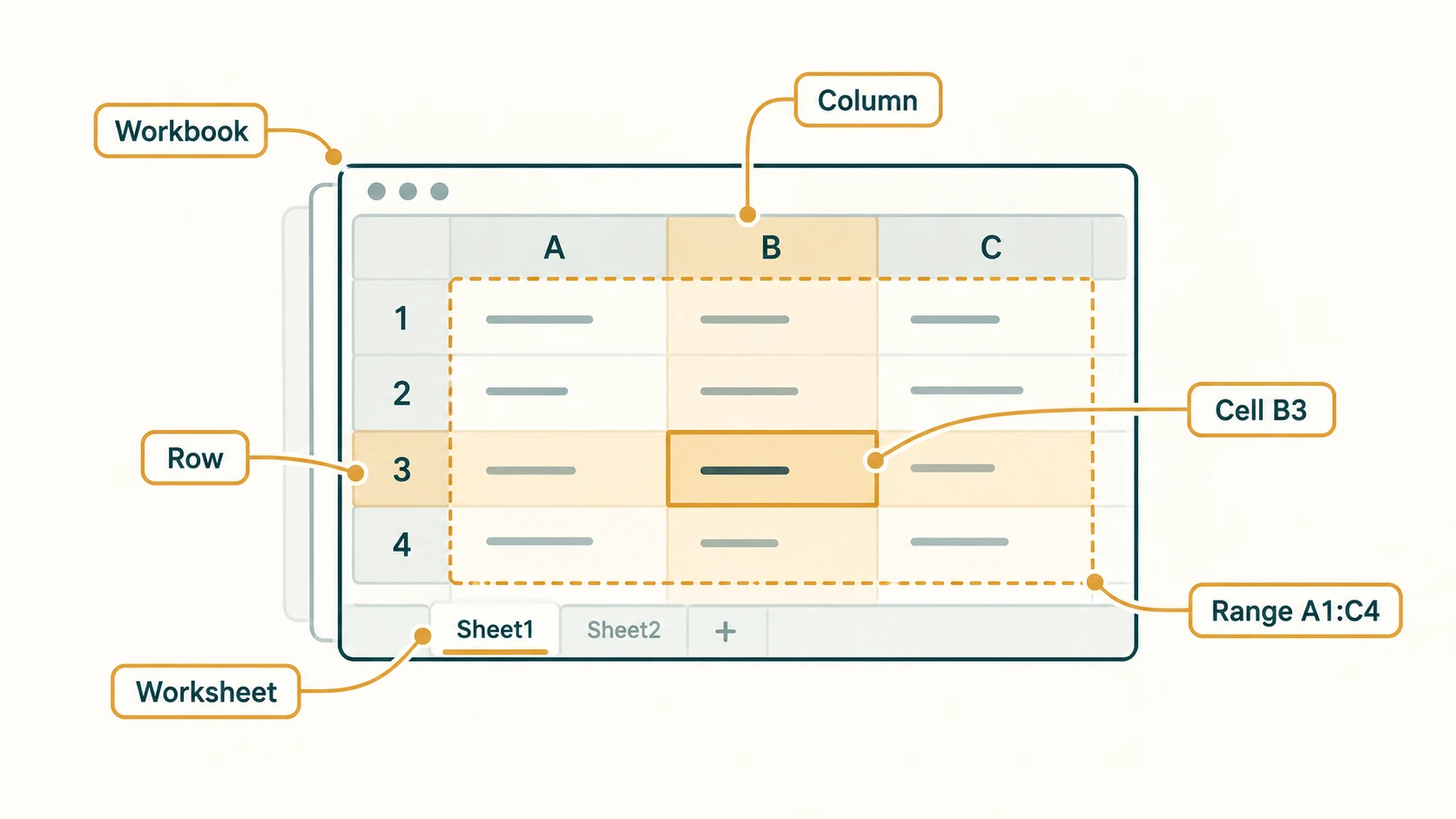
In Excel, a worksheet can extend far beyond a standard sheet of paper. Options such as print area, page breaks, scaling and repeating header rows help organise printouts. Setting “fit all columns on one page” may reduce the size of text considerably; inspect the result instead of assuming it will be readable.
In PowerPoint, a user can print slides, notes or handout layouts depending on supported options. A slide is not automatically the same physical page as an A4 portrait document; page-size and handout options determine how it appears on paper.
Worked example: print a fictional office report
A three-page report includes a wide table on the second page. The author saves the editable file, uses an appropriate landscape section for the table if necessary, checks the preview and prints two collated copies. Finally, the author exports a PDF for sharing with colleagues who only need to read or print the report. The team checks that the file does not expose restricted details.
A separate example: an Excel worksheet has 24 columns. Choosing a one-page-wide option may shrink the text too much. A better choice could be adjusting column widths, choosing landscape, choosing which columns matter, or allowing multiple printed pages.
Important terms
| Term | Plain meaning |
|---|---|
| Print preview | Approximate view of printed result |
| Orientation | Page direction: portrait or landscape |
| Margin | Reserved space around page content |
| Duplex | Use of both paper sides when supported |
| Collate | Arrange copies into complete ordered sets |
| Page range | Selection of pages to print |
| Scaling | Enlarging/reducing content for a page |
| Print area | Selected region of a worksheet for printing |
Common confusions and exam traps
- Save ≠ Print: saving stores changes; printing sends output to a destination.
- Save As ≠ automatic PDF conversion: output format depends on the choice made.
- Landscape ≠ bigger paper: orientation changes page layout, not necessarily physical size.
- Duplex ≠ multiple copies: duplex uses both paper sides; copies changes quantity.
- Collate ≠ staple: collation orders pages; it does not necessarily bind them.
- Fit to one page ≠ preserve readability: text may shrink significantly.
- Print Preview ≠ a guarantee: printer settings and device behaviour still matter.
Objective-exam facts to remember
| Question clue | Answer |
|---|---|
| Print on both sides | Duplex |
| Page wider than tall | Landscape |
| Page taller than wide | Portrait |
| White space around the page | Margins |
| Ordered complete page sets | Collate |
| View likely page layout before paper output | Print Preview |
| Print only designated worksheet cells | Print area |
| Store edits in current source file | Save |
Quick revision
Use Save to preserve work, Export / Print to PDF to distribute layout-stable output, and Print Preview to review how the document will appear. Check orientation, margins, page range, scaling, duplex and collation, particularly when printing wide spreadsheets or confidential office records.
Practice questions — CA-05-07
1. Which operation records edits in the current document file?
A. Print
B. Save
C. Slide transition
D. Filter
2. Which tool lets you inspect approximate page layout before printing?
A. Mail Merge
B. Freeze Panes
C. Print Preview
D. Device Manager
3. Which orientation normally makes the page wider than it is tall?
A. Landscape
B. Portrait
C. Duplex
D. Collated
4. Which setting describes the blank reserved space around page content?
A. Slide transition
B. Autofill
C. Relative reference
D. Margin
5. What does duplex printing mean?
A. Printing twice as many copies
B. Printing on both faces of paper when supported
C. Printing only the first page
D. Exporting the file as CSV
6. Two copies of pages 1,2,3 are requested with Collate enabled. Which is the normal output order?
A. 1,1,2,2,3,3
B. 3,3,2,2,1,1
C. 1,2,3,1,2,3
D. 1,3,2,1,3,2
7. Which choice describes two uncollated copies of pages 1,2,3?
A. 1,1,2,2,3,3
B. 1,2,3,1,2,3
C. 3,2,1,3,2,1
D. 1,2,1,3,2,3
8. Why can Excel's Fit to One Page option be problematic?
A. It turns every number into text
B. It changes rows into columns
C. It removes all charts automatically
D. It may shrink the printed text too much
9. Which option selects particular worksheet cells for output?
A. Track Changes
B. Print area
C. Slide Sorter
D. Mail merge
10. Which operation creates a PDF from an editable Word file?
A. Sorting its paragraphs
B. Changing its filename suffix only
C. Exporting/saving in PDF format
D. Selecting all text
11. An author wants only pages 2 to 4 of a long report printed. Which setting matters?
A. Page range
B. Text colour
C. Spreadsheet sorting
D. Slide Master
12. Which statement about printing is most reliable?
A. Preview guarantees identical output on every printer
B. Save is identical to Print
C. Landscape automatically doubles paper size
D. Printer choice, scaling and page settings should be reviewed
Answers and explanations — CA-05-07
1. B — Save. Save writes the document changes into the chosen file/location under the app's rules.
2. C — Print Preview. Print Preview shows how pages are expected to appear with selected output settings.
3. A — Landscape. Landscape has a greater horizontal dimension than vertical dimension.
4. D — Margin. Margins are areas between page content and page edges.
5. B — Printing on both faces of paper when supported. Duplex means double-sided output, if the printer and settings support it.
6. C — 1,2,3,1,2,3. Collation creates each complete page set in sequence before the next copy.
7. A — 1,1,2,2,3,3. Uncollated output groups copies of each page rather than complete sets.
8. D — It may shrink the printed text too much. Scaling many rows/columns onto limited paper can reduce readability.
9. B — Print area. A defined print area limits which worksheet region is printed.
10. C — Exporting/saving in PDF format. An actual PDF export changes the file representation; merely renaming an extension does not.
11. A — Page range. The page-range selection determines which pages are sent to print.
12. D — Printer choice, scaling and page settings should be reviewed. Output depends on the printer/destination and selected layout controls.