
Cloud Storage and Web Applications
Cloud Storage and Web Applications. Foundational Computer Awareness explanations, examples and explained practice questions for banking and recruitment exam preparation.
By Akhilesh Saini
What you will learn
- What cloud storage and web applications do.
- How file synchronization, online sharing and backups differ.
- Why permission settings matter when sharing files online.
- How web apps differ from installed desktop apps without oversimplifying the distinction.
Why this topic matters
Students may be asked which option stores files on remote servers or which application is accessed mainly through a browser. Office users also need to know that syncing a file across devices does not necessarily preserve a recoverable older version after accidental deletion.
Cloud storage: files held on remote services
Cloud storage is a service that keeps data on storage infrastructure managed through a provider, accessible over a network subject to accounts, permissions and service availability. A student may upload notes and retrieve them on a different authorized device. A team may share a project folder with named members.
The word cloud is a convenient way of describing remotely delivered computing resources; it does not mean that data floats without physical hardware. Storage still resides on physical devices in managed data centers. The specific infrastructure and location depend on the service.
Examples of services that offer online file storage or collaboration include Google Drive, Microsoft OneDrive and Dropbox. Their detailed quotas and features can change, so this lesson focuses on the concepts.
Uploading, syncing, sharing and backing up
These actions are related but not synonymous.
| Action | What it means | Everyday example |
|---|---|---|
| Upload | Send a file from device to service | Add assignment PDF to cloud account |
| Download | Receive a file onto a device | Save cloud document for offline reading |
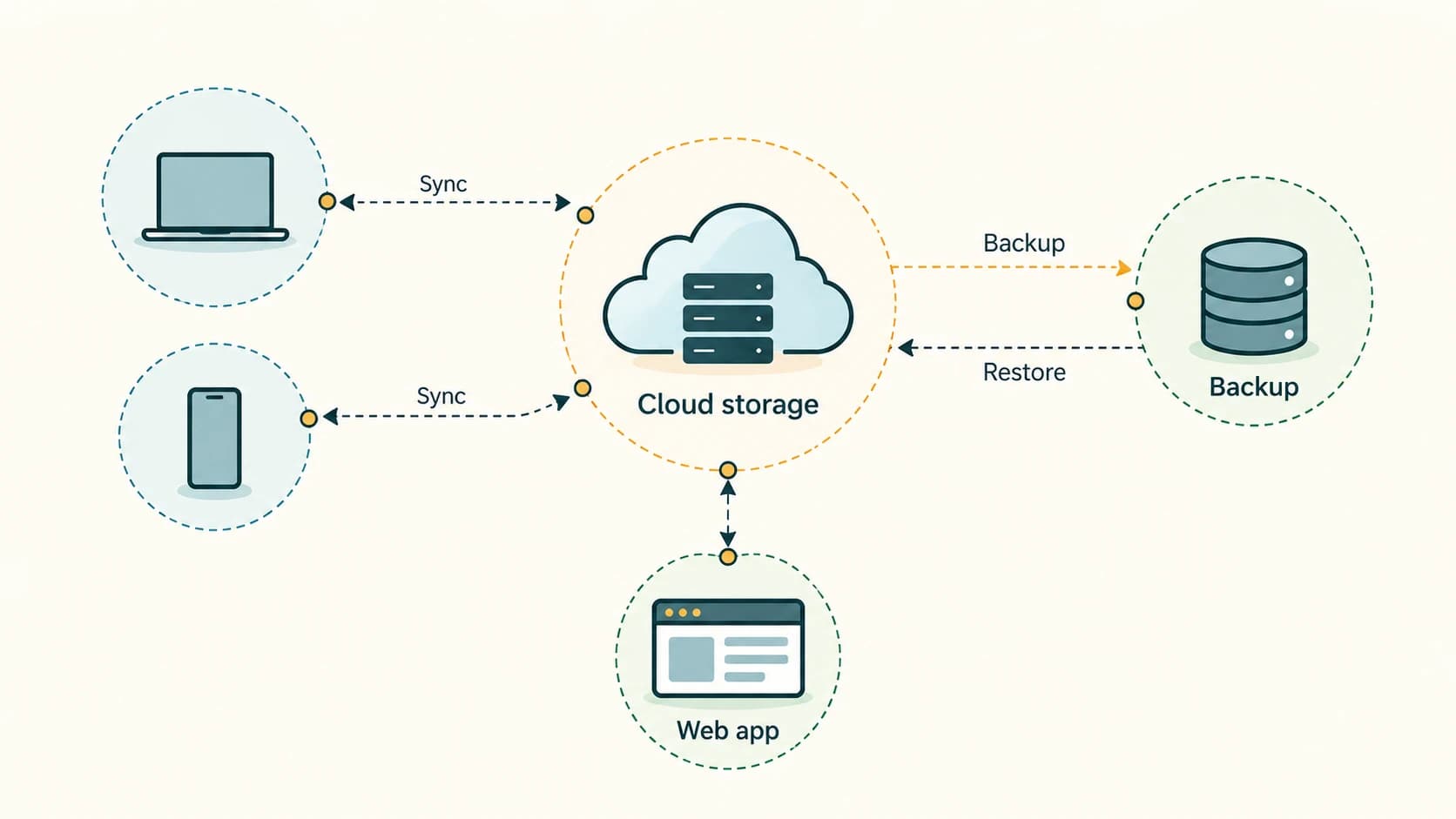
| Sync | Keep designated copies/states coordinated | Edit a file on laptop and see update on phone |
| Share | Allow another person to access file/folder | Give project team view permission |
| Backup | Maintain recoverable copies against loss/error | Keep separate versioned copy of important records |
Critical distinction: A sync service may propagate deletions or unwanted changes to other synced devices. Therefore synchronization alone is not a complete backup strategy. A proper backup plan considers separate recovery copies, version history, retention and restoration testing.
Permissions and links
When sharing online storage, common access controls include:
- View/read — recipient can inspect the shared item.
- Comment — recipient can add feedback where supported.
- Edit — recipient can change the shared content and sometimes its structure.
- Owner/admin — broader control over item settings and membership.
These permissions vary among services. A link labeled Anyone with the link may enable broader access than sharing with specifically named users. An “anyone” link is not automatically private just because it is hard to guess; it can be forwarded. Always verify sharing settings before exposing internal or personal information.
What is a web application?
A web application is software accessed through web technologies, usually in a browser, with interactive functions beyond simply reading a static document. Examples include webmail, online document editing, application portals and browser-based dashboards. Some web apps can also offer offline behavior through caching or progressive web application features.
A desktop/mobile installed application usually runs as an app on the device, although it may depend on a remote service for logins, updates or stored information. Many modern services offer both web and installed clients, so the distinction is not that one is always online and the other always offline.
Example: Filling out an online admission form is using a web application. Reading a fixed published PDF in a browser is more likely basic web-resource viewing, even though the browser itself is software.
SaaS and cloud concepts: awareness level
SaaS stands for Software as a Service. It typically means using application software provided as a service over a network rather than managing the provider's underlying application infrastructure yourself. Browser-based office suites and webmail are common illustrations, though some SaaS also offers installed client applications. Detailed service models — SaaS, PaaS and IaaS — appear in CA-10-01.
Worked examples
Example 1 — Same document, two devices: A student edits a synced online document from a laptop and the updated version appears on a phone. This is synchronization of file state through a service.
Example 2 — Recovering an accidental deletion: A synced deletion may propagate. Recovery may require a backup or a provider's retained version/trash feature, if available.
Example 3 — Share link: A tutor shares a read-only folder with students. Read-only access should prevent normal editing, but actual downloading/copying restrictions depend on the platform.
Example 4 — Banking employee work: A secure organization-controlled web app may let employees submit requests. Login and role permissions determine access; the fact that the software runs in a browser does not automatically make its data public.
Example 5 — Cloud without constant network access: Some applications can cache files for offline work and later synchronize changes. Offline availability depends on the app and its configuration.
Important terms
| Term | Meaning |
|---|---|
| Cloud storage | Remotely managed file/data storage service |
| Sync | Keeping copies or states coordinated |
| Backup | Recoverable copy retained against data loss |
| Version history | Earlier saved revisions, when supported |
| Share link | URL granting or requesting access to a resource |
| Read-only | Permission without normal editing rights |
| Web application | Interactive software delivered through web technologies |
| SaaS | Software as a Service |
| Offline access | Using saved/cached resources without an active connection |
| Collaboration | Multiple permitted users working on shared material |
Common confusions and exam traps
- Cloud storage uses real hardware. “Cloud” refers to how resources are provided and managed.
- Sync ≠ guaranteed backup. Mistakes can propagate to synchronized devices.
- Share ≠ upload. You may upload a file without granting anyone else permission to view it.
- SaaS ≠ every downloaded app. SaaS describes delivery and management of software as a service, not simply having Internet access.
- Web apps can be access-restricted. Being browser-accessible does not necessarily make content public.
- Web app ≠ search engine. A web application can do forms, calculations and editing rather than search.
Objective-exam facts to remember
| Clue | Answer |
|---|---|
| Files stored on provider-managed remote infrastructure | Cloud storage |
| Coordinating copies across devices | Synchronization |
| Recoverable independent copy | Backup |
| Right to see but not change | View/read-only permission |
| Browser-based interactive software | Web application |
| Software delivered as a managed service | SaaS |
| Earlier saved changes available for recovery | Version history (where supported) |
Quick revision
- Cloud storage provides remote data storage over a network.
- Uploading adds data; syncing coordinates copies; sharing grants access; backup supports recovery.
- Permission settings matter more than whether a link looks private.
- Web apps use web technologies for interactive tasks.
- SaaS concerns software delivery and management, not merely storing one file online.
Practice questions — CA-06-07
1. Cloud storage primarily enables users to:
A. Store data on remotely managed infrastructure
B. Remove the need for physical servers worldwide
C. Guarantee no data loss regardless of configuration
D. Replace all network protocols
2. Keeping selected file states coordinated between devices is:
A. DNS resolution
B. Synchronization
C. Compilation
D. Collation
3. Which action most directly provides a recoverable copy against accidental loss?
A. Publishing a link
B. Renaming extension
C. Backup
D. Changing font
4. Why may synchronization alone be insufficient as backup?
A. Sync uses no network
B. Files cannot be opened offline
C. Cloud servers have no storage
D. Unwanted changes/deletions may propagate
5. A permission allowing a person to inspect but not normally modify a file is:
A. View/read-only
B. Owner/admin
C. Edit
D. Delete
6. Which activity is a web application example?
A. An offline paper notebook
B. Completing an interactive online application form
C. Plugging in a USB flash drive
D. A CPU transistor
7. SaaS expands to:
A. Storage and Access System
B. Software as a Server
C. Software as a Service
D. Secure App Storage
8. A shared link set to “Anyone with the link” may:
A. Prove ownership of the file
B. Guarantee end-to-end encryption
C. Prevent forwarding forever
D. Allow more people to access than explicitly named users
9. Which term refers to earlier saved revisions of a file when a service supports them?
A. Version history
B. URL scheme
C. MAC address
D. Bandwidth
10. Uploading a file to cloud storage without granting anyone access means:
A. The file is necessarily a public website
B. Upload does not automatically imply sharing
C. Everyone can edit it
D. It can never be downloaded
11. Cloud storage always means data:
A. Lives only on a phone
B. Exists without any hardware
C. Resides on physical infrastructure operated by a provider
D. Is automatically a certified backup
12. Which is the best distinction between a web app and installed app?
A. Web apps cannot use accounts
B. Installed apps never use the Internet
C. Every web app must be public
D. A web app uses web technologies, while installed apps run as local applications and may also use online services
Answers and explanations — CA-06-07
1. A — Store data on remotely managed infrastructure. Cloud services use real remotely managed hardware to provide storage.
2. B — Synchronization. Sync tries to propagate changes across designated copies/devices.
3. C — Backup. A backup supports recovery; ideally it is isolated/versioned appropriately.
4. D — Unwanted changes/deletions may propagate. Sync can copy errors and deletions to other devices, so separate recovery is important.
5. A — View/read-only. View permission allows access without ordinary editing rights.
6. B — Completing an interactive online application form. Interactive online forms delivered through web technologies are web applications.
7. C — Software as a Service. SaaS stands for Software as a Service.
8. D — Allow more people to access than explicitly named users. A broadly shared link can be passed to other people; inspect its settings.
9. A — Version history. Version history can help restore earlier revisions where retention settings permit.
10. B — Upload does not automatically imply sharing. Uploading stores data; permissions independently determine sharing.
11. C — Resides on physical infrastructure operated by a provider. Remote provider infrastructure still uses physical storage devices.
12. D — A web app uses web technologies, while installed apps run as local applications and may also use online services. Both models can connect to remote services and some products offer both interfaces.